Poll meetings
Poll Meetings feature allows you to create and conduct polls to find the best time for a meeting.
With this feature, users can create polls directly by selecting the meeting details, duration, preferred dates and time slots. Poll Meetings also enables customization, including the option for participants to view each other's names and votes during the selection process.
Please note that the Poll Meetings feature is available on Standard and Professional plan.
Step 1: Create a New Poll
1. Navigate to the Meeting Types tab -> Poll meetings.

2. Click Create New Poll.
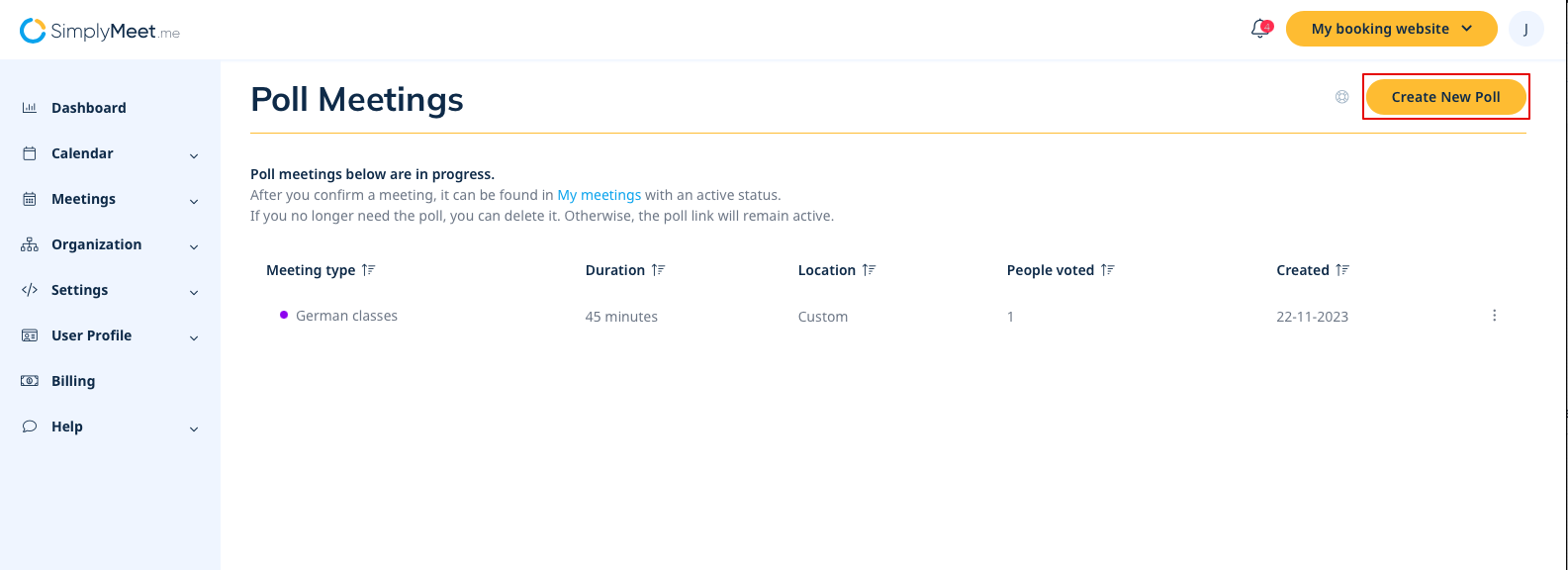
3. Enter the Poll name and select the Duration.
Flexible duration is always enabled for Poll Meetings. You can select one of the preset durations:
- 15 minutes
- 30 minutes
- 45 minutes
- 60 minutes
- Custom duration
.
4. Add a description if needed.
5. Select the Location for the meeting. You can choose a video meeting tool, phone, in-person, or enter a custom location.
6. Configure the available Poll settings:
- Vote visibility — allow invitees to see each other's emails and votes.
- Email notification — receive an email notification when a participant responds to the poll.
- Add comment field — allow invitees to leave a comment when voting.

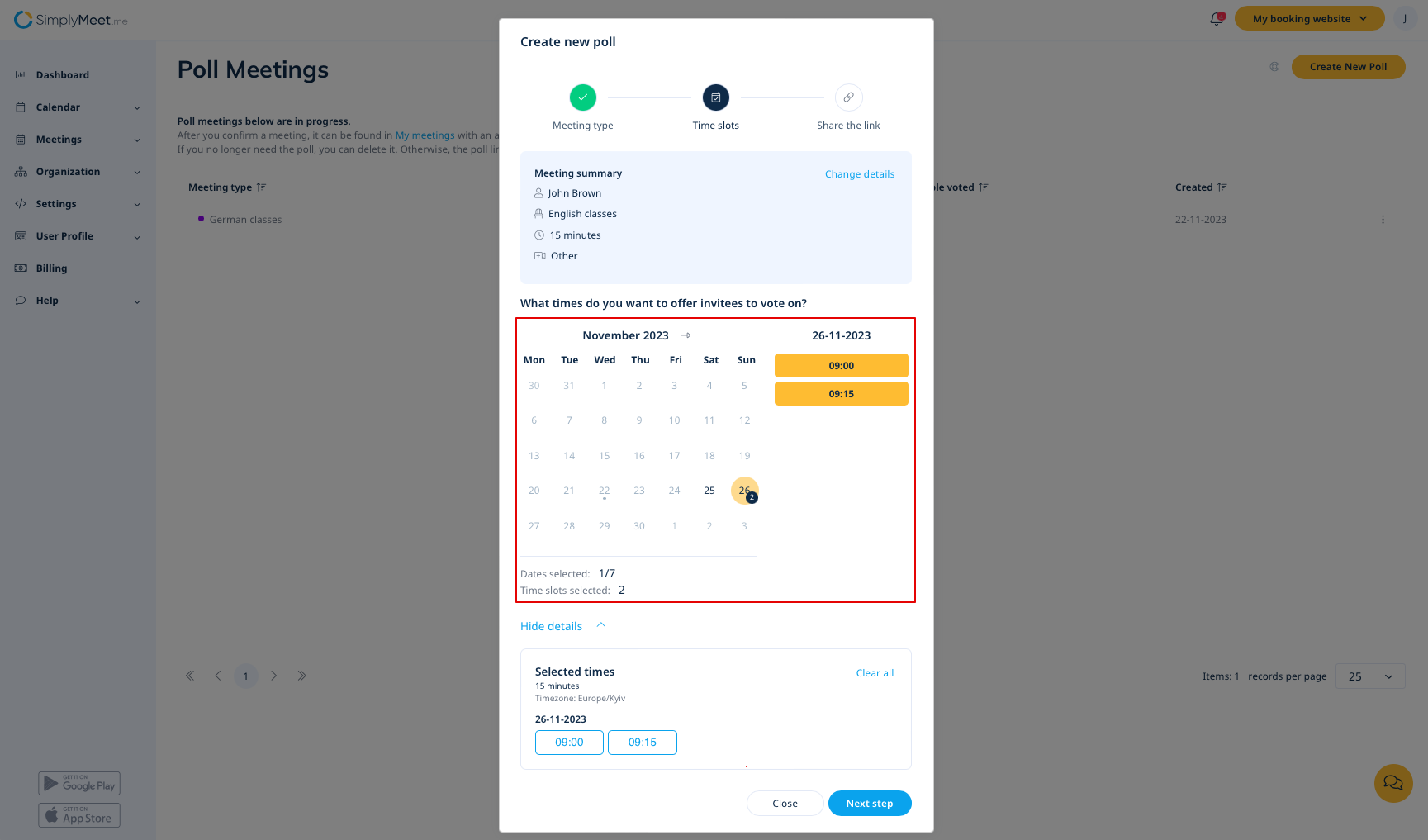
Step 2: Select Preferable Time Slots
Choose the future dates and time slots you want to offer invitees to vote on.
Poll Meetings use Open Availability (24/7), so you can select any available future date and time slot without being restricted by the availability of a Meeting Type.
Step 3: Share Poll Meeting Link
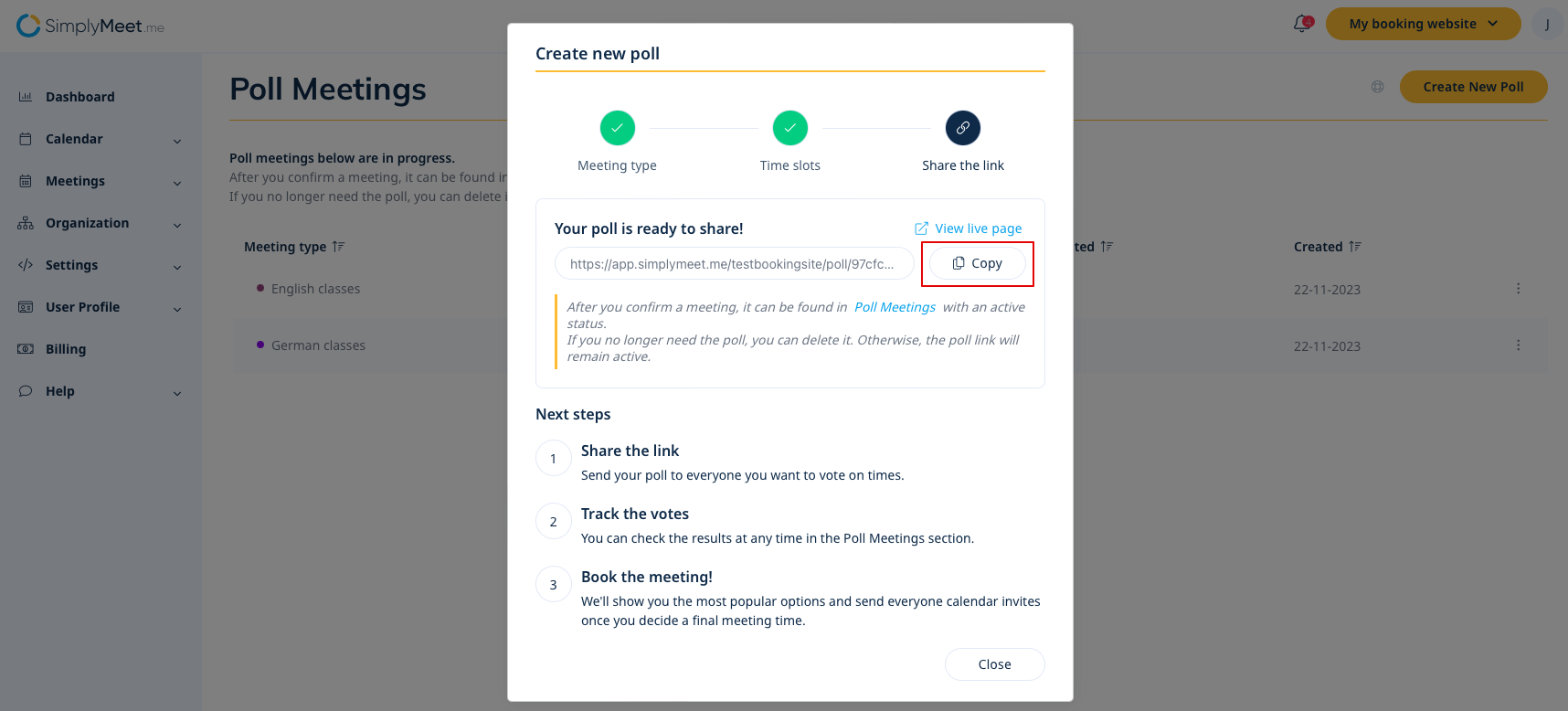
1. Share the generated poll meeting link with invitees by simply clicking the Copy link.
2. To preview the poll link click the View live page.
Step 4: View Poll Results and Confirm the Time
1. Go to the Poll meetings tab to view the list of current polls that are "in progress".
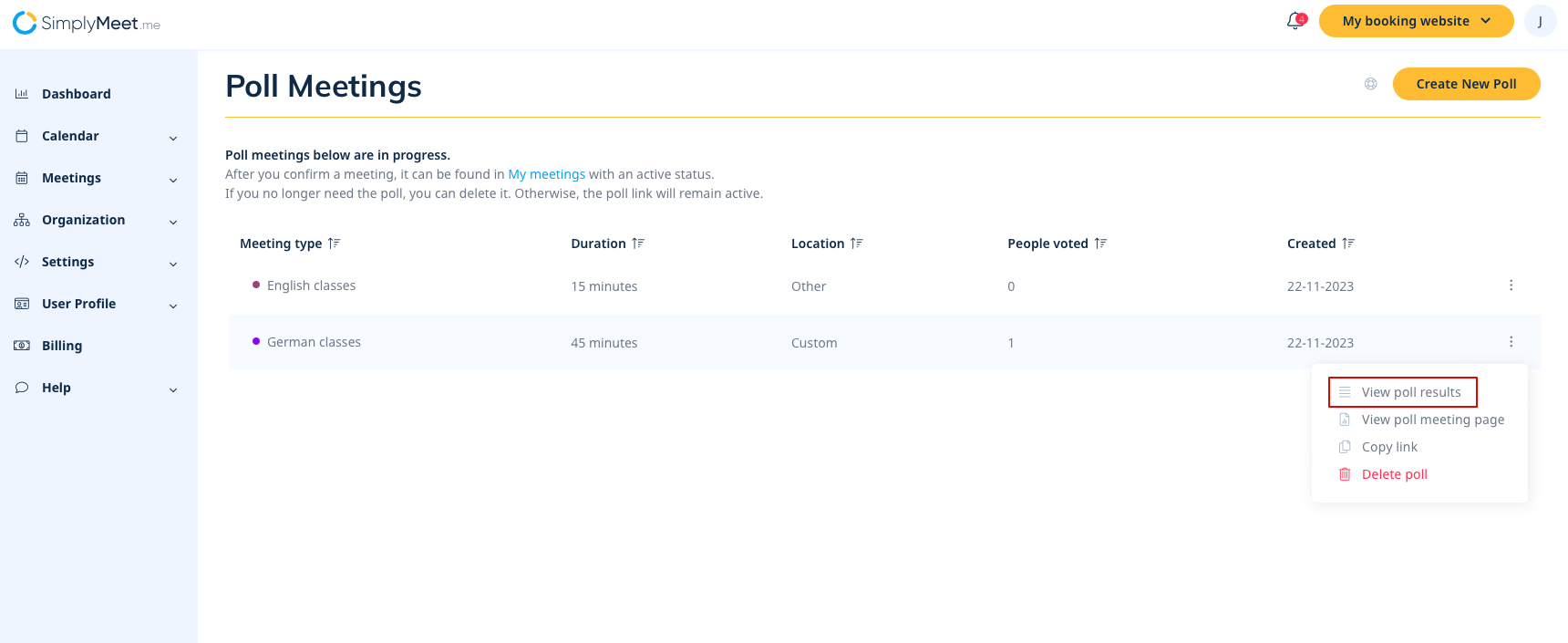
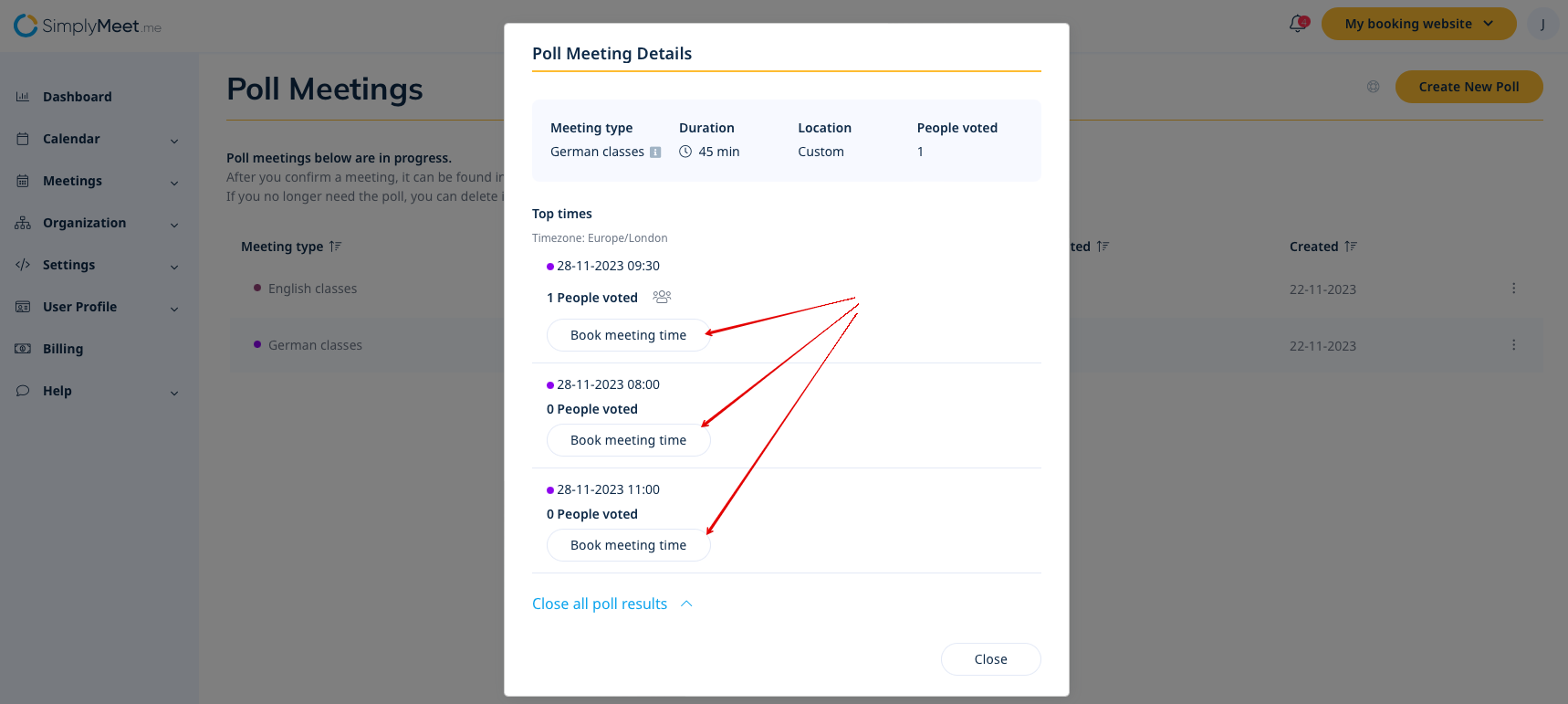
2. View the poll results, including the number of votes each time slot received.
3. Confirm the preferred time based on the results by clicking “Book meeting time”.
4. In a Create event booking form fill in Client and Participants info, click Save.
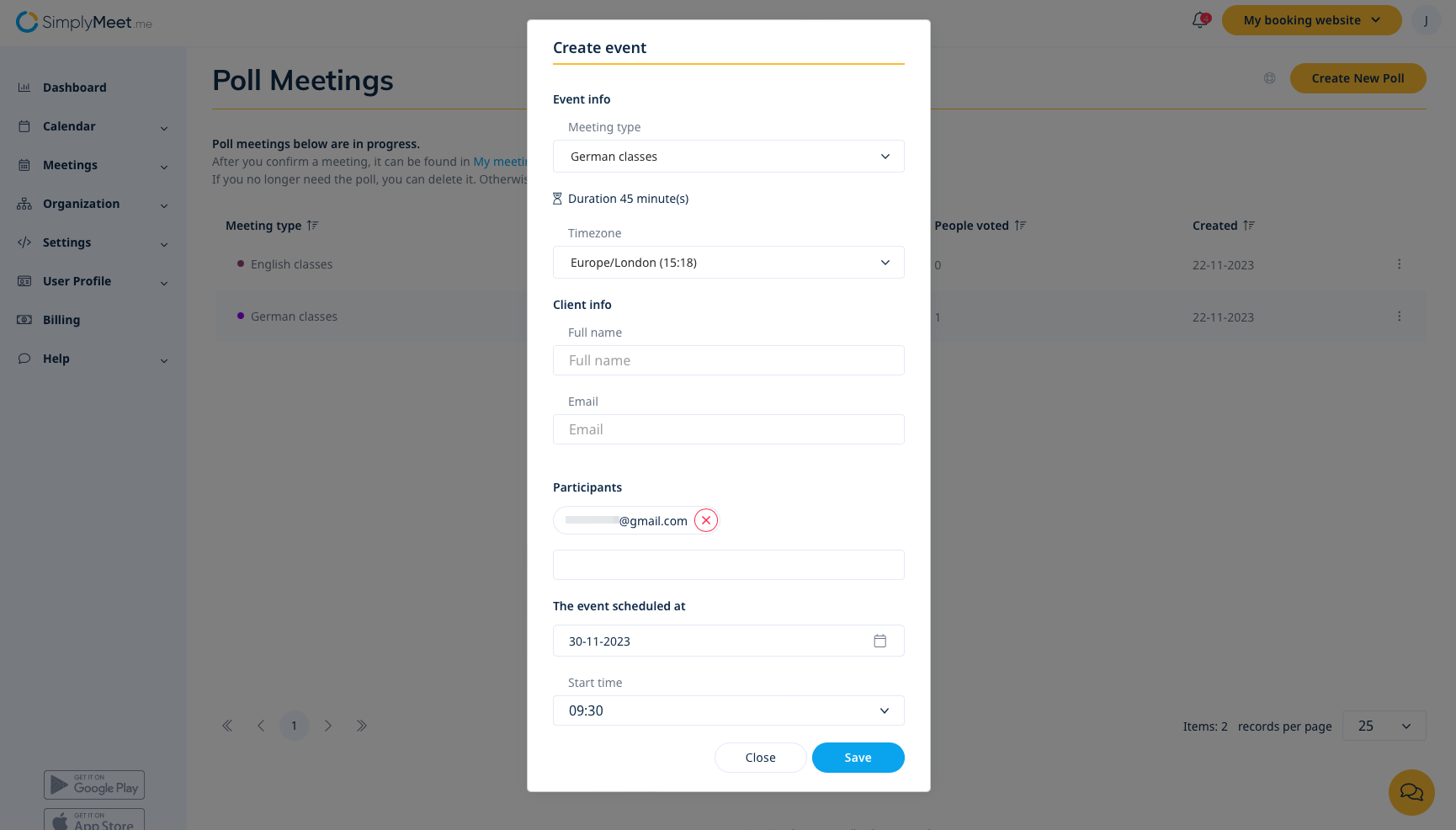
5. A default meeting confirmation notification is sent to every participant.
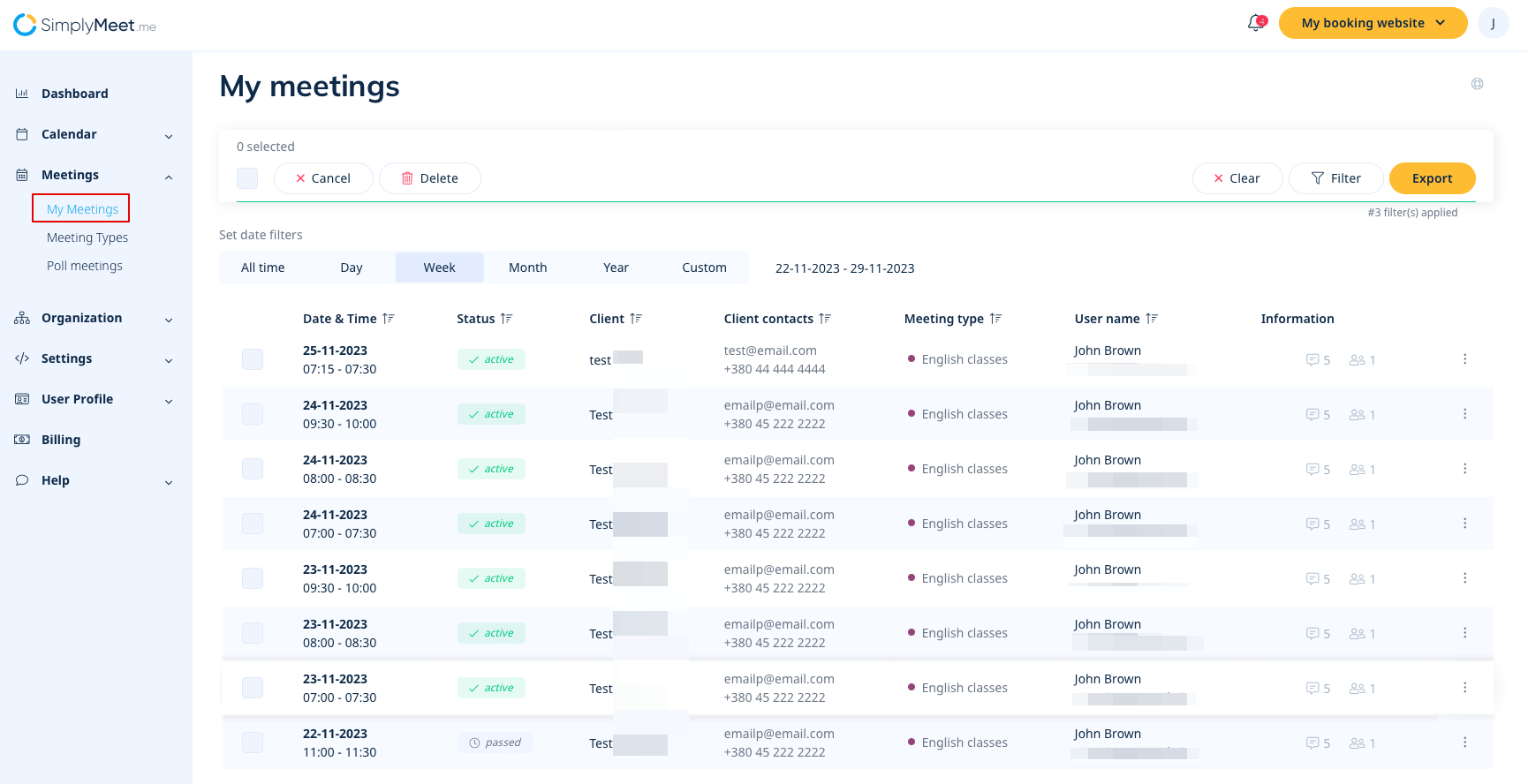
6. As well you will be able to find all confirmed meetings in Meetings -> My meetings or in Calendar -> Internal calendar
Please note
- Poll Meetings use Open Availability (24/7) and do not require an existing Meeting Type during poll creation.
- The time zone is preselected based on the user's time zone and can be changed during poll creation.
- Invitees see the poll times according to their own time zone.
- Start time increments are fixed at 15 minutes.
- Flexible duration is always enabled for Poll Meetings.
- It is not possible to reuse the same poll meeting link for a fresh new poll.
