How to Block Off Dates / Times in SimplyMeet
From SimplyMeet.me
There are several ways to block off dates and times in SimplyMeet, depending on your setup and scheduling needs.
1. Block Dates for a Specific Meeting Type
You can block off dates/times by adjusting the availability settings for each meeting type individually.
- Steps
1. Go to Meeting Types
2. Select the desired meeting type
3. Open the Availability section
4. Navigate to Specific Dates
Please refer to the attached screenshot for visual guidance.
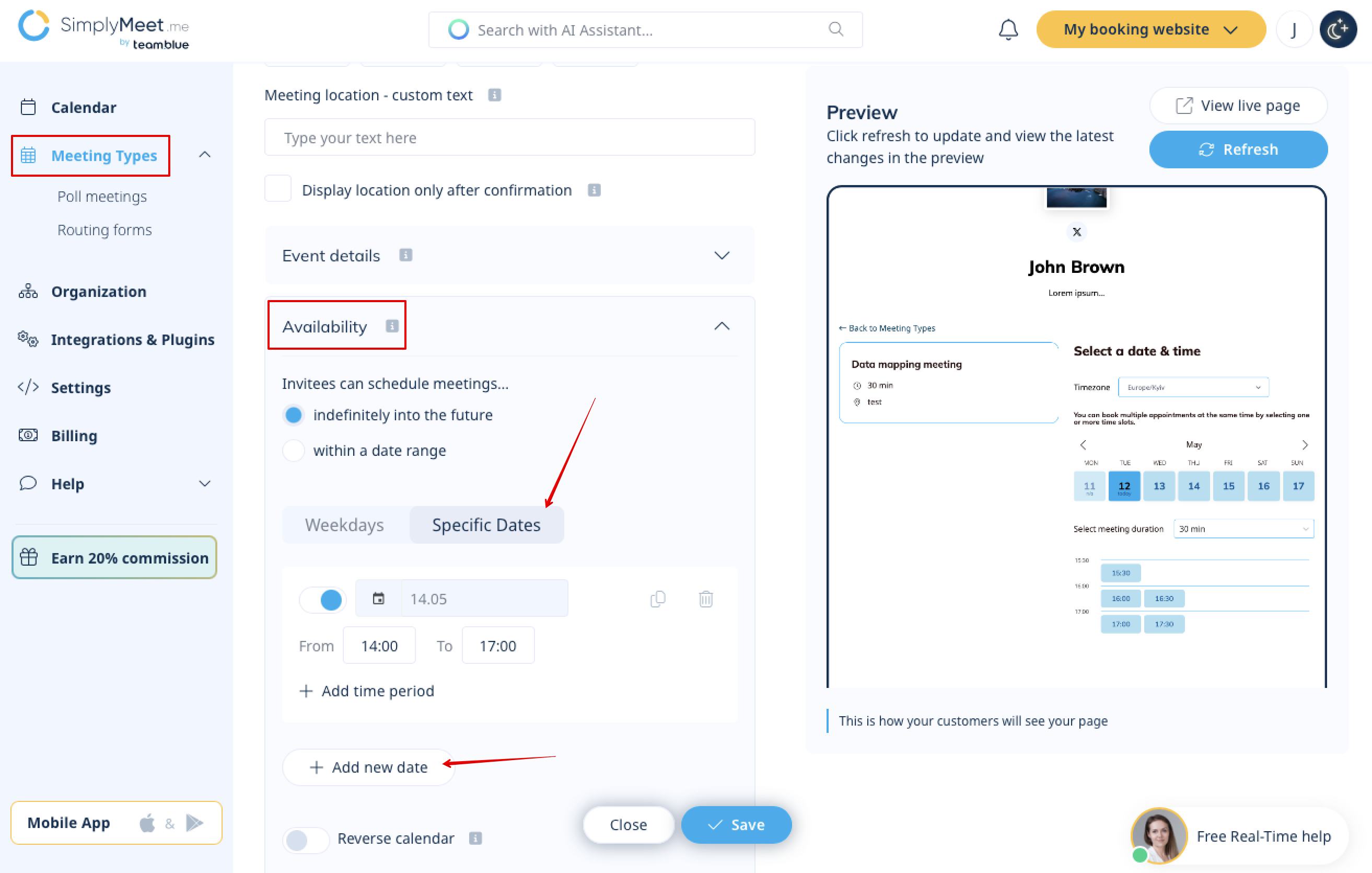
- Note: The Specific Dates schedule always overrides the regular weekly availability configured for the meeting type.
2. Block Dates Using an External Calendar
If you have an external calendar connected to your account and enabled for conflict check, you can block off dates and times directly in that calendar.
To ensure the time is unavailable for booking:
- Create an event in your connected external calendar
- Set the event status to Busy
- Make sure that the calendar is set for conflict check for all meeting types in
- Integrations & Plugins > Calendar integrations,
Or if you only need it for a specific meeting type, go to
- Meeting type > Show advanced settings > Customized calendar settings.
