Booking Links
Personal Website vs Organization Website
SimplyMeet.me offers two types of booking pages:
Personal Website
This is your individual booking page.
- Shows only your meeting types
- Used when clients book directly with you
- Ideal for freelancers or individual team members
OrganizationWebsite
This is your team booking page. It provides a simple and intuitive way for clients to schedule meetings with your team — whether they want to choose a specific person or book with any available provider.
- Shows all teammates and meeting types
- Allows clients to:
- Choose a specific team member
- Or book with any available provider
- Ideal for teams and businesses
Booking Options
By default, the Organization Website includes two main tabs that structure how clients interact with your team.
First tab: Select a Provider
Clients choose a specific team member.
Best when:
- They know who they want to meet
- They need a specific expert
- They prefer continuity
Second tab: Any Provider (Round-Robin)
Clients select a meeting type, and the system assigns an available teammate automatically.
Best when:
- Speed is important
- Any team member can handle the request
- You want to distribute bookings evenly
Booking Links
Each booking page has its own unique link that you can share with your clients.
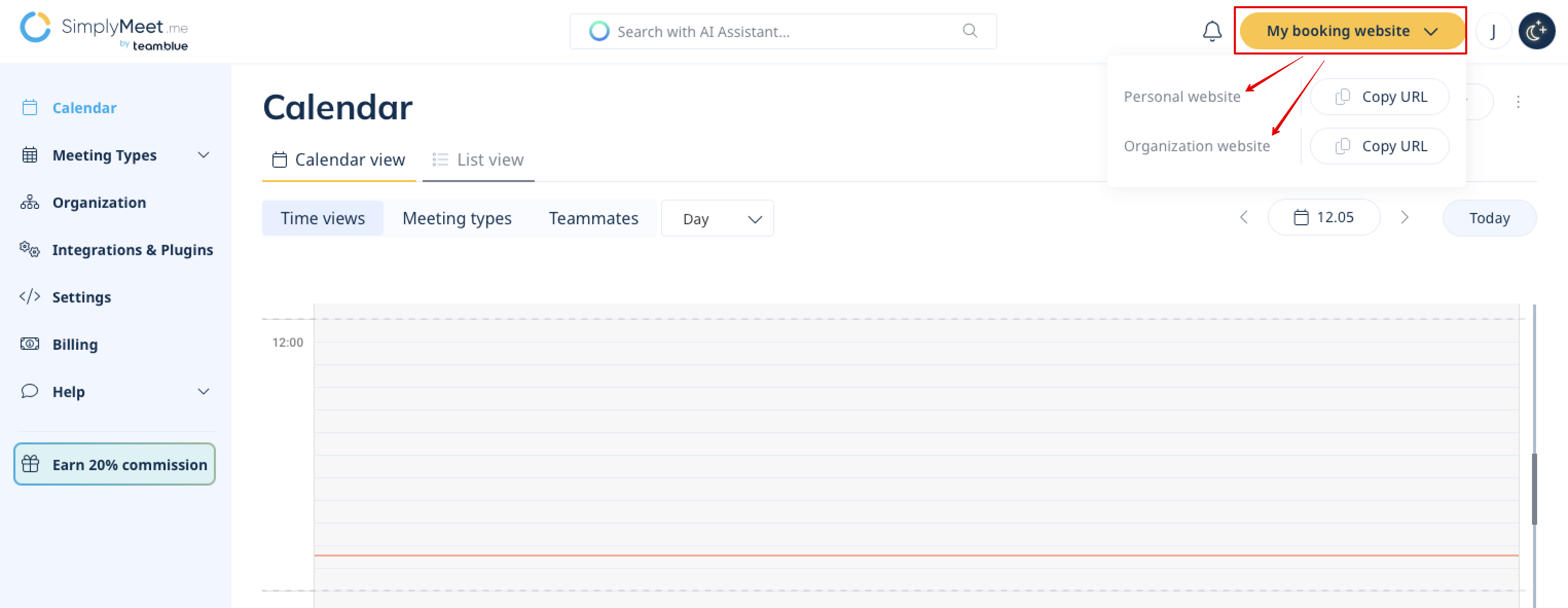
To find your booking page links:
- Inside your account, click “My booking website” in the top right corner
- Inside your account, click “My booking website” in the top right corner
There you will find:
- Your Personal website link (for individual services and direct client relationships)
- Your Organization website link (when working as a team or offering shared services. Available only if you have created an Organization)
If you want to send clients to a specific meeting type instead of the full booking page, you can also use dedicated meeting links available within each meeting type. They can be found in Meeting types -> Share.
Customization
You can adapt the booking page to your brand:
- Rename tabs (e.g. “Our Team”, “Quick Booking”) from Settings -> Custom translations.
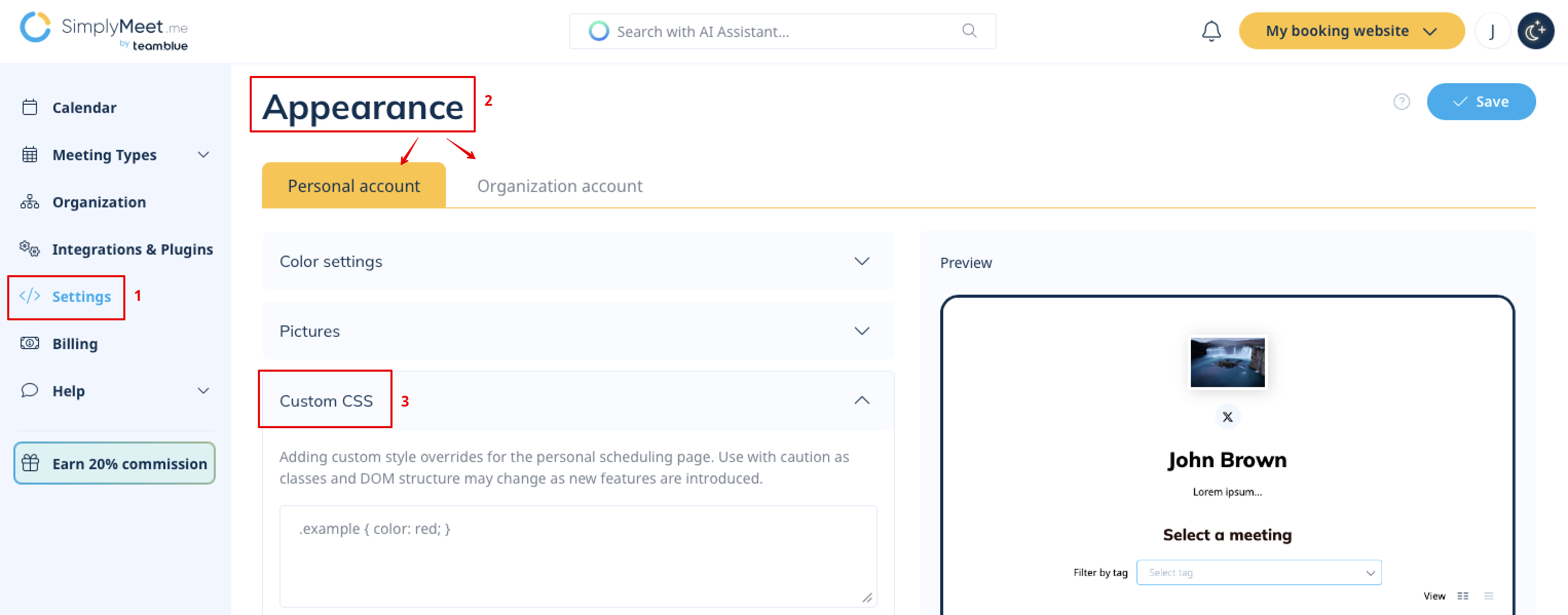
- Hide tabs using Custom CSS from Settings -> Appearance.
Other available basic customization:
Go to Settings -> Appearance to update:
- Colors
- Logo
- Branding
