No-Shows & Private Notes
Keeping track of client attendance and important booking details is essential for smooth operations. With No-Shows and Private Notes, you can manage your schedule more effectively and store key information directly within each booking—helping you stay organized, informed, and prepared for every meeting.
Marking Bookings as No-Show
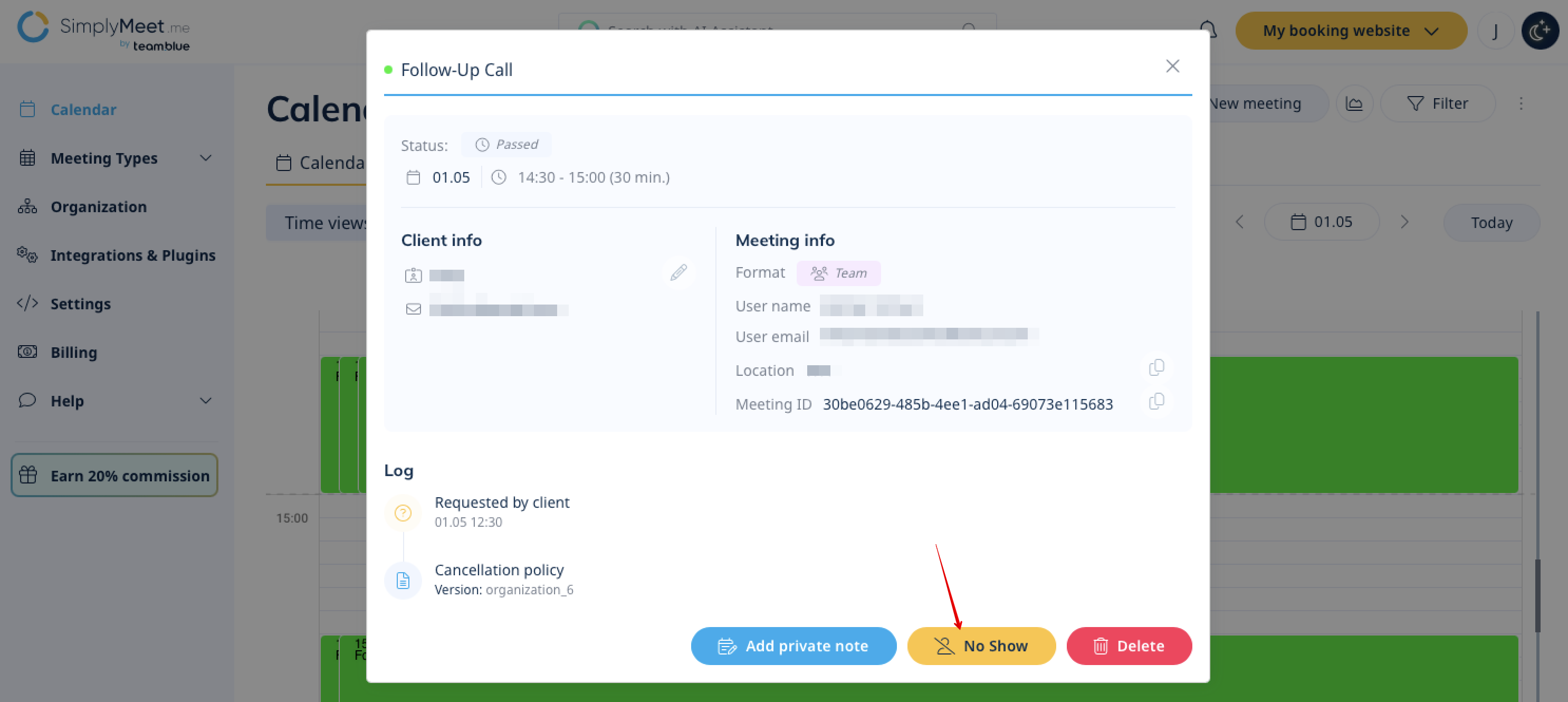
If a client does not attend a scheduled meeting, you can mark the booking as a No-Show directly from the admin interface.
- How it works
1. Go to the Calendar section
2. Select the Scheduled Meetings tab in the top right corner
3. Click the 3 dots icon next to the passed meeting
4. Select No-Show
Please note:
- No-Show status can be applied to past bookings only
- The update is done from the admin side
- This status is used only for internal tracking and reporting
Adding Private Notes
You can add private notes to any booking to store useful information related to the appointment. The added comments are visible only on the admin side, clients cannot see these notes. You can update or add details at any time.
- How it works
1. Go to Calendar section
2. Select the Scheduled Meetings tab in the top right corner
3. Click the 3 dots icon next to the passed meeting
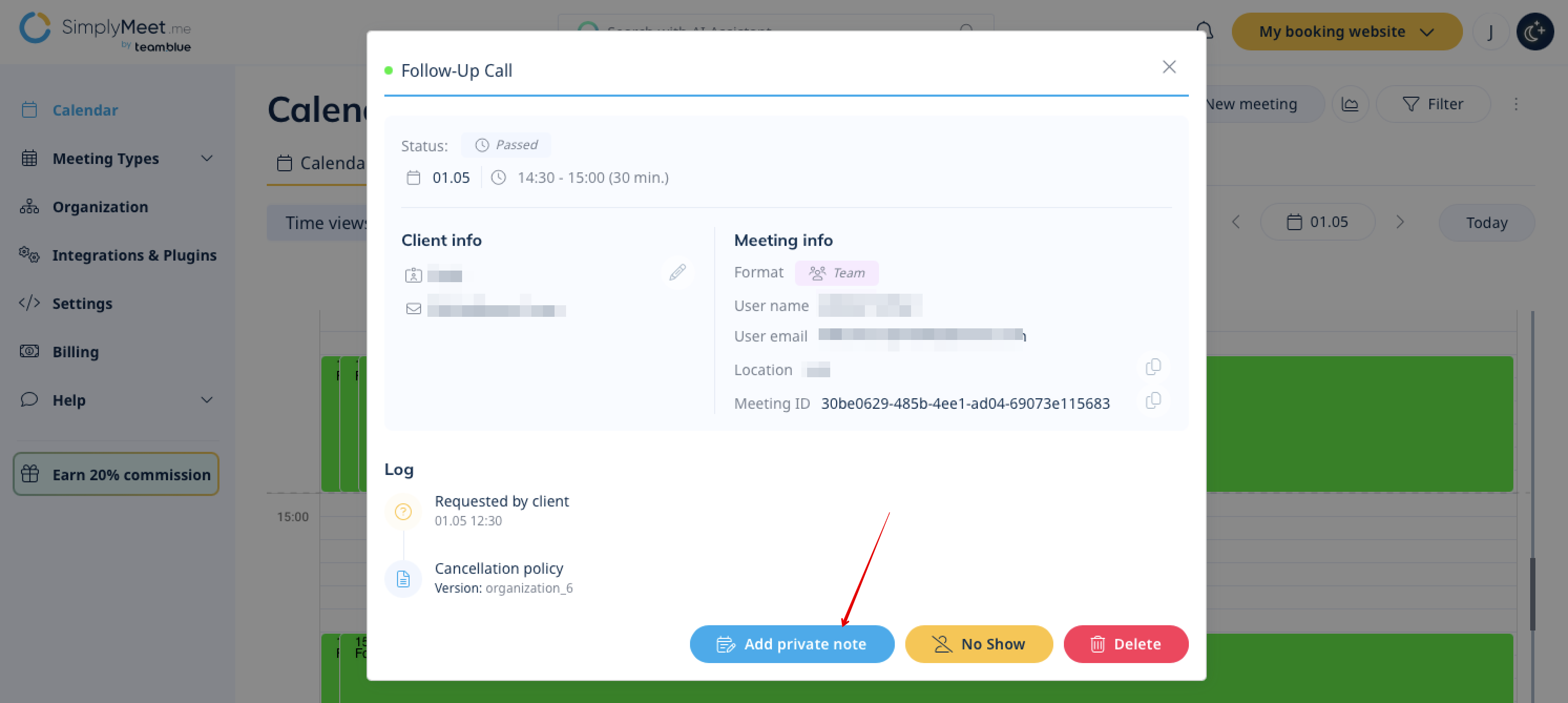
4. Add private note
5. To view the added notes click on a Note icon next to a booking
- What can you use comments for?
- Notes about client preferences or behaviour
- Context for follow-ups or future meetings
- Internal communication between team members
- Additional details discussed during the meeting.