Time Zones
Managing meetings across different locations can quickly become confusing—but with flexible time zone settings, you can ensure that every booking shows the correct time for everyone involved.
With SimplyMeet.me, you can:
- Automatically adjust meeting times to your client’s local time zone
- Set fixed time zones for specific meeting types when needed
- Allow each team member to use their own time zone
This ensures that everyone always sees the right time, every time.
- How It Works
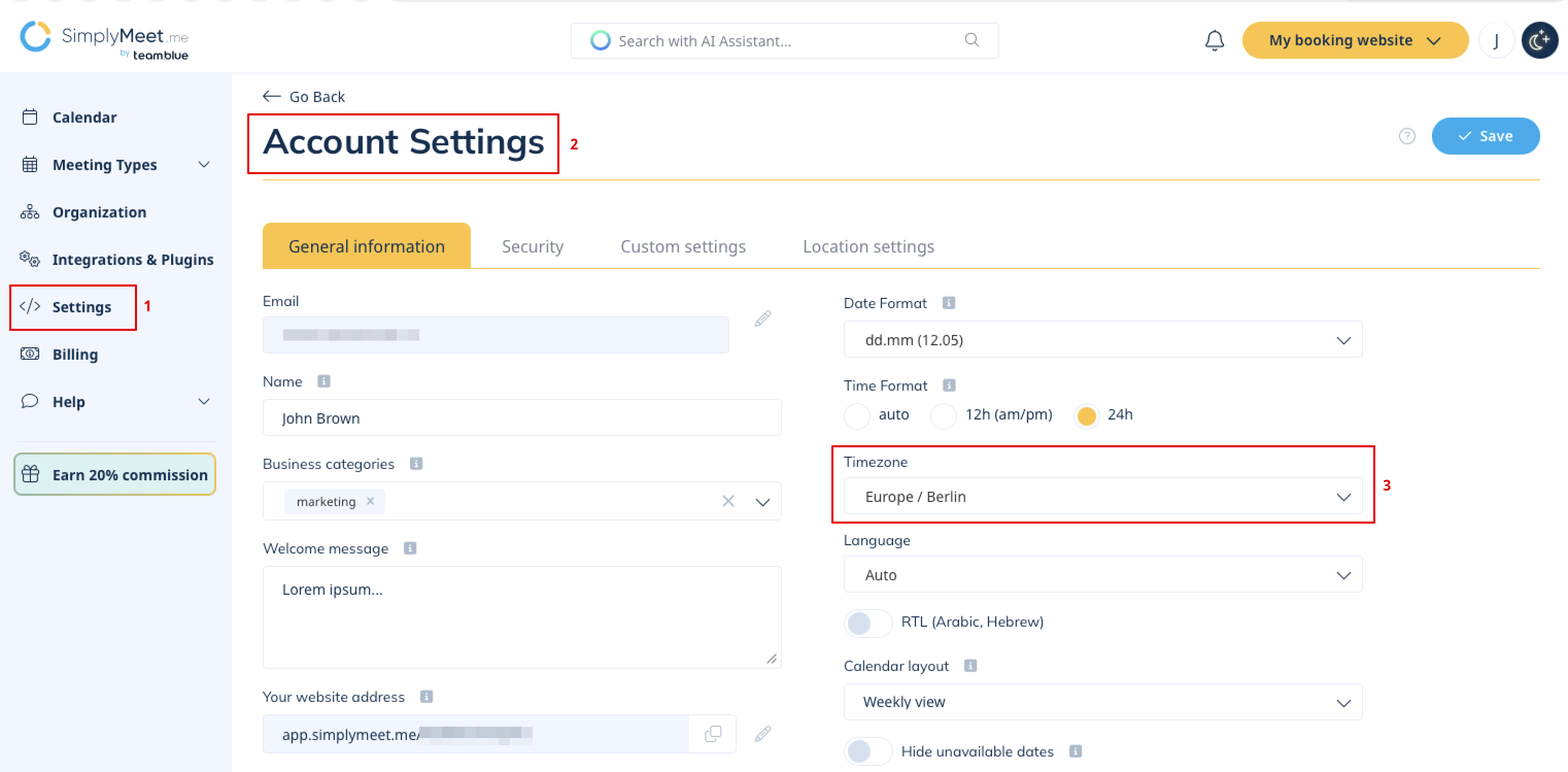
1. Account Time Zone
Your main account time zone defines your default scheduling environment.
To update it:
Go to:
- Settings → Account settings → Time zone
This is the base time zone used for your availability and internal scheduling unless overridden elsewhere.
2. Meeting Type Time Zone
You can customize how time is displayed for each meeting type individually. This is especially useful if you:
- Work with clients in different countries
- Offer region-specific services
- Want consistent timing regardless of client location
To adjust this:
Go to:
- Meeting types → Select a meeting type → See advanced settings → Additional options → Time zone
You’ll have two main options:
- Fixed time zone – The meeting always takes place in the selected time zone
- Client time zone (automatic) – The system detects and displays time in your client’s local time zone

3. Team Member Time Zones
If you’re working in a team, each user can set their own individual time zone.
This is particularly useful for distributed teams, as it ensures:
- Accurate availability for each team member
- Correct time display in bookings
- Smooth coordination across different regions
Each user manages their own time zone in their personal account settings.