From SimplyMeet.me
No edit summary |
No edit summary |
||
| Line 1: | Line 1: | ||
<p class="no-margin"> | <p class="no-margin"> | ||
You can upload a company logo in '''Settings''' -> ''' | You can upload a company logo in '''Settings''' -> '''Branding''' and it will appear on your scheduling page | ||
</p> | </p> | ||
<p class="no-margin"> | <p class="no-margin"> | ||
| Line 8: | Line 8: | ||
</div> | </div> | ||
<ol> | <ol> | ||
<li>Go to [https://secure.simplymeet.me/panel/appearance | <li>Go to [https://secure.simplymeet.me/panel/appearance Branding Settings].</li> | ||
<li>To add your company logo, click on the <strong>upload box </strong>under the <strong>Company logo, </strong>select an image, and click <strong>Save</strong>.</li> | <li>To add your company logo, click on the <strong>upload box </strong>under the <strong>Company logo, </strong>select an image, and click <strong>Save</strong>.</li> | ||
<li>To replace an image, click on the <strong>upload box</strong> again select an image, and click <strong>Save</strong>.</li> | <li>To replace an image, click on the <strong>upload box</strong> again select an image, and click <strong>Save</strong>.</li> | ||
Revision as of 14:22, 22 July 2026
You can upload a company logo in Settings -> Branding and it will appear on your scheduling page
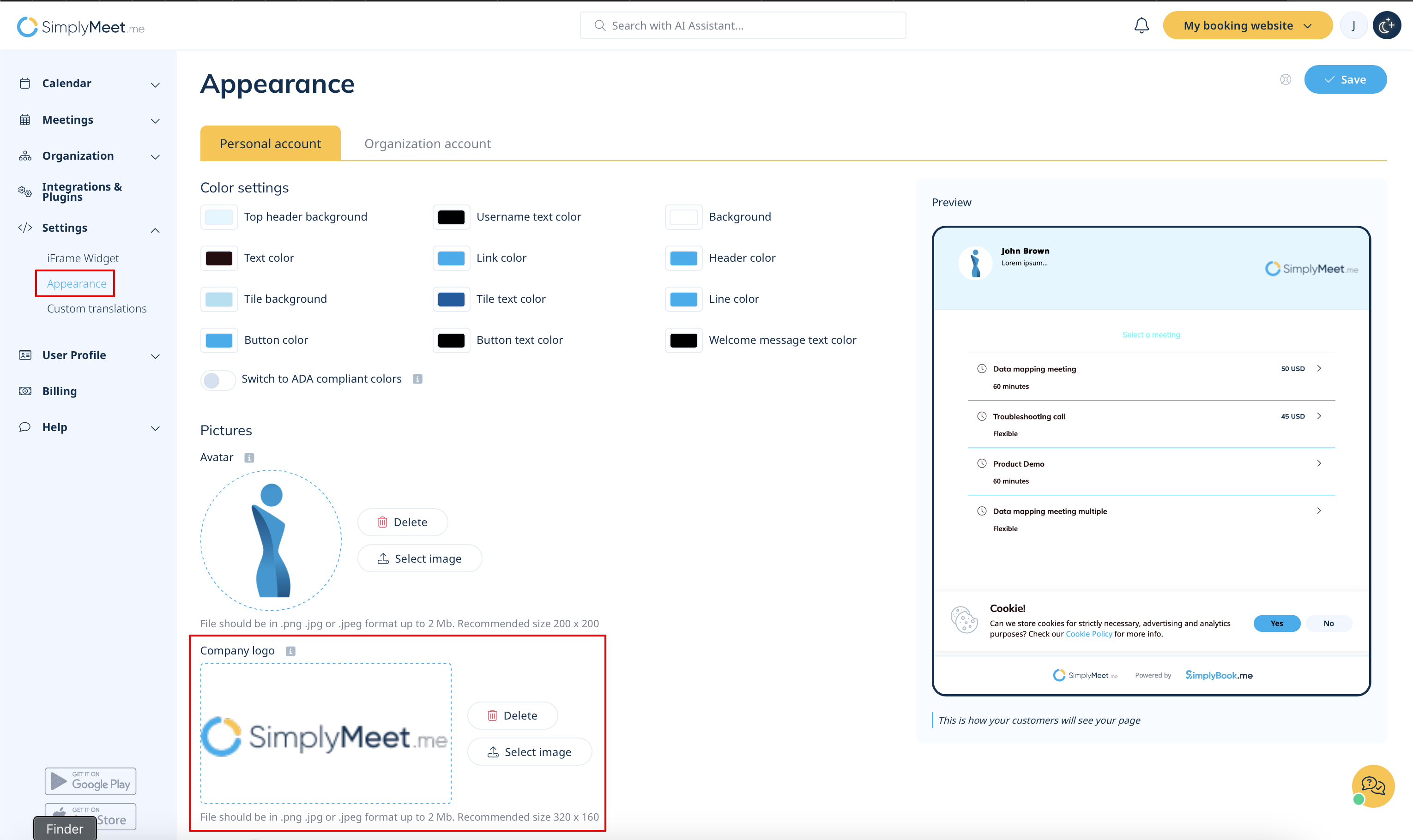
- Go to Branding Settings.
- To add your company logo, click on the upload box under the Company logo, select an image, and click Save.
- To replace an image, click on the upload box again select an image, and click Save.
- To remove the company logo, select Remove company logo? checkbox, and click Save.

