No edit summary |
No edit summary |
||
| Line 11: | Line 11: | ||
<li>participants emails</li> | <li>participants emails</li> | ||
<li>multiple meetings timeslots</li> | <li>multiple meetings timeslots</li> | ||
<li>custom questions</li> | |||
</ul> | </ul> | ||
<p class="no-margin"> | <p class="no-margin"> | ||
| Line 40: | Line 41: | ||
For multiple meetings you need to enable Multiple meetings integration.<br> | |||
'''Please note!''' | '''Please note!''' | ||
* You have to indicate the timezone in the url | * You have to indicate the timezone in the url | ||
| Line 48: | Line 49: | ||
https://app.simplymeet.me/15min-discovery?name=Tom%20Doe&email=tom@example.com&phone=%2B48%20123456789&participants[]=testemail@gmail.com&participants[]=testemail2@gmail.com&multiple_times[]=2023-11-01%2009:00&multiple_times[]=2023-11-01%2010:00&timezone=Europe/Kyiv | https://app.simplymeet.me/15min-discovery?name=Tom%20Doe&email=tom@example.com&phone=%2B48%20123456789&participants[]=testemail@gmail.com&participants[]=testemail2@gmail.com&multiple_times[]=2023-11-01%2009:00&multiple_times[]=2023-11-01%2010:00&timezone=Europe/Kyiv | ||
</pre> | </pre> | ||
And for '''the custom questions''', you need to use '''&questions[uuid of your question]=value''', where | |||
'''UUID''' is automatically generated upon your question creation. Simply click “Copy UUID” next to the ready question in Meeting types//Questions | |||
[[File:Sm copy question uuid.png|1200px|center|link=https://help.simplymeet.me/images/0/02/Sm_copy_question_uuid.png]] | |||
<br><br> | |||
Here is the url example: | |||
<pre> | |||
https://app.simplymeet.me/15min-discovery?name=Tom%20Doe&email=tom@example.com&phone=%2B48%20123456789&participants[]=testemail@gmail.com&participants[]=testemail2@gmail.com&multiple_times[]=2023-11-01%2009:00&multiple_times[]=2023-11-01%2010:00&timezone=Europe/Kyiv&questions[84b5416d-10a8-4df7-9af2-f3d804a42fc1]=Instagram | |||
</pre> | |||
<br><br> | |||
'''Please note!''' For the pre-fill to work correctly, the value passed in the URL must match the field’s input type.<br> | |||
Date field → must be in yyyy-mm-dd format<br> | |||
Checkbox → use 1, yes, or true<br> | |||
Select → must match one of the existing option values defined for that field<br> | |||
One-line / Multiple-line text → plain text input<br> | |||
<br> | |||
If the format is incorrect, the field will remain empty. | |||
<br><br> | |||
'''Hiding Pre-filled Questions''' | |||
<br> | |||
In some cases, you may want to capture data (like a lead source or internal ID) without showing the field to the user. You can achieve this by combining URL parameters with custom CSS.<br> | |||
1. Find the specific question in your Meeting Type // Questions and click '''Copy UUID.''' | |||
2. Add Custom CSS<br> | |||
To hide the pre-filled question from the booking interface, navigate to Settings // Appearance // Custom CSS and use the following syntax (replacing the ID with your specific UUID): | |||
<pre> | |||
.question--e0585e89-c483-48f3-8ad2-2bba5802bb9e { | |||
display: none; | |||
} | |||
</pre> | |||
<br> | |||
By applying this style, the question remains functional and will still collect the data passed via the URL, but it will be invisible to the invitee. | |||
<br><br><br><br> | |||
Revision as of 09:25, 12 May 2026
You can pre-populate the booking page form with an invitee information. SimplyMeet.me will then display an invitee specific information on the booking page.
You can pre-populate:
- full name
- phone number
- participants emails
- multiple meetings timeslots
- custom questions
Here is an example link with the client details:
https://app.simplymeet.me/15min-discovery?name=Tom%20Doe&email=tom@example.com&phone=%2B48%20123456789
And this is how the form on the booking page will be pre-populated:

The space between words must be separated by %20 char, e.g. "Tom%20Doe" results in "Tom Doe".
The phone query parameter must be prefixed with %2B (which is + sign). Then %20 char and the phone number, which will result in phone number like +48 123456789.
For the participants emails you can use a link like this(including the client name, email & phone number:
https://app.simplymeet.me/15min-discovery?name=Tom%20Doe&email=tom@example.com&phone=%2B48%20123456789&participants[]=testemail@gmail.com&participants[]=testemail2@gmail.com
For multiple meetings you need to enable Multiple meetings integration.
Please note!
- You have to indicate the timezone in the url
- The times in the url should be indicated in the UTC and then the system will calculate the difference either taking the timezone from the corresponding meeting type (if you have timezone fixed there), or calculate the times to be shown to the client on the booking website depending on the time difference with UTC.
Here is the url example:
https://app.simplymeet.me/15min-discovery?name=Tom%20Doe&email=tom@example.com&phone=%2B48%20123456789&participants[]=testemail@gmail.com&participants[]=testemail2@gmail.com&multiple_times[]=2023-11-01%2009:00&multiple_times[]=2023-11-01%2010:00&timezone=Europe/Kyiv
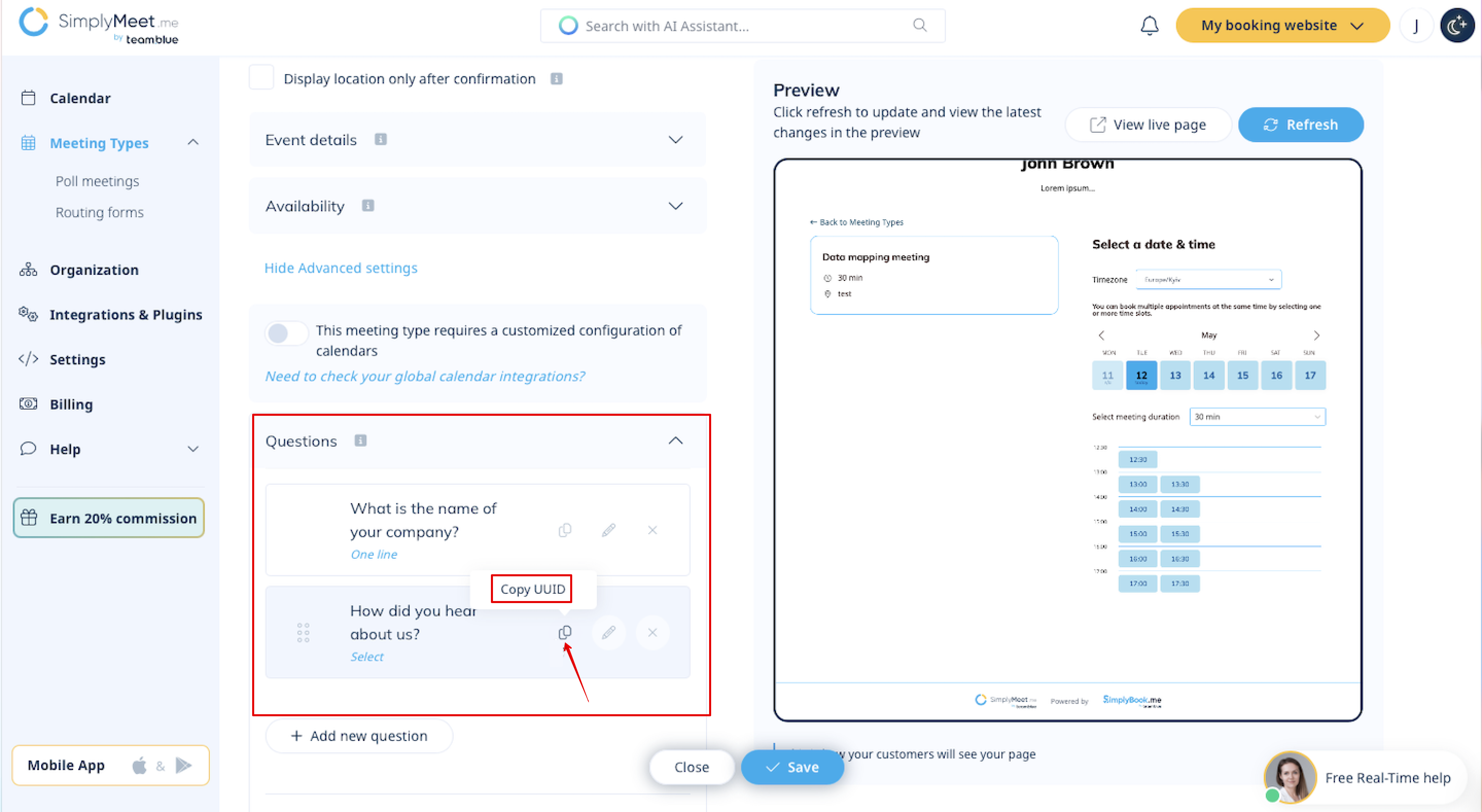
And for the custom questions, you need to use &questions[uuid of your question]=value, where UUID is automatically generated upon your question creation. Simply click “Copy UUID” next to the ready question in Meeting types//Questions
Here is the url example:
https://app.simplymeet.me/15min-discovery?name=Tom%20Doe&email=tom@example.com&phone=%2B48%20123456789&participants[]=testemail@gmail.com&participants[]=testemail2@gmail.com&multiple_times[]=2023-11-01%2009:00&multiple_times[]=2023-11-01%2010:00&timezone=Europe/Kyiv&questions[84b5416d-10a8-4df7-9af2-f3d804a42fc1]=Instagram
Please note! For the pre-fill to work correctly, the value passed in the URL must match the field’s input type.
Date field → must be in yyyy-mm-dd format
Checkbox → use 1, yes, or true
Select → must match one of the existing option values defined for that field
One-line / Multiple-line text → plain text input
If the format is incorrect, the field will remain empty.
Hiding Pre-filled Questions
In some cases, you may want to capture data (like a lead source or internal ID) without showing the field to the user. You can achieve this by combining URL parameters with custom CSS.
1. Find the specific question in your Meeting Type // Questions and click Copy UUID.
2. Add Custom CSS
To hide the pre-filled question from the booking interface, navigate to Settings // Appearance // Custom CSS and use the following syntax (replacing the ID with your specific UUID):
.question--e0585e89-c483-48f3-8ad2-2bba5802bb9e {
  display: none;
}
By applying this style, the question remains functional and will still collect the data passed via the URL, but it will be invisible to the invitee.
