Created page with "The '''Approve Meetings''' feature allows you to manually review booking requests before they are confirmed.<br> Instead of appointments being automatically confirmed, eligible bookings are placed in a '''Pending''' state until you approve or decline them.<br> This feature is ideal for consultants, recruiters, healthcare providers, and other professionals who need to verify client details or control availability before confirming a meeting.<br> This feature is recommende..." |
No edit summary |
||
| Line 15: | Line 15: | ||
<br><br> | <br><br> | ||
2. Find '''Approve Meetings''' -> '''Enable''' | 2. Find '''Approve Meetings''' -> '''Enable''' | ||
[[File:Sm approve meetings enable path general.png|1200px|center|link=https://help.simplymeet.me/images/5/5a/Sm_approve_meetings_enable_path_general.png]] | |||
<br><br> | <br><br> | ||
You can also enable it: | You can also enable it: | ||
| Line 27: | Line 28: | ||
<br><br> | <br><br> | ||
3. Navigate to '''Event Details''' | 3. Navigate to '''Event Details''' | ||
[[File:Sm approve meetings enable path.png|1200px|center|link=https://help.simplymeet.me/images/a/af/Sm_approve_meetings_enable_path.png]] | |||
<br><br> | <br><br> | ||
4. Turn on the '''Approve Meetings''' switch | 4. Turn on the '''Approve Meetings''' switch | ||
| Line 37: | Line 39: | ||
* The host receives a notification about the pending request | * The host receives a notification about the pending request | ||
* The client does not receive a confirmation email at this stage | * The client does not receive a confirmation email at this stage | ||
[[File:Sm pending meeting.png|1200px|center|link=https://help.simplymeet.me/images/8/8e/Sm_pending_meeting.png]] | |||
<br><br> | <br><br> | ||
=What Requires Approval?= | =What Requires Approval?= | ||
| Line 50: | Line 53: | ||
=Approving or Declining a Meeting= | =Approving or Declining a Meeting= | ||
You can review pending meetings in the '''Calendar''' section. | You can review pending meetings in the '''Calendar''' section. | ||
[[File:Sm decline or approve.png|1200px|center|link=https://help.simplymeet.me/images/4/41/Sm_decline_or_approve.png]] | |||
<br><br> | <br><br> | ||
'''If you approve:''' | '''If you approve:''' | ||
Revision as of 12:50, 18 February 2026
The Approve Meetings feature allows you to manually review booking requests before they are confirmed.
Instead of appointments being automatically confirmed, eligible bookings are placed in a Pending state until you approve or decline them.
This feature is ideal for consultants, recruiters, healthcare providers, and other professionals who need to verify client details or control availability before confirming a meeting.
This feature is recommended if you:
- Need to review client details before confirming
- Offer high-demand or limited availability slots
- Want to reduce last-minute cancellations
- Provide professional consultation services
The Approve Meetings feature is available for Paid plans only.
How to Enable the Feature
Step 1: Enable in Integrations
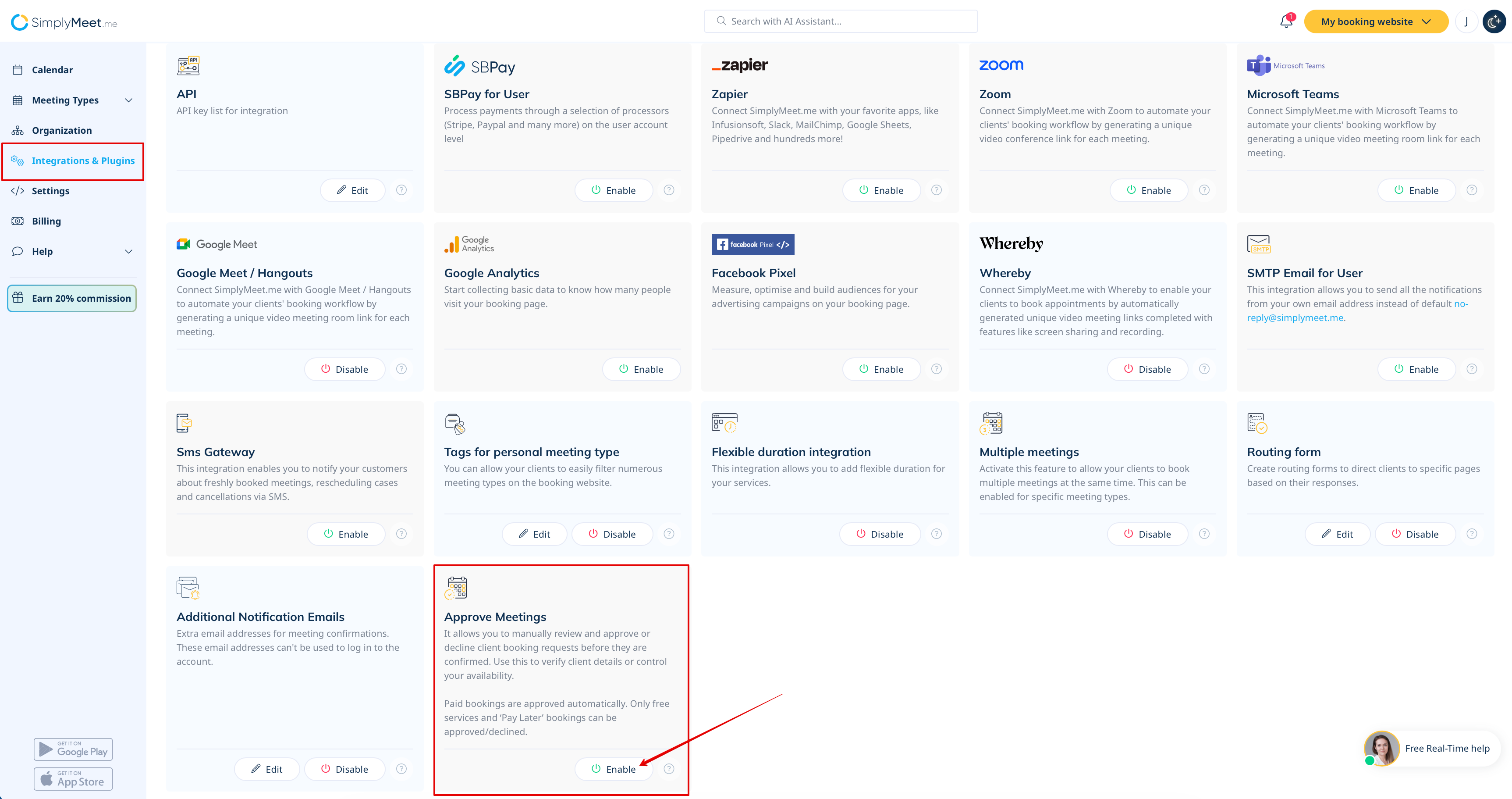
1. Go to Plugins & Integrations -> User Integrations
2. Find Approve Meetings -> Enable
You can also enable it:
- On the Plugins & Integrations -> Organization level
If enabled on the Organization level, it overrides all individual user settings and becomes active globally.
Step 2: Enable per Meeting Type
After activating the integration, you must also enable it for each meeting type:
1. Go to Meeting Types
2. Open the desired meeting type
3. Navigate to Event Details
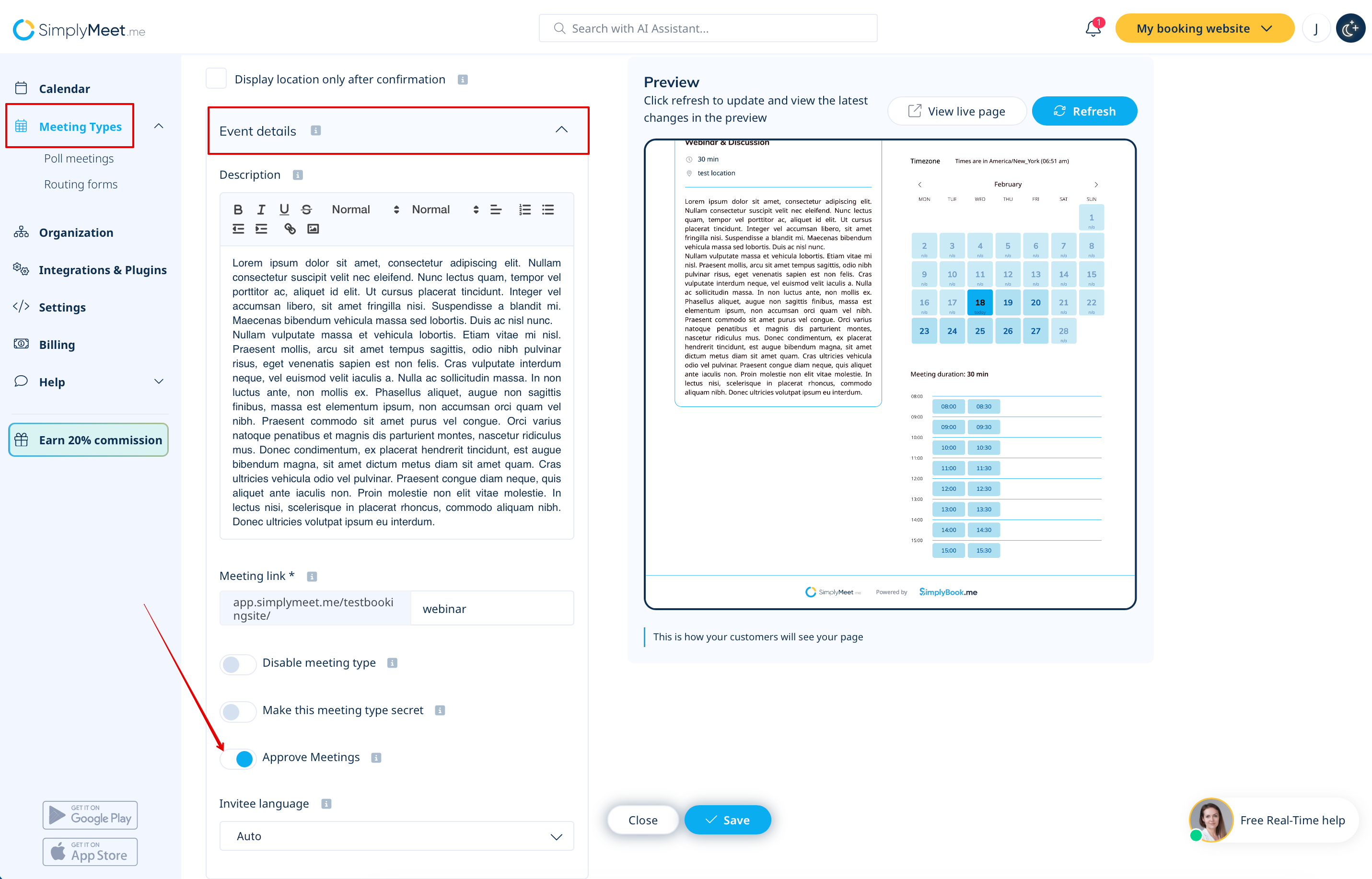
4. Turn on the Approve Meetings switch
You can enable or disable approval individually for each meeting type.
How It Works
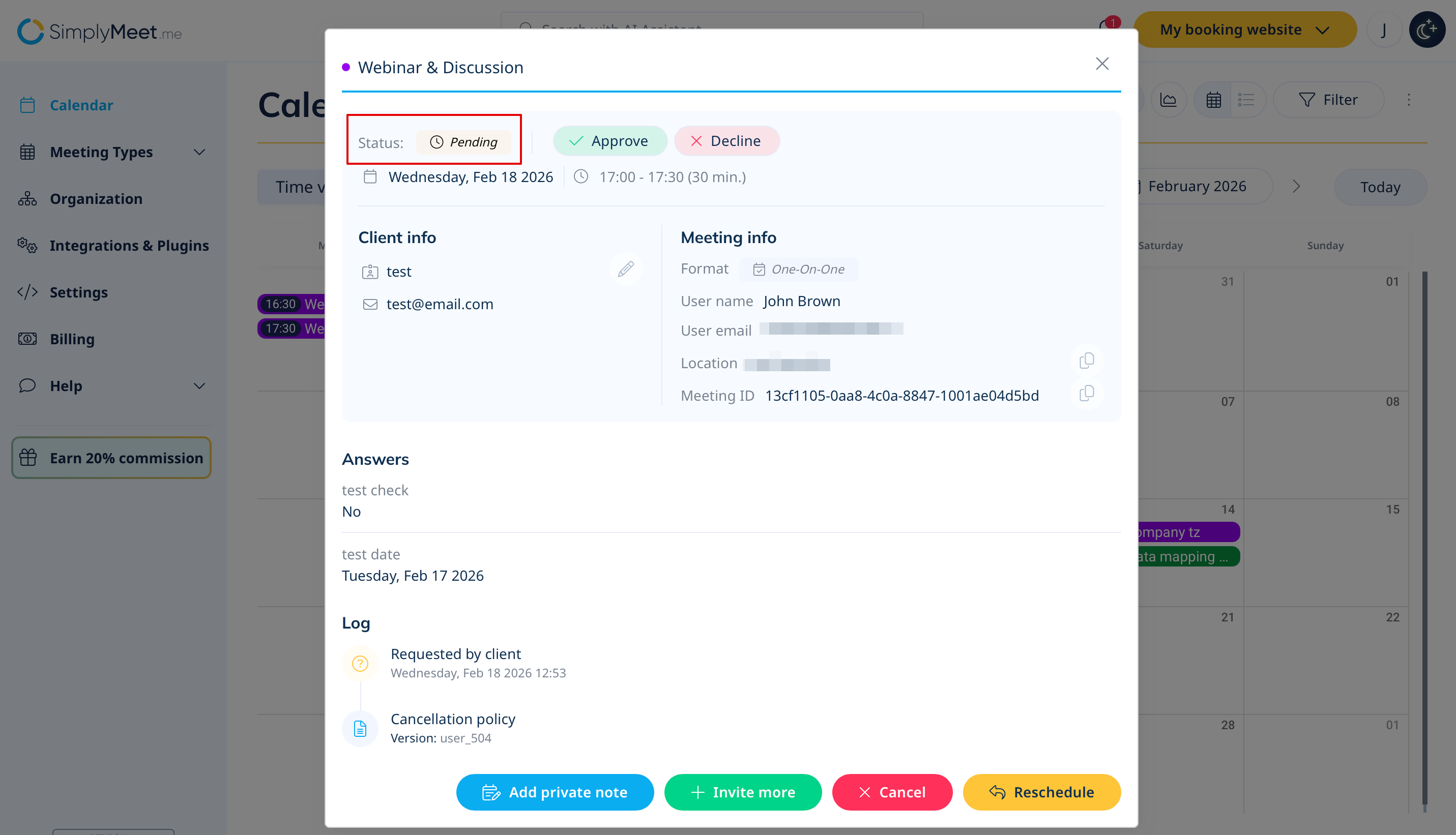
When a client books a meeting:
- If the meeting qualifies for approval, its status becomes Pending
- The host receives a notification about the pending request
- The client does not receive a confirmation email at this stage
What Requires Approval?
The following bookings enter the Pending state:
- Free meetings created by a client
- Paid meetings where the client selects Pay Later
What Is Automatically Approved?
The following bookings are automatically confirmed:
- Paid meetings successfully processed via SBPay.me
- Meetings created from the Admin side
Approving or Declining a Meeting
You can review pending meetings in the Calendar section.
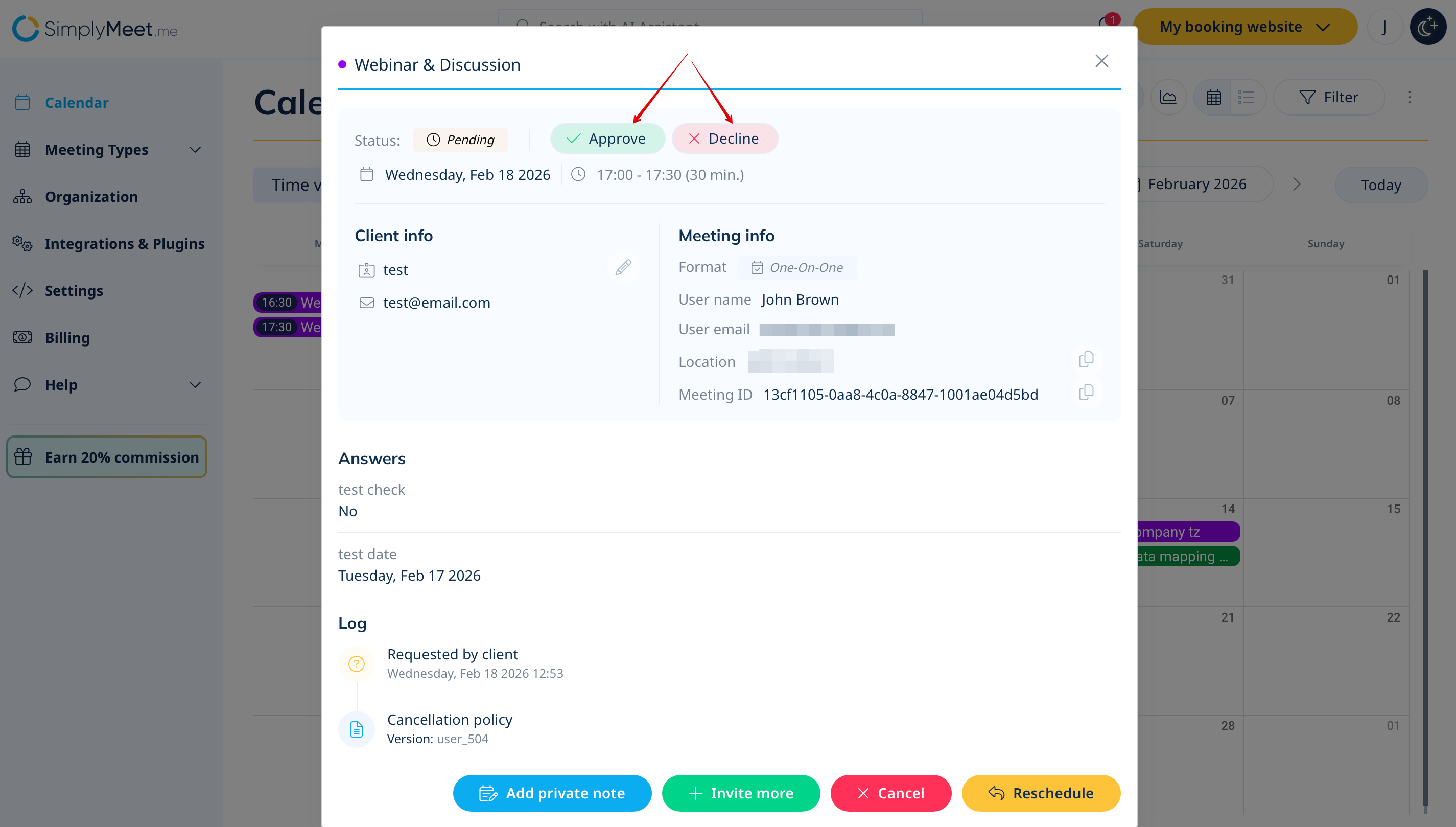
If you approve:
- Status changes to Active
- The client receives a confirmation notification
- The meeting syncs to your external calendar (e.g.,Google/Outlook)
If you decline:
- Status changes to Declined
- No notification is sent to the client by default
Roles & Permissions
Access depends on user role:
- Owner – Can view, approve, or decline all pending meetings
- Manager – Can view all pending meetings; can approve or decline only their own
- Member – Can view, approve, or decline only their own meetings
Calendar Synchronization
Pending meetings:
- Do not sync to external calendars (e.g.,Google/Outlook)
- Do not block availability until approved
Once approved, the meeting syncs and blocks the selected time slot.
