No edit summary |
No edit summary |
||
| Line 6: | Line 6: | ||
3. In the meeting form, under '''Event Info / Meeting Type''', select your '''One-on-One Meeting Type'''<br> | 3. In the meeting form, under '''Event Info / Meeting Type''', select your '''One-on-One Meeting Type'''<br> | ||
4. Scroll to the bottom of the form and find the '''The event is scheduled at''' with the repeat mode dropdown<br> | 4. Scroll to the bottom of the form and find the '''The event is scheduled at''' with the repeat mode dropdown<br> | ||
5. Choose your preferred repeat option to set how the meeting should recur. | 5. Choose your preferred repeat option to set how the meeting should recur.<br> | ||
6. Meetings booked as part of a recurring pack will show a corresponding visual badge in meeting details within the SimplyMeet.me Calendar tab. | |||
[[File:Sm recurring meetings mode path.png|1200px|center|link=https://help.simplymeet.me/images/2/2e/Sm_recurring_meetings_mode_path.png]] | [[File:Sm recurring meetings mode path.png|1200px|center|link=https://help.simplymeet.me/images/2/2e/Sm_recurring_meetings_mode_path.png]] | ||
<br><br> | <br><br> | ||
| Line 22: | Line 23: | ||
You can create '''up to 100 occurrences''' per meeting series. | You can create '''up to 100 occurrences''' per meeting series. | ||
[[File:Sm recurring meetings repeat options.png|1200px|center|link=https://help.simplymeet.me/images/6/61/Sm_recurring_meetings_repeat_options.png]] | [[File:Sm recurring meetings repeat options.png|1200px|center|link=https://help.simplymeet.me/images/6/61/Sm_recurring_meetings_repeat_options.png]] | ||
<br><br> | <br><br> | ||
==Managing Recurring Meetings== | ==Managing Recurring Meetings== | ||
* The '''Add to Calendar''' button in the confirmation email allows clients to add all sessions of a recurring meeting pack to their external calendar (Google, Outlook, Apple, etc.) at once. | |||
All participants will receive a confirmation email with the same option. | |||
* '''A single unique video meeting link''' is used for all sessions. | |||
'''Rescheduling:''' You can reschedule individual sessions in the recurring pack using the Reschedule functionality.<br> | '''Rescheduling:''' You can reschedule individual sessions in the recurring pack using the Reschedule functionality.<br> | ||
'''Cancellation:''' You can cancel using one of the following: | '''Cancellation:''' You can cancel using one of the following: | ||
| Line 35: | Line 34: | ||
<br><br> | <br><br> | ||
==Notifications== | ==Notifications== | ||
* | * When a recurring meeting is created user (host) as well as the client (invitee) receive a meeting confirmation notification. | ||
* If the individual session gets rescheduled, the confirmation of rescheduling is sent to the user and client. | * If the individual session gets rescheduled, the confirmation of rescheduling is sent to the user and client. | ||
* If one session is canceled, both the user and client receive a cancellation notification.<br> | * If one session is canceled, both the user and client receive a cancellation notification.<br> | ||
* If one or multiple sessions are canceled at once, both the user and client receive a cancellation notification. | |||
<br><br> | |||
==Important Notes== | |||
* '''Availability is not checked''' for recurring sessions, and unavailable dates won’t be flagged. | |||
* '''It’s not possible to accept payments''' for recurring meetings. | |||
* Recurring meetings '''only work with Email notifications'''. Calendar notifications do not support sending all recurring dates at once or displaying full details reliably. To ensure clients receive complete information for all sessions, Email is the required notification method for recurring bookings. | |||
* Clients '''cannot book recurring meetings via the public booking page''' — only the user can create them from the admin calendar. | |||
<br><br> | <br><br> | ||
Revision as of 11:48, 5 August 2025
Recurring Meetings is a feature that lets you easily schedule repeat sessions directly from your internal SimplyMeet.me calendar. Perfect for setting up regular check-ins, training sessions, or consultations, all without repetitive manual scheduling.
To schedule a recurring meeting:
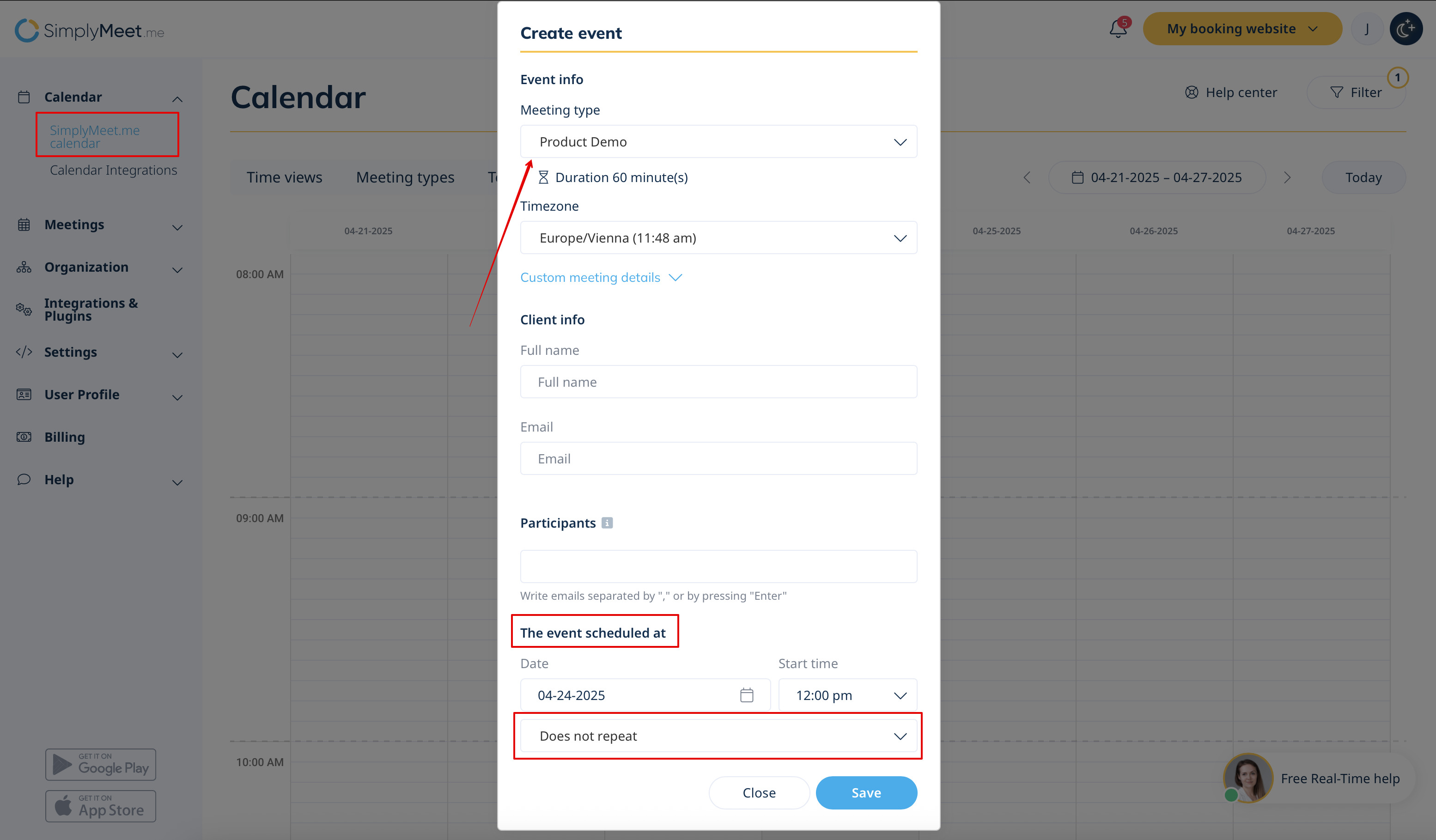
1. Navigate to Calendar -> SimplyMeet.me Calendar
2. Click on any available time slot in your preferred calendar view
3. In the meeting form, under Event Info / Meeting Type, select your One-on-One Meeting Type
4. Scroll to the bottom of the form and find the The event is scheduled at with the repeat mode dropdown
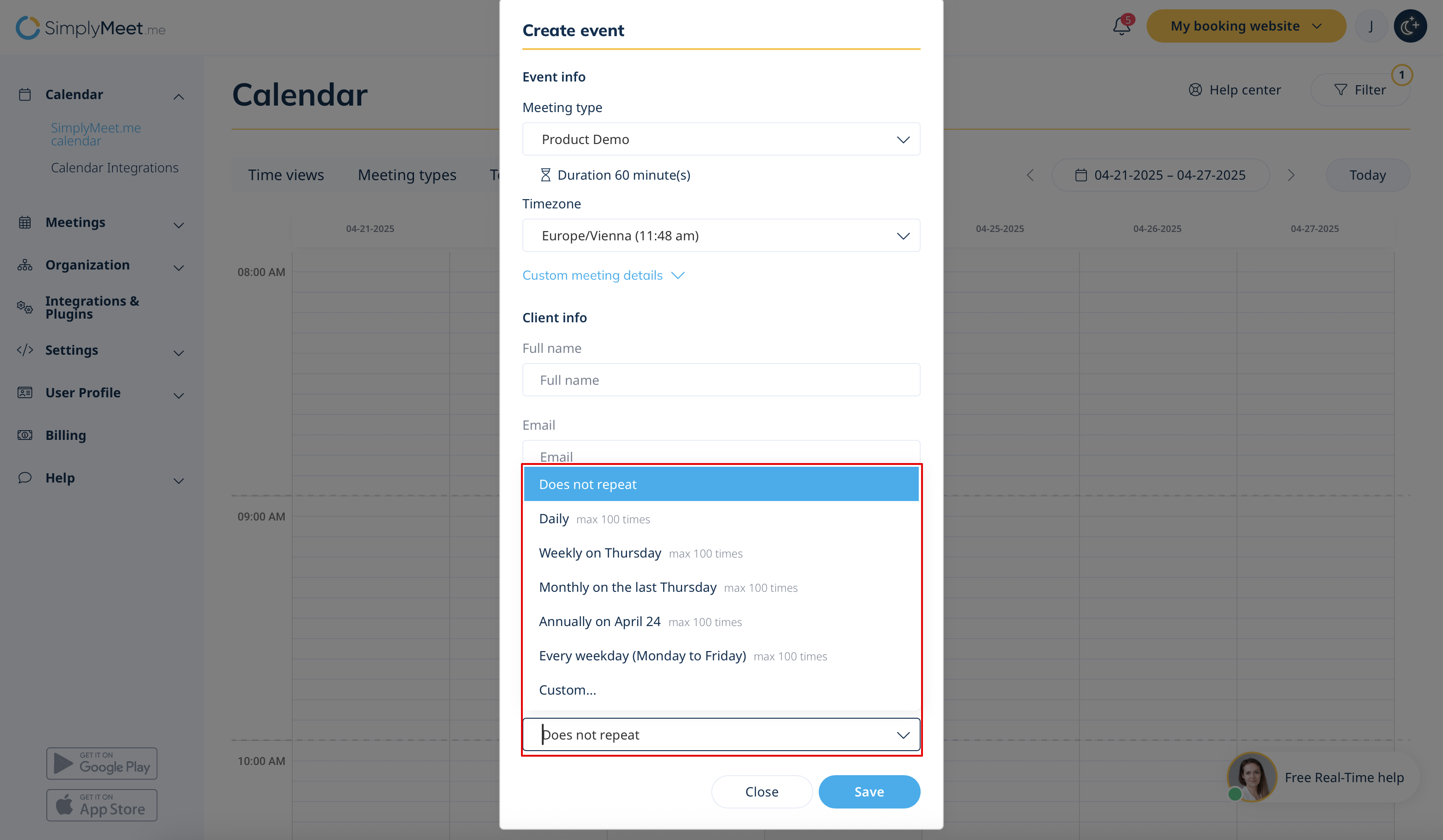
5. Choose your preferred repeat option to set how the meeting should recur.
6. Meetings booked as part of a recurring pack will show a corresponding visual badge in meeting details within the SimplyMeet.me Calendar tab.
Available Repeat Options:
- Do not repeat (Default) – A single, one-time meeting
- Daily – One meeting every day
- Weekly on [Day] – Every week on the same weekday
- Monthly on [first/second/third/last] [Day] – Once per month, based on the weekday
- Annually on [Date] – Once a year (Feb 29 is not supported)
- Every weekday – Monday through Friday
- Custom – Manually select multiple specific dates
You’ll see a date preview where you can delete specific sessions before saving.
You can create up to 100 occurrences per meeting series.
Managing Recurring Meetings
- The Add to Calendar button in the confirmation email allows clients to add all sessions of a recurring meeting pack to their external calendar (Google, Outlook, Apple, etc.) at once.
All participants will receive a confirmation email with the same option.
- A single unique video meeting link is used for all sessions.
Rescheduling: You can reschedule individual sessions in the recurring pack using the Reschedule functionality.
Cancellation: You can cancel using one of the following:
- Cancel this meeting (cancels just one)
- Cancel this and the following meetings (available only from the Admin page)
Notifications
- When a recurring meeting is created user (host) as well as the client (invitee) receive a meeting confirmation notification.
- If the individual session gets rescheduled, the confirmation of rescheduling is sent to the user and client.
- If one session is canceled, both the user and client receive a cancellation notification.
- If one or multiple sessions are canceled at once, both the user and client receive a cancellation notification.
Important Notes
- Availability is not checked for recurring sessions, and unavailable dates won’t be flagged.
- It’s not possible to accept payments for recurring meetings.
- Recurring meetings only work with Email notifications. Calendar notifications do not support sending all recurring dates at once or displaying full details reliably. To ensure clients receive complete information for all sessions, Email is the required notification method for recurring bookings.
- Clients cannot book recurring meetings via the public booking page — only the user can create them from the admin calendar.
