No edit summary |
No edit summary |
||
| Line 45: | Line 45: | ||
12. That's it! Now your clients will get SMS notifications about the meetings. | 12. That's it! Now your clients will get SMS notifications about the meetings. | ||
</p> | </p> | ||
< | <br> | ||
*You can also have both levels enabled and decide whether to set organization level as a priority or not. | *You can also have both levels enabled and decide whether to set organization level as a priority or not. | ||
'''Please note!''' If this option is "On" all the emails will be processed through organization SMS Gateway. If you disable it then each user integration will be used for SMS notifications. | '''Please note!''' If this option is "On" all the emails will be processed through organization SMS Gateway. If you disable it then each user integration will be used for SMS notifications. | ||
Revision as of 16:49, 1 July 2026
SMS Gateway integration enables you to notify your customers about freshly booked meetings, rescheduling cases and cancellations via SMS. You can use it in addition to email notifications to reduce no-show rates. We have integrated Twilio and Nexmo gateway for you to choose from.
Note: This integration can only be enabled with the Professional subscription level.
Configuring Nexmo or Twilio integration into your SimplyMeet.me account
1. Create and account with Nexmo or Twilio SMS gateways in case you do not have one yet.
Then find SMS Gateway option in User Integrations tab if you wish to set it on the user level. Or SMS Gateway for Organization* if you wish to use it for the organization.
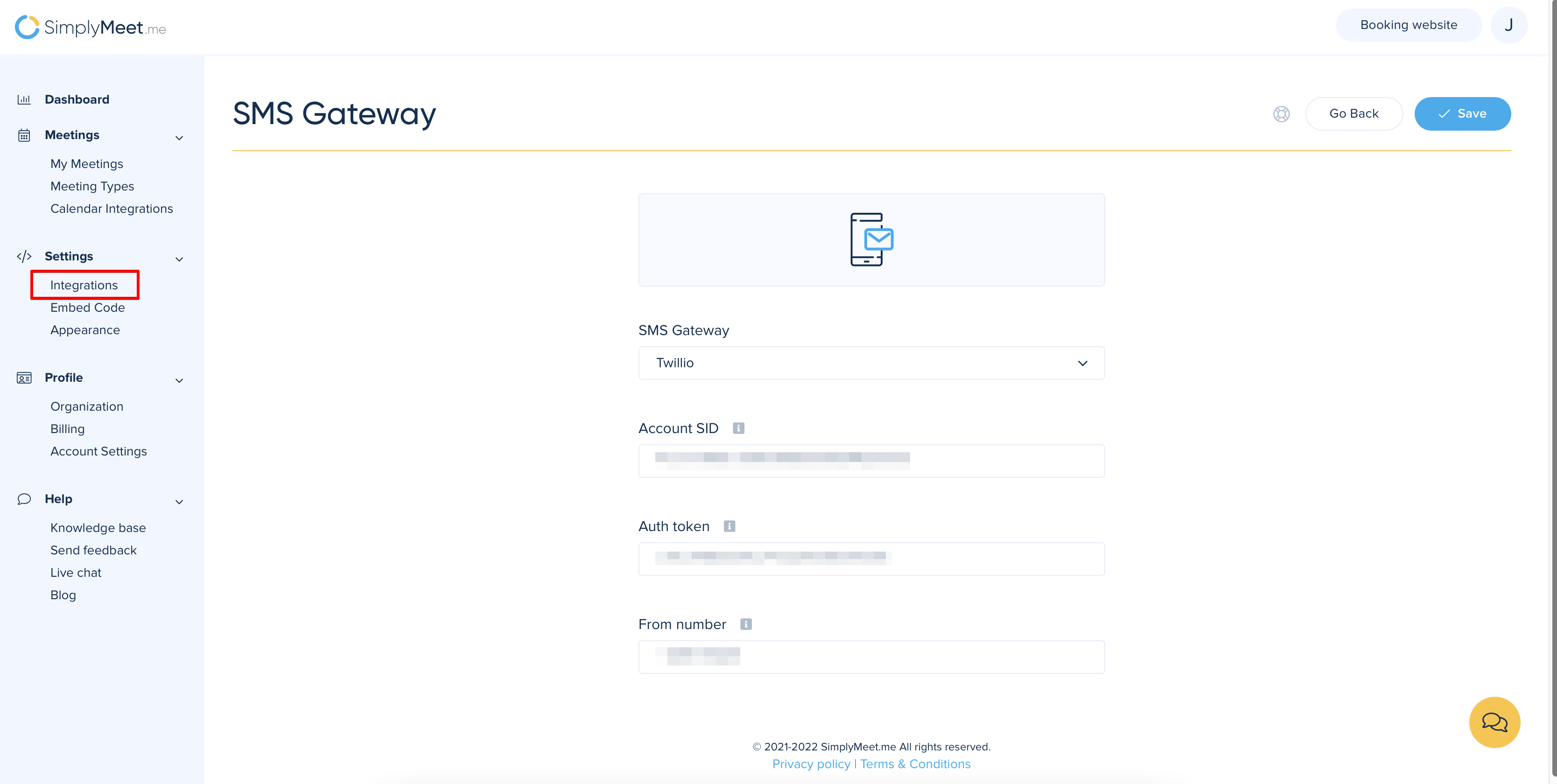
2. In your SimplyMeet.me account navigate to Integrations
3. Click on Enable.
4. On the next page select Nexmo or Twilio in the SMS Gateway field.
5. Provide the required credentials of the selected gateway in the fields below. Save settings.
6. Go to your Meeting Types page.
7. Click to edit the existing meeting type or create a new one.
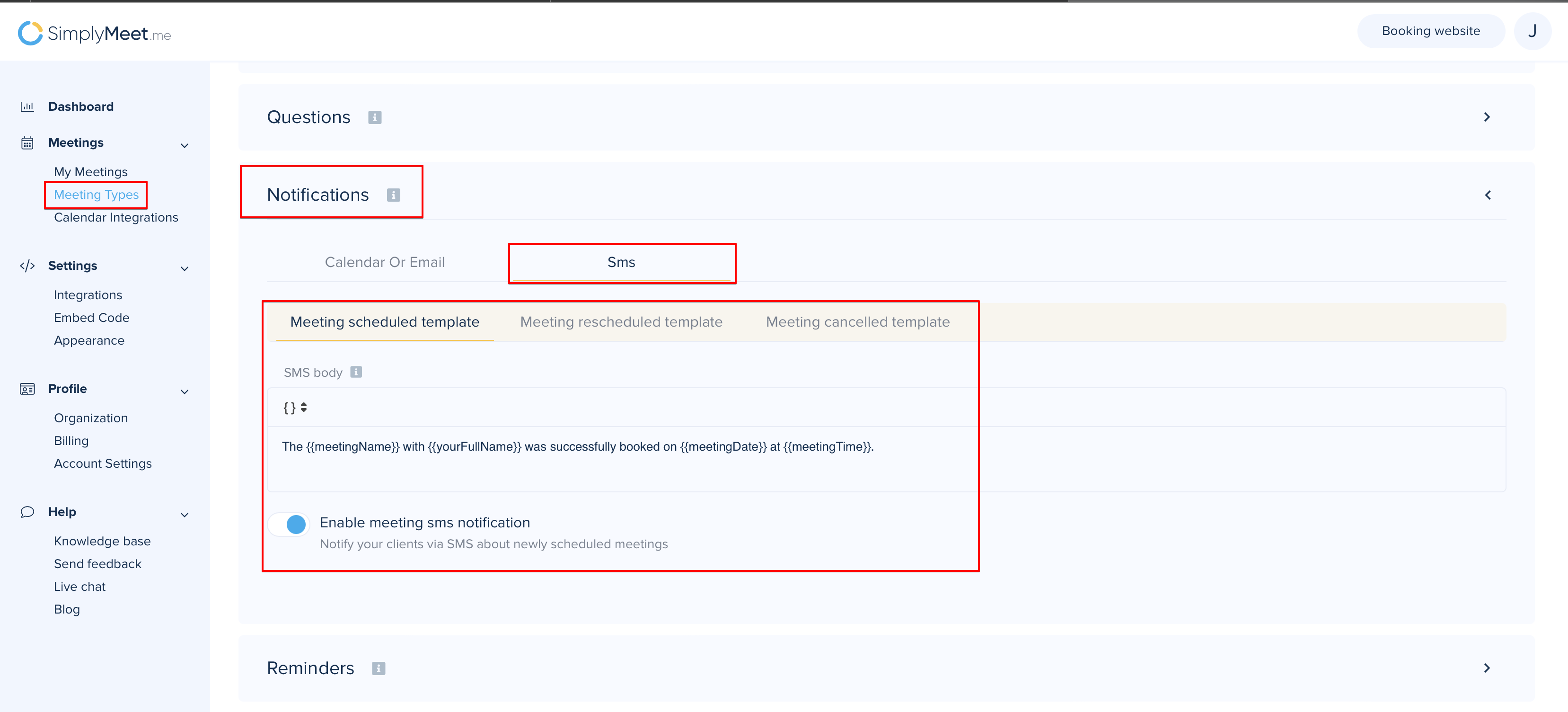
8. Scroll to the Notifications section and choose SMS tab.
9. Enable the desired notification types (schedule, reschedule or cancellation) and adjust the templates texts if necessary.
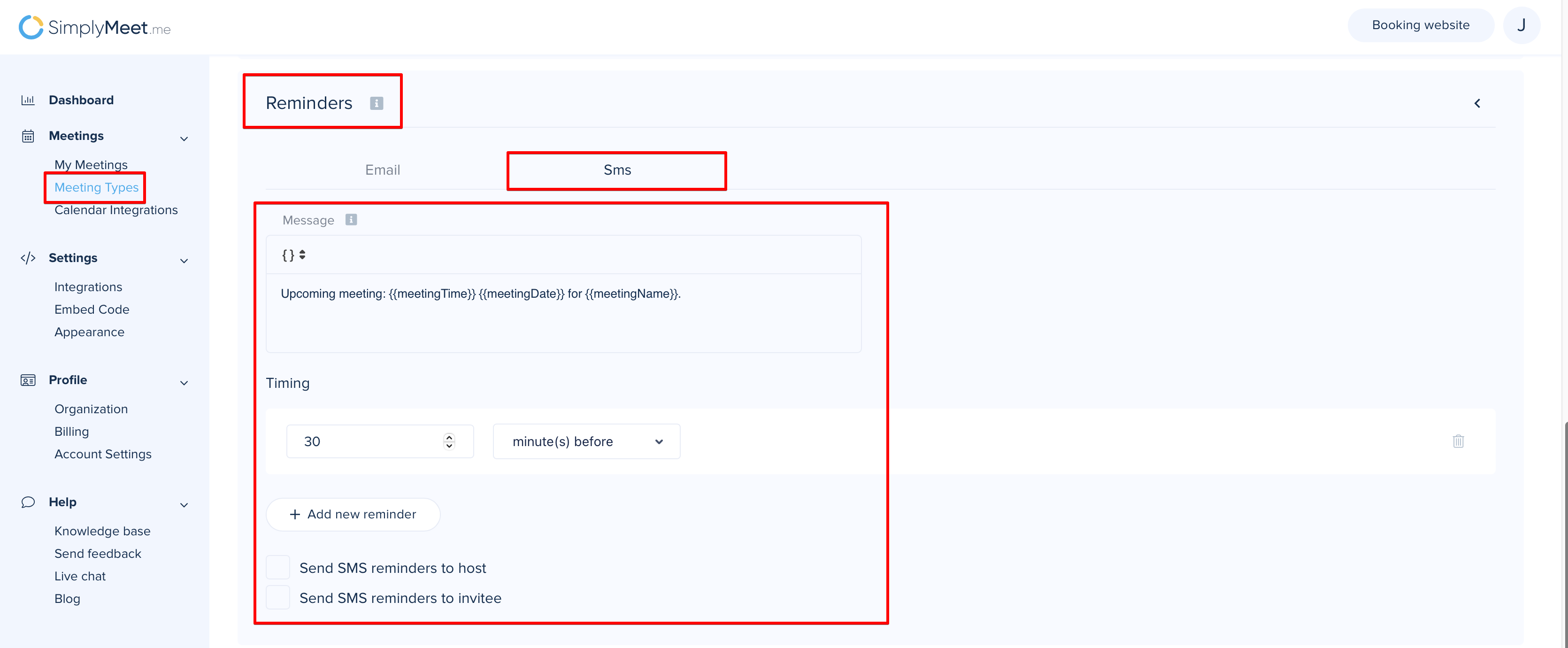
10. In case you would also like to send SMS reminders please select Reminders section and SMS tab there.
11. Add timing for your reminders, adjust the template text and save the meeting type.
12. That's it! Now your clients will get SMS notifications about the meetings.
- You can also have both levels enabled and decide whether to set organization level as a priority or not.
Please note! If this option is "On" all the emails will be processed through organization SMS Gateway. If you disable it then each user integration will be used for SMS notifications.
