No edit summary |
No edit summary |
||
| Line 60: | Line 60: | ||
<br><br> | <br><br> | ||
==Participant Availability Check== | ==Participant Availability Check== | ||
To | To ensure smoother scheduling, our meeting booking form includes a built-in participant availability check.<br> | ||
;How it works: | |||
<br><br> | * When scheduling a meeting, the system automatically checks the availability of all added participants from your organization for the selected time. | ||
* If everyone is available, the meeting is booked without any issues. | |||
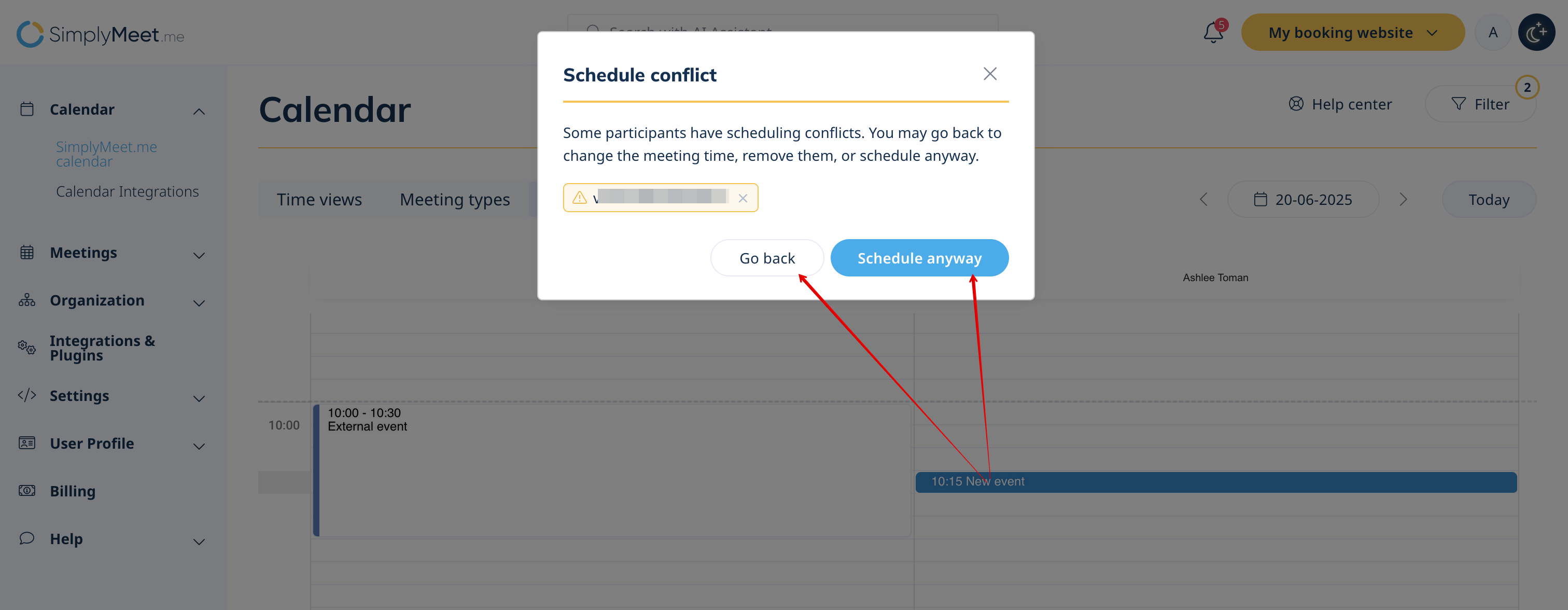
* If someone is unavailable, an error message appears: | |||
: - Notifies that one or more participants are unavailable. | |||
: - Highlights the specific email addresses of those who are unavailable. | |||
At that point, the user can choose to: | |||
* Proceed with scheduling the meeting, keeping all participants — even if some are unavailable (all participants receive the meeting invite). | |||
* Remove the unavailable participant(s) and continue with only those who are free (the kept participants receive the invite). | |||
[[File:Schedule conflict sm.png|1200px|center|link=https://help.simplymeet.me/images/8/86/Schedule_conflict_sm.png]] | |||
<br><br><br><br> | |||
Revision as of 12:17, 19 June 2025
The Team Scheduling feature in SimplyMeet.me allows meeting organizers to efficiently schedule meetings with multiple employees in their organization. By using the internal calendar view, organizers can check the availability of team members and easily create meetings during suitable times.
Event Visibility:
- Accessible only for paid plan users.
- Supports Google, Outlook, and other calendar types.
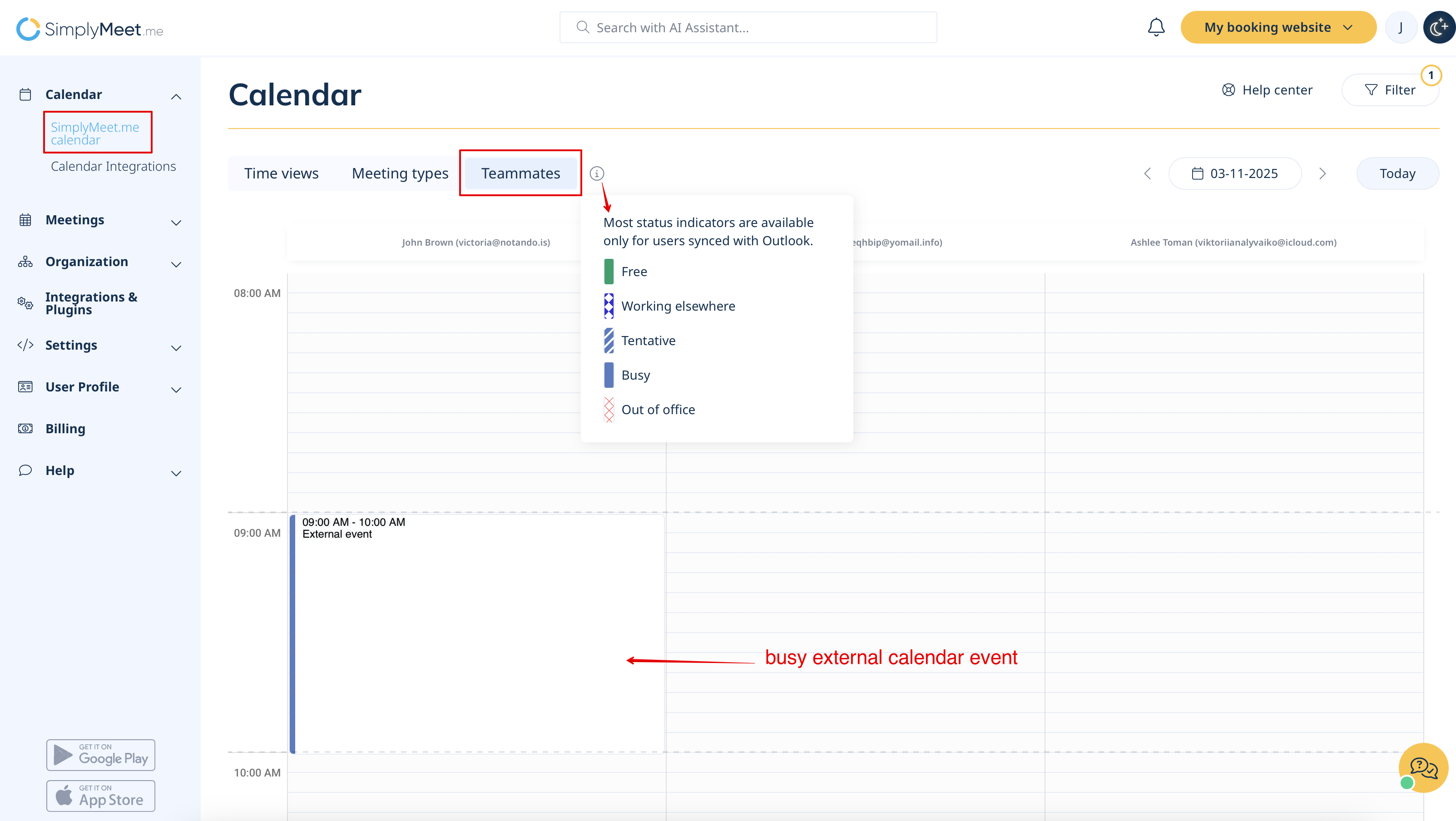
- Displays only "busy" events for all calendars except Outlook, which shows events with all statuses.
- Available only via the “Teammates” Calendar View.
- Events are color-coded for quick identification.
- External events can be clicked to view details in a popup but cannot be edited or removed.
How to Use Team Scheduling
Step 1: Set Up Calendar Integrations
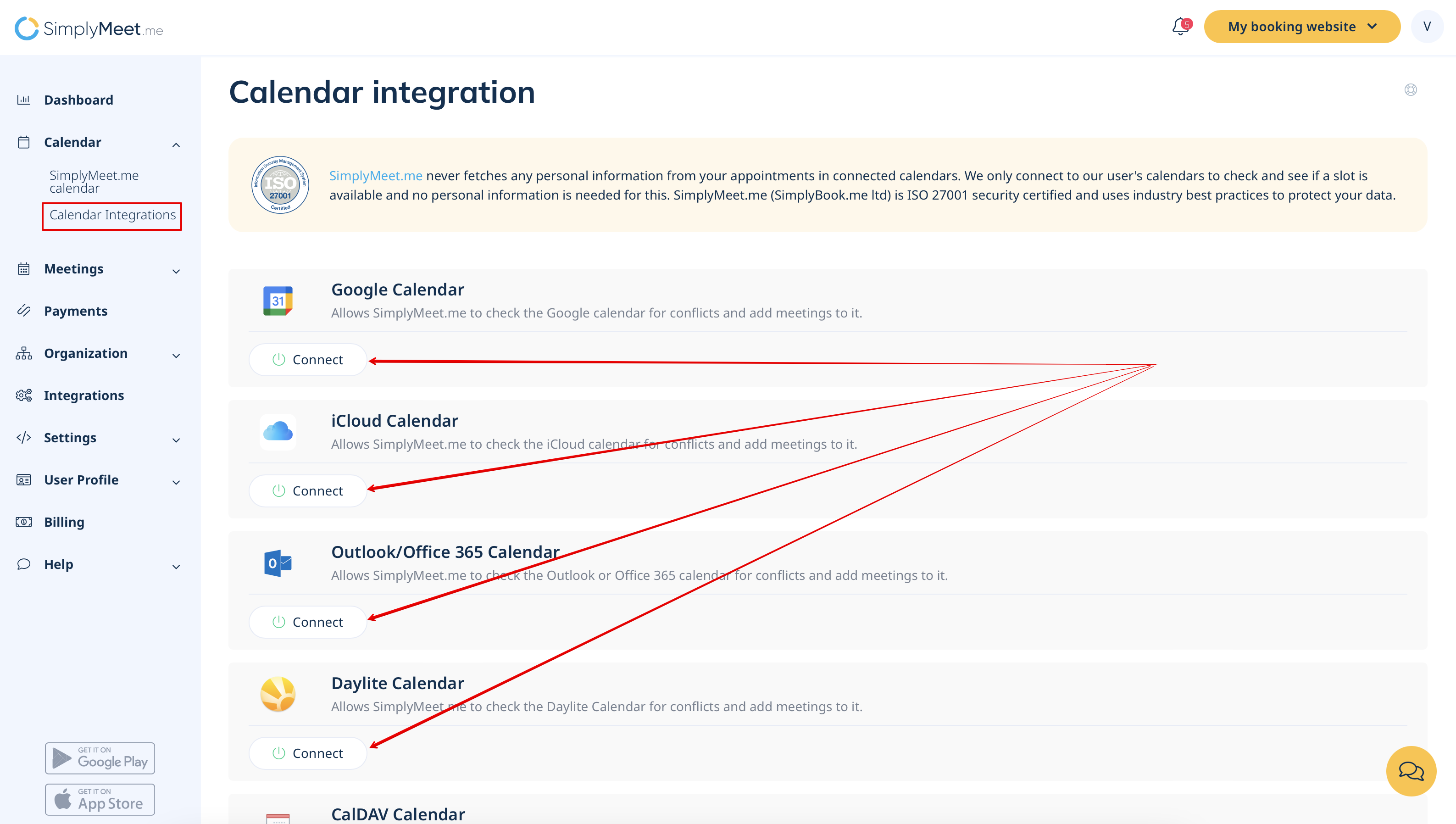
1. Navigate to Calendar Integrations in your SimplyMeet.me account.
2. Click the Add Calendar Account button to connect external calendars such as Google, Outlook, or others.
Step 2: Configure Conflict Checks
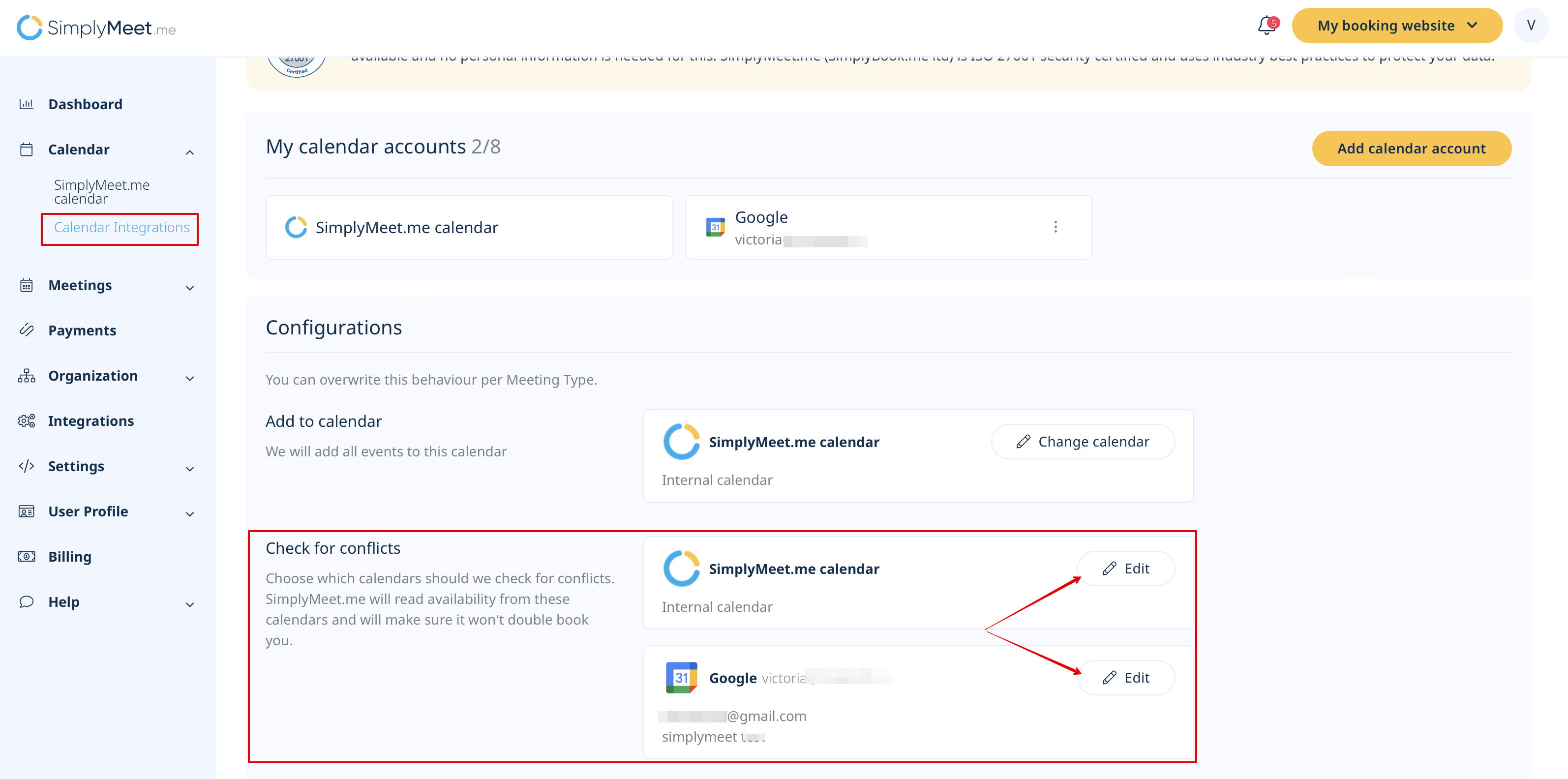
1. Under Configurations, select the Check for Conflicts option to identify which of your external calendars should be considered for conflict checking.
Step 3: Manage Calendar Sharing Permissions
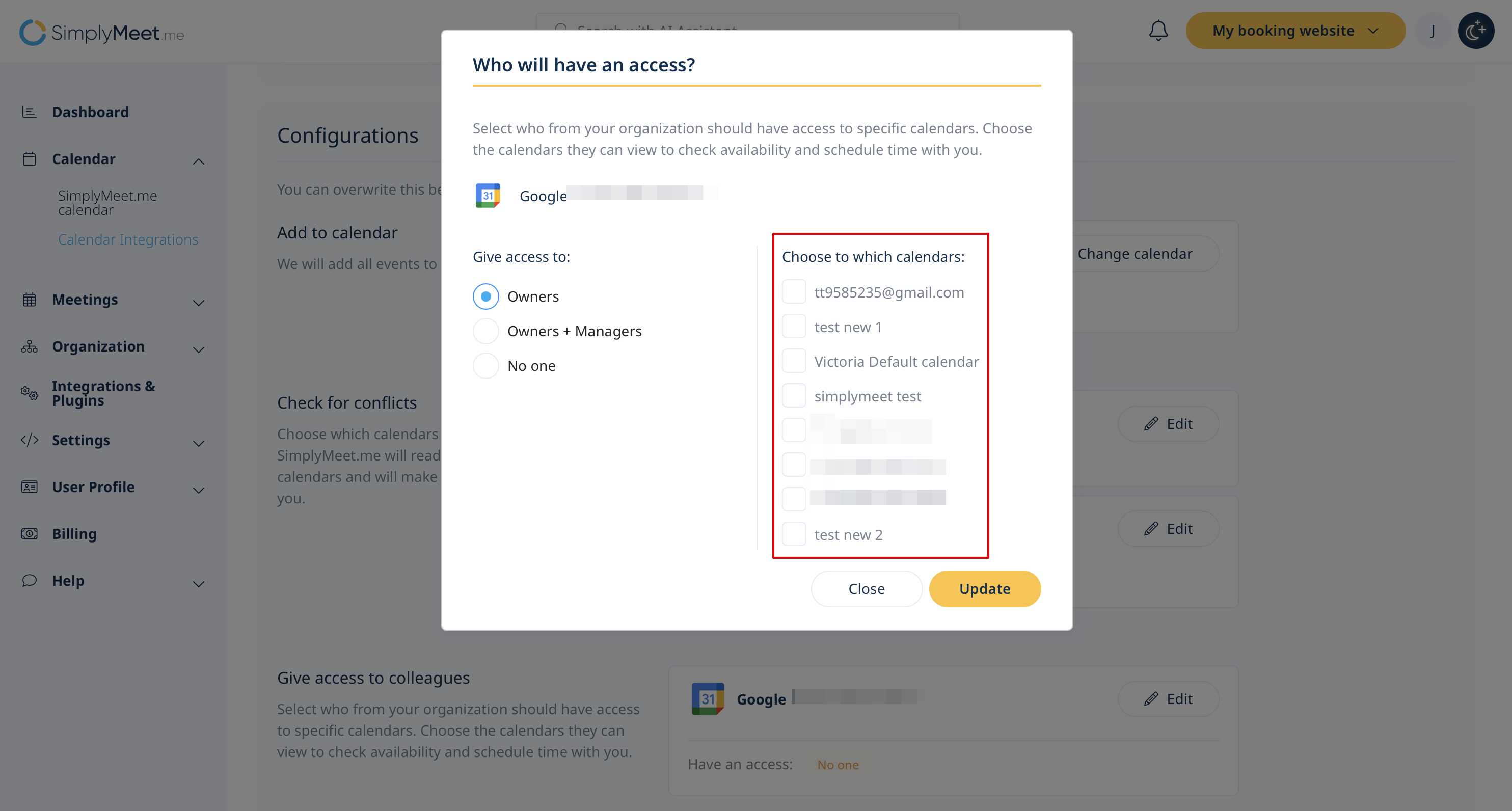
Scroll to the Give Access to Colleagues section to manage sharing settings:
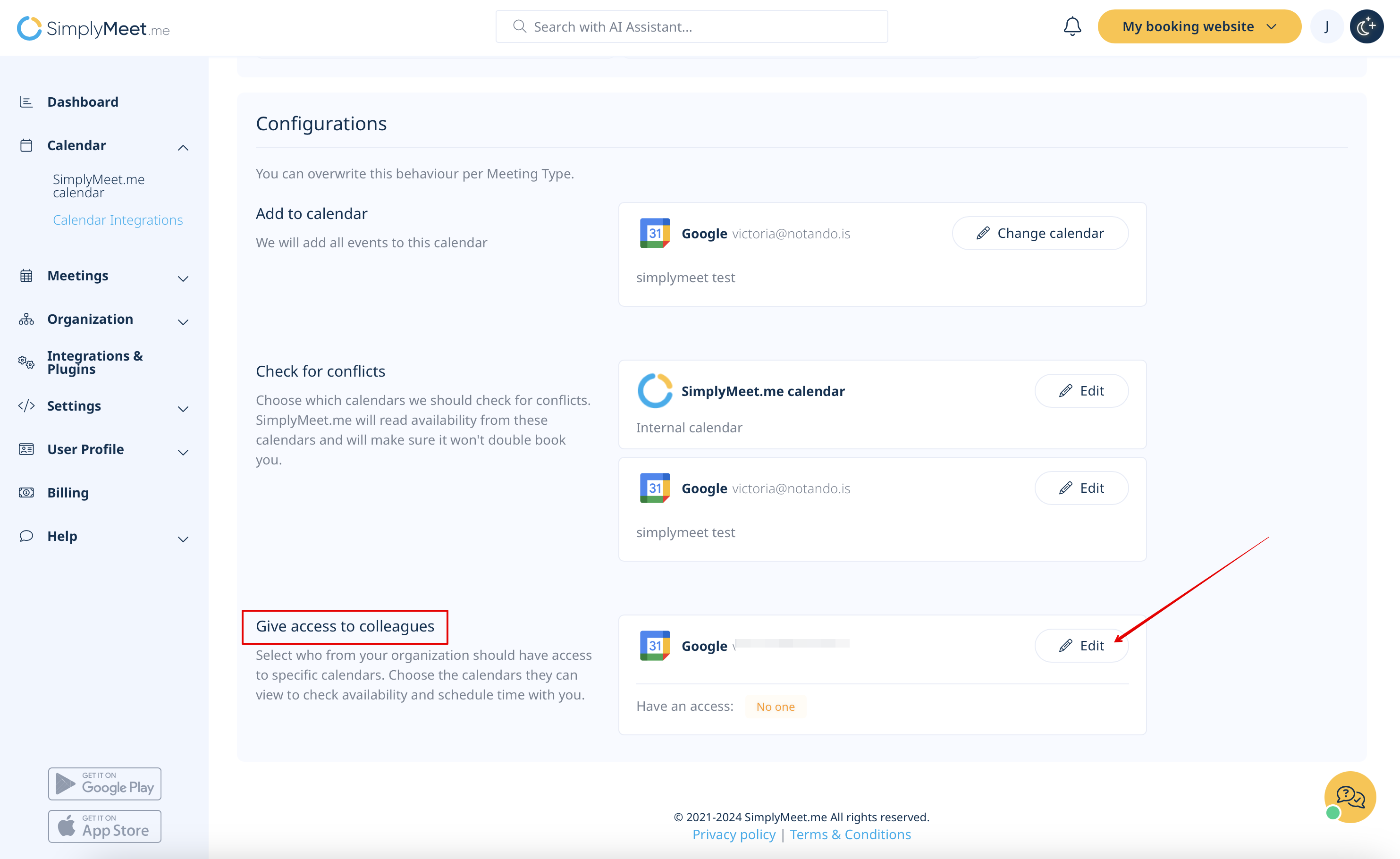
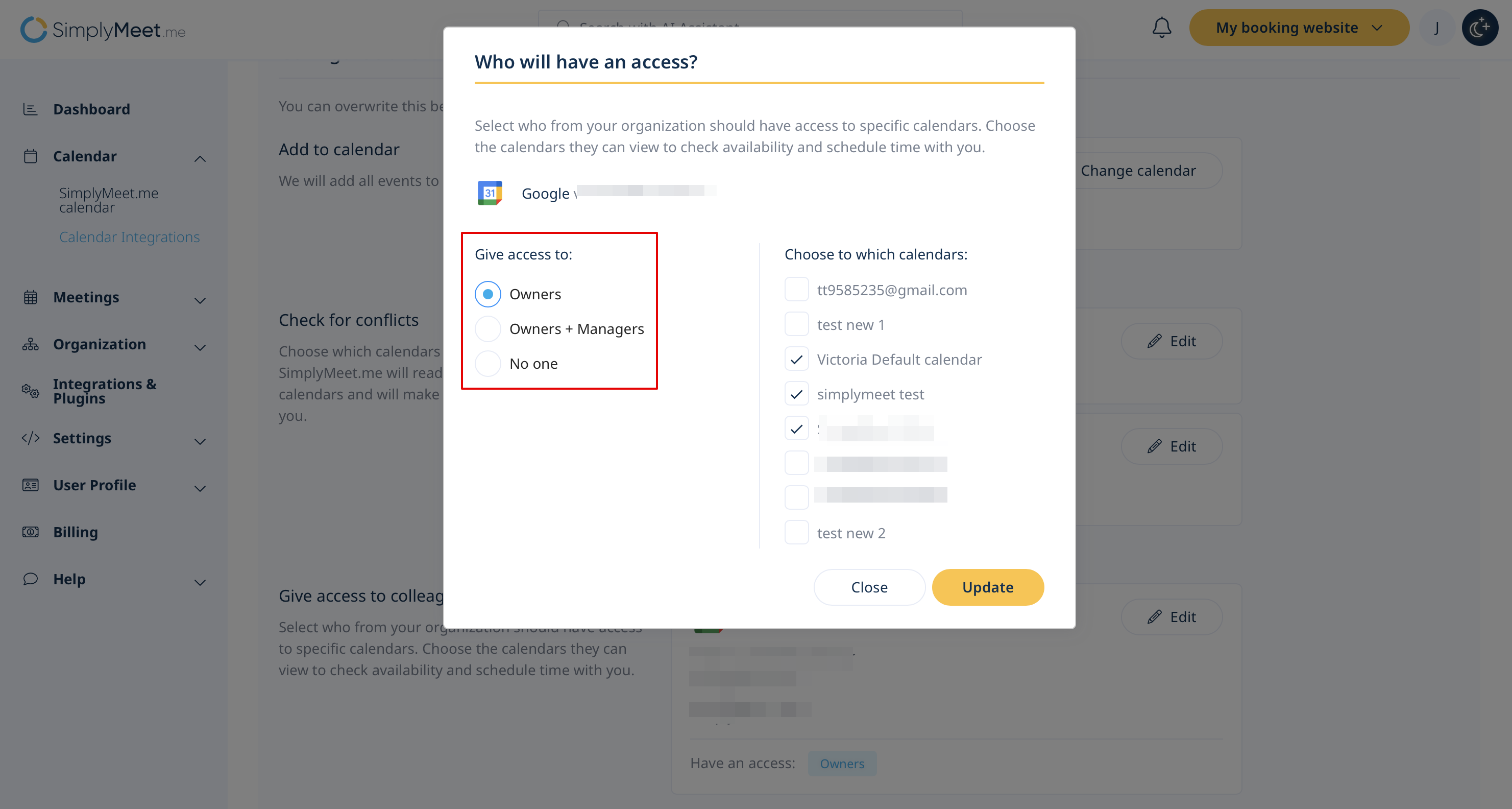
- Choose shared calendars: Select which external calendars to share with your organization.

- Set user access levels: Assign visibility based on user tiers:
- Owners: Only the account owner can view and access shared calendars.
- Owners: Only the account owner can view and access shared calendars.
- Owners + Managers: Both the account owner and managers can view shared calendars.
- Owners + Managers: Both the account owner and managers can view shared calendars.
- No one: Shared calendars remain private and inaccessible to other users.
Step 4: Use the Teammates Calendar View
1. Navigate to the SimplyMeet.me calendar and select Teammmates Calendar View.
2. Apply filters to focus on specific team members’ schedules.
3. Identify a suitable time slot by reviewing color-coded availability indicators.
Step 5: Schedule a Meeting
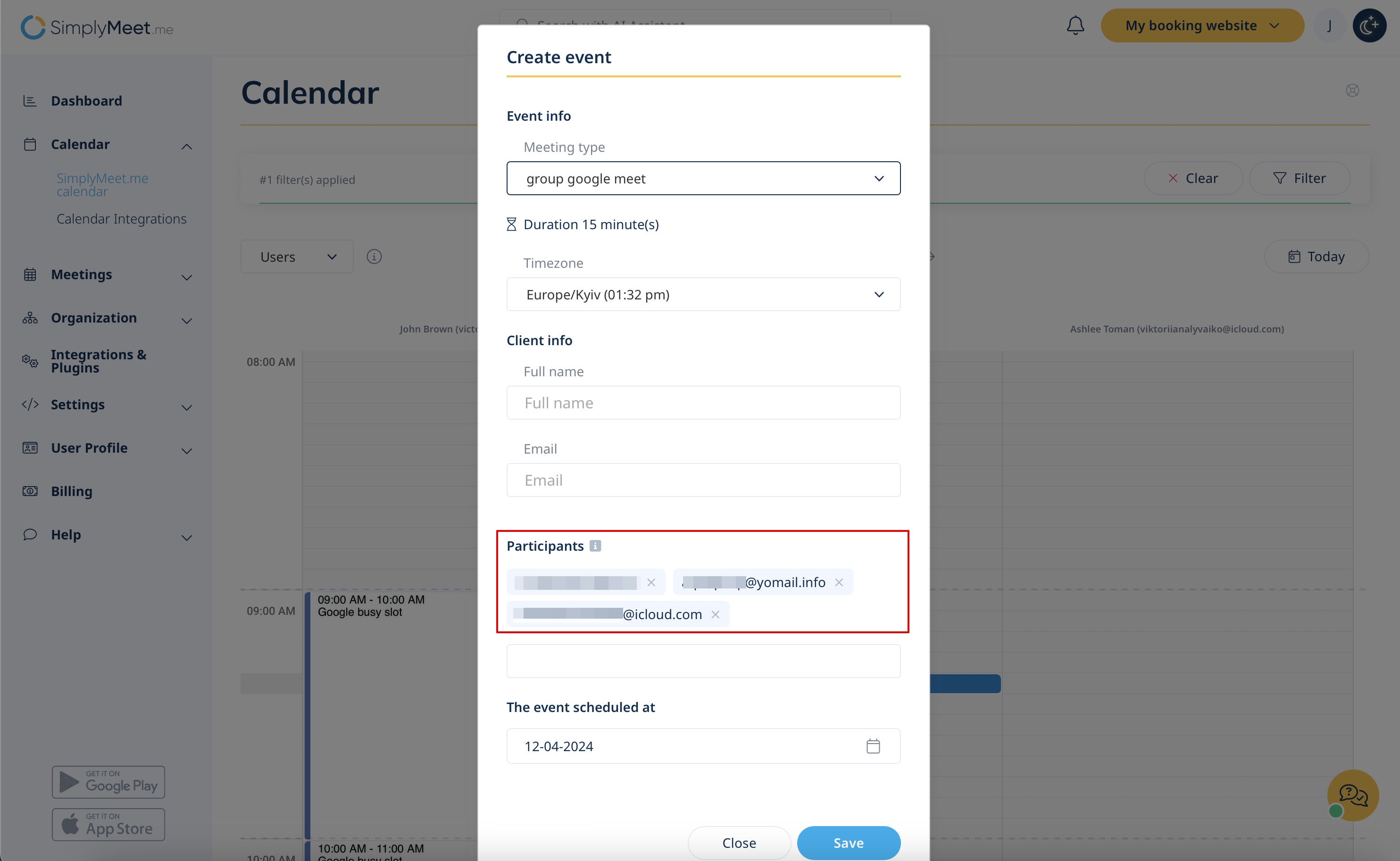
1. In the Teammates Calendar View, click on an available time slot in your SimplyMeet.me calendar.
2. The system will auto-add the filtered team members as participants.
3. Complete the meeting details, and confirm the appointment.
Scheduling Meetings on Behalf of a Teammate
1. Open the Teammates Calendar View and click on an available time slot.
2. From the Meeting Type drop-down, select a personal meeting type for the teammate.
3. Optionally, exclude yourself from the participant list to avoid receiving notifications about the meeting.
4. Fill in the meeting details and confirm the appointment.
5. The selected teammate will be the meeting host.
Participant Availability Check
To ensure smoother scheduling, our meeting booking form includes a built-in participant availability check.
- How it works
- When scheduling a meeting, the system automatically checks the availability of all added participants from your organization for the selected time.
- If everyone is available, the meeting is booked without any issues.
- If someone is unavailable, an error message appears:
- - Notifies that one or more participants are unavailable.
- - Highlights the specific email addresses of those who are unavailable.
At that point, the user can choose to:
- Proceed with scheduling the meeting, keeping all participants — even if some are unavailable (all participants receive the meeting invite).
- Remove the unavailable participant(s) and continue with only those who are free (the kept participants receive the invite).