No edit summary |
No edit summary |
||
| Line 14: | Line 14: | ||
<br><br> | <br><br> | ||
<p> | <p> | ||
3. Add your company details and hit ''' | 3. Add your company details and hit '''Activate SBPay!''' button.</p> | ||
<p> | |||
If you have paid subscription you can also enable '''PRO''' version(here on registration or later while editing the integration settings), that will open access to refunds and sending payments links from SBPay.me interface.</p> | |||
<p> | |||
[[File:Enable sbpay pro on registration.png|1200px|center|link=https://help.simplymeet.me/images/b/b3/Enable_sbpay_pro_on_registration.png]]</p> | |||
<p> | <p> | ||
4. Go to the SBPay interface using the corresponding button and choose '''Payment processors''' tab.</p> | 4. Go to the SBPay interface using the corresponding button and choose '''Payment processors''' tab.</p> | ||
Revision as of 13:38, 7 June 2023
Collect payments from clients at time of booking with PayPal, Stripe, Adyen and many other processors via SBPay in just a few simple steps.
You can use the integration on the user account level as well as organization one (with paid subscriptions).
- How to set
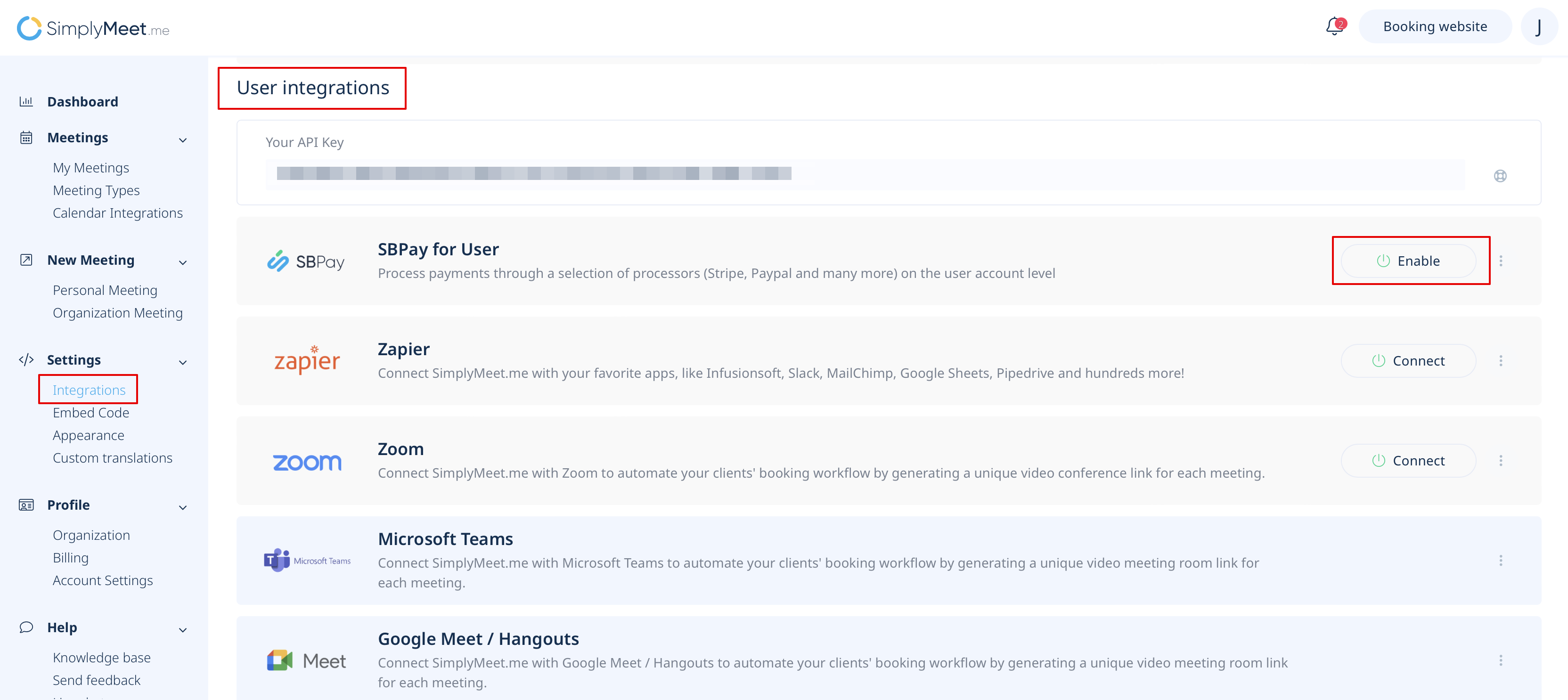
1. Navigate to your Integrations page.
2. Click on Enable near SBPay for User if you plan to use it for the single account.
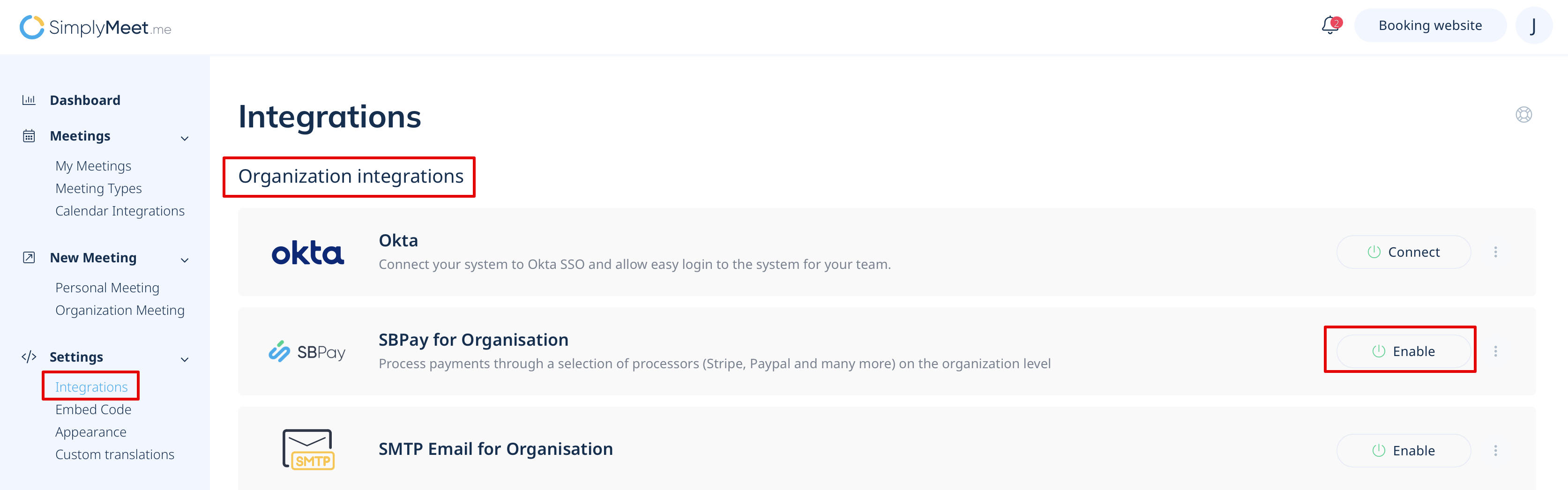
Or enable SBPay for Organisation* if you are an owner of the organization.
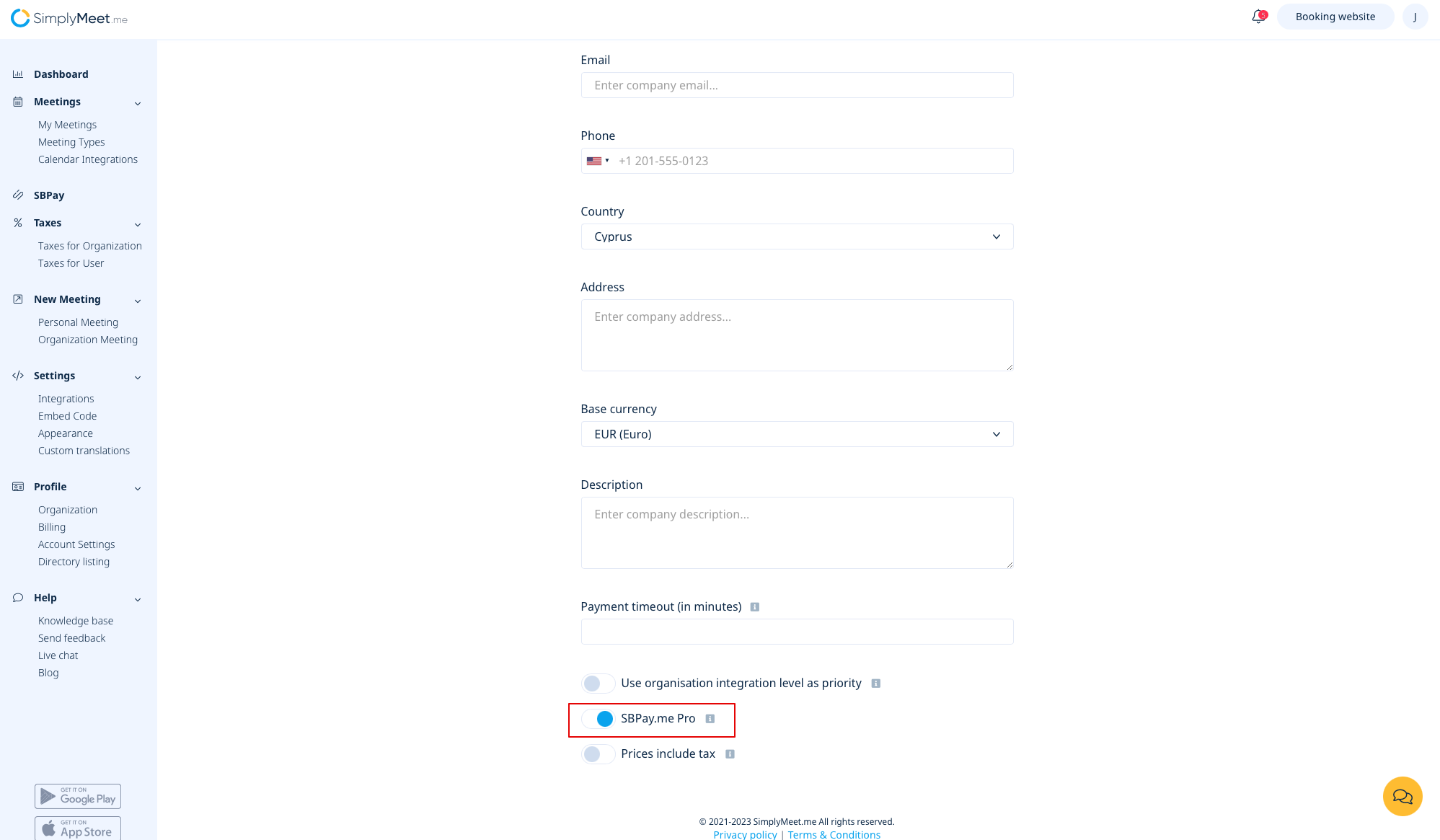
3. Add your company details and hit Activate SBPay! button.
If you have paid subscription you can also enable PRO version(here on registration or later while editing the integration settings), that will open access to refunds and sending payments links from SBPay.me interface.
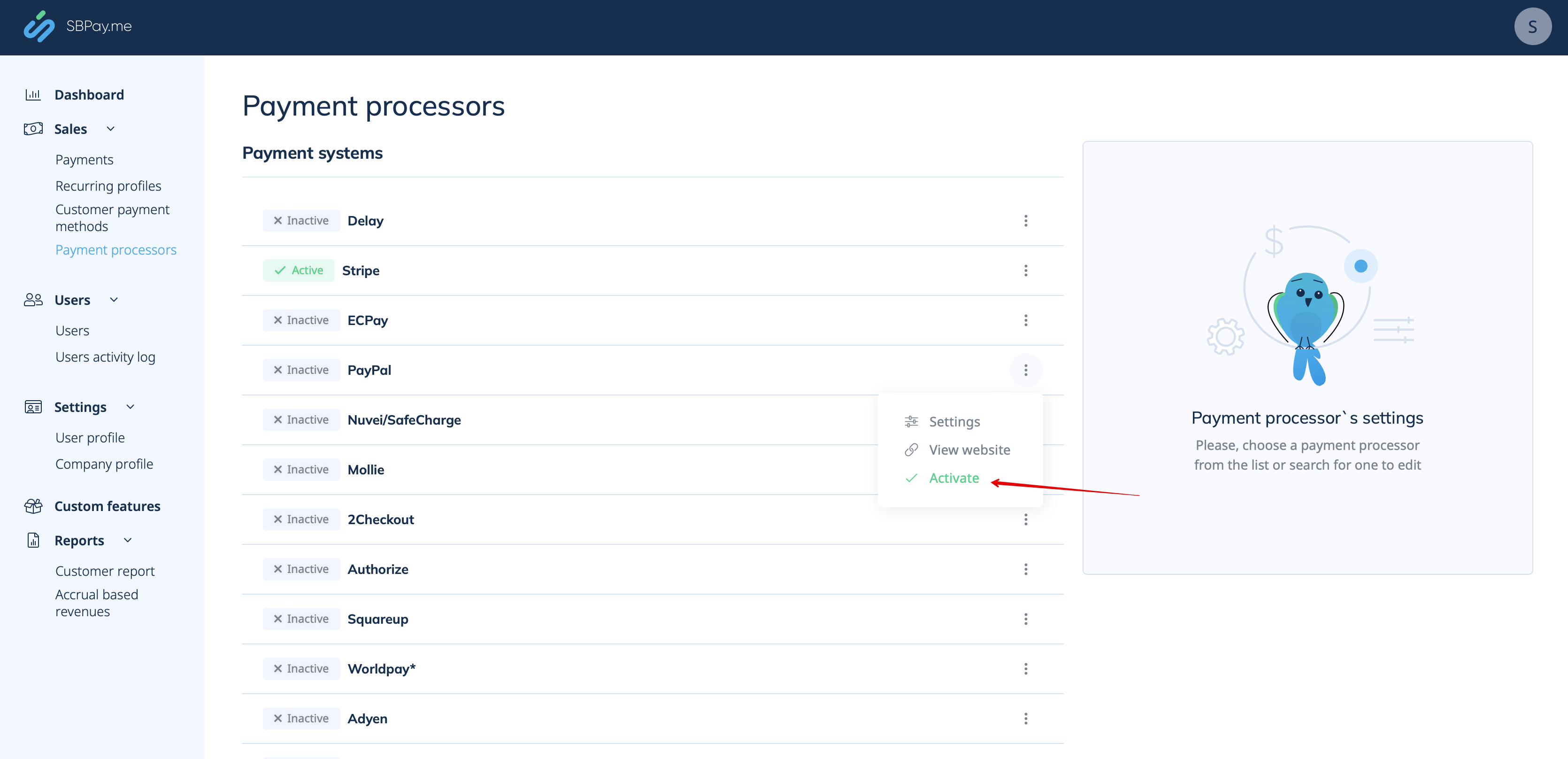
4. Go to the SBPay interface using the corresponding button and choose Payment processors tab.
5. Click on the desired payment system name, select to Activate it.
6. Add your credentials for the chosen payment system and save settings.
7. Get back to your SimplyMeet.me account and navigate to Meeting types page to add prices for the desired items there.
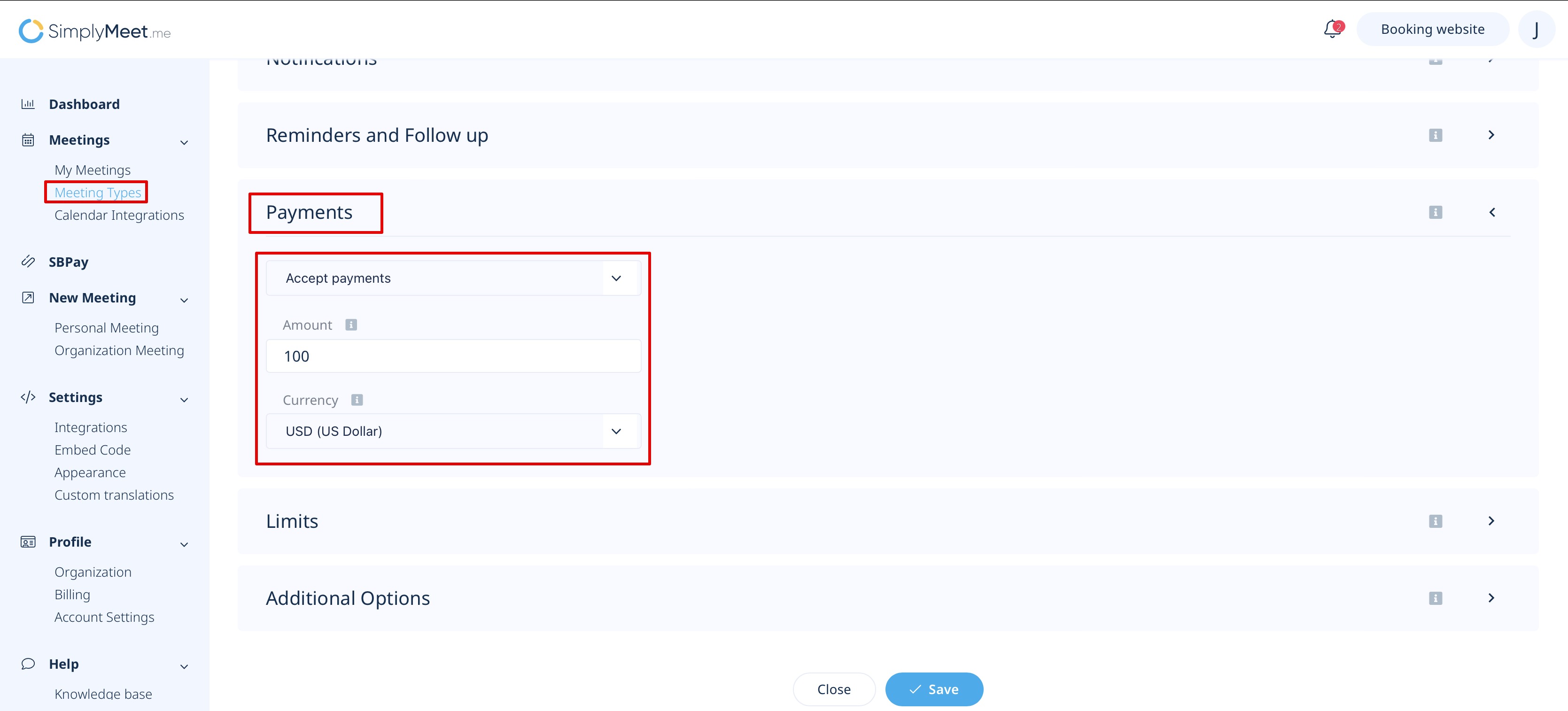
8. As long as everything is added and saved your customers will be able to make payments online to confirm their appointments.
*You can also have both levels enabled and decide whether to set organization level as a priority or not.
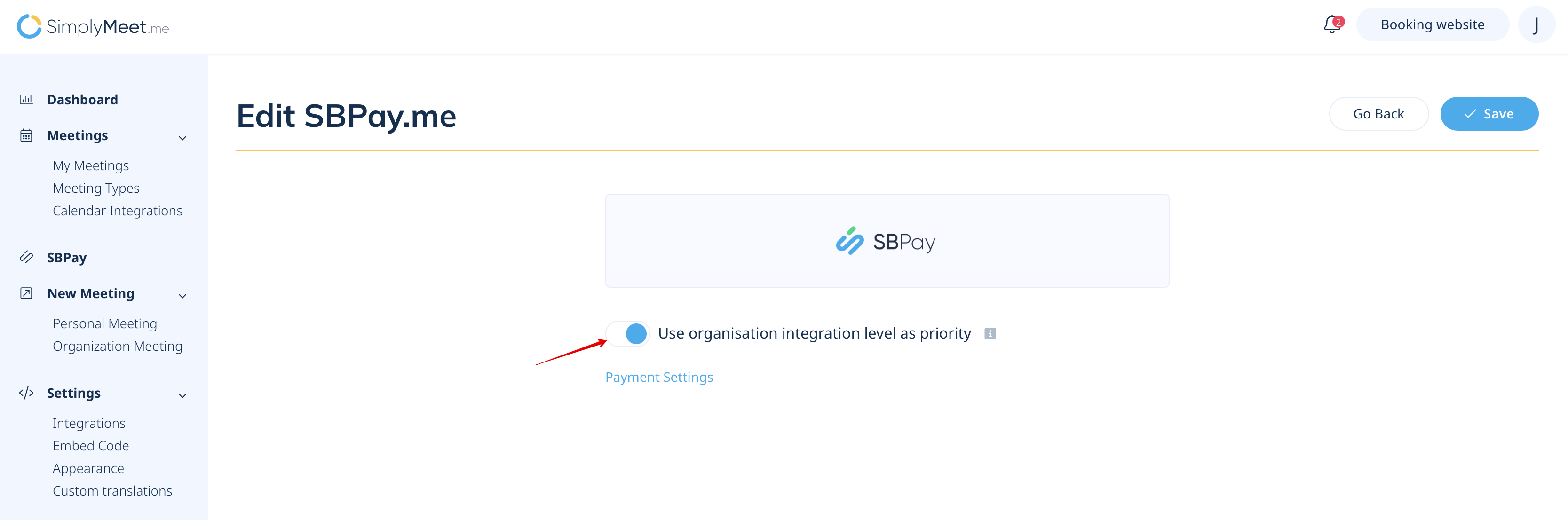
Please note! If this option is "On" all the payments will be processed through organisation SBPay.me account.
If you disable it then each user integration will be used for payments.
