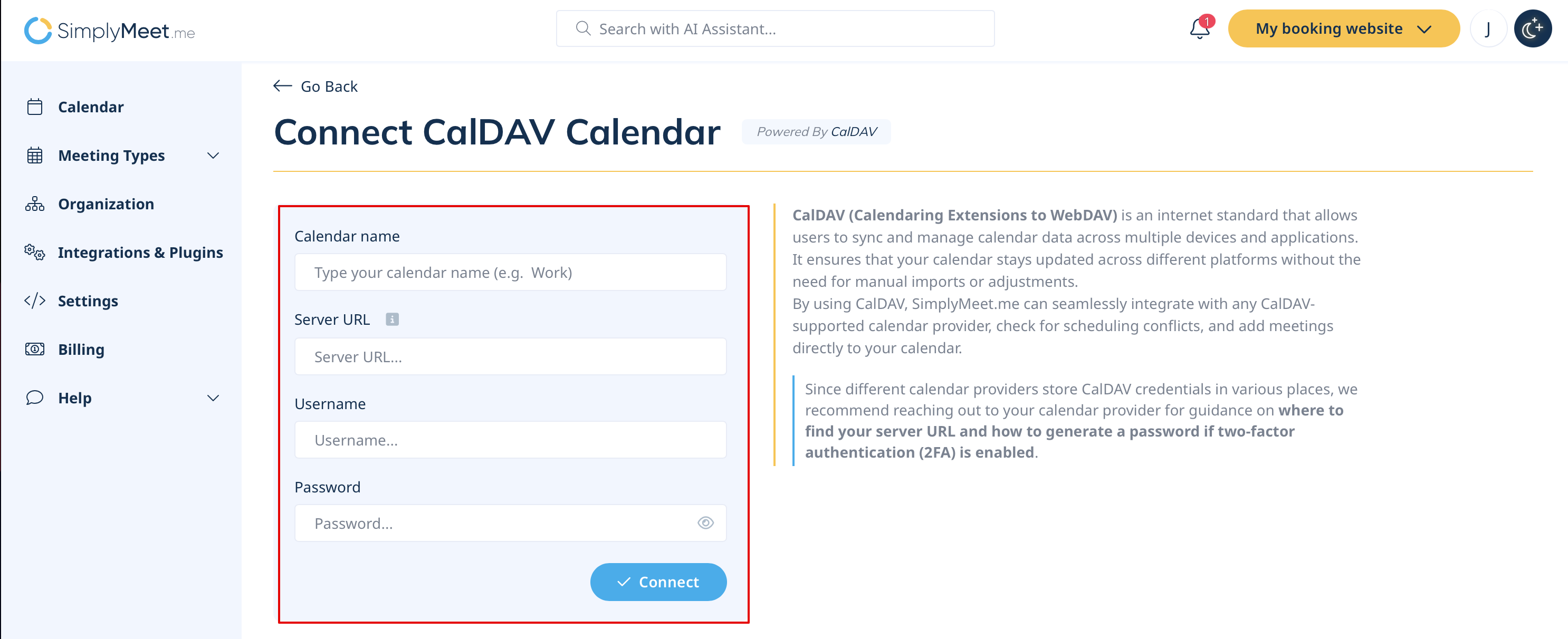
Created page with "You can easily connect popular calendar providers to SimplyMeet.me using CalDAV. This integration allows you to sync events between SimplyMeet.me and your preferred calendar so your availability is always up to date.<br> ==Supported Calendar Providers== On the '''CalDAV integration page''' (<span style="background-color:#d4f8e5; padding:5px; border-radius:5px;">Integrations & Plugins</span> → <span style="background-color:#d4f8e5; padding:5px; border-radius:5px;">Cale..." |
No edit summary |
||
| (One intermediate revision by the same user not shown) | |||
| Line 14: | Line 14: | ||
* '''Other Calendar''' (CalDAV) – for any provider not listed above | * '''Other Calendar''' (CalDAV) – for any provider not listed above | ||
<br><br> | <br><br> | ||
=How to Connect Your Calendar== | ==How to Connect Your Calendar== | ||
1. Go to '''Calendar Integrations''' in your SimplyMeet.me account. | 1. Go to '''[https://secure.simplymeet.me/integrations Integrations & Plugins]''' -> '''Calendar Integrations''' in your SimplyMeet.me account. | ||
[[File:Add calendar account new sm.png|1200px|center|link=https://help.simplymeet.me/images/6/69/Add_calendar_account_new_sm.png]] | |||
<br><br> | |||
2. Find and select your calendar provider’s card. | 2. Find and select your calendar provider’s card. | ||
3. Follow the '''step-by-step instructions''' or watch the '''video tutorial''' provided for your calendar.<br> | [[File:Sm new calendars list.png|1200px|center|link=https://help.simplymeet.me/images/a/a1/Sm_new_calendars_list.png]] | ||
<br><br> | |||
3. Follow the '''step-by-step instructions''' or watch the '''video tutorial''' provided for your calendar.<br> | |||
(These guides will help you locate the necessary credentials (username, password/app-specific password, and server URL) directly from your calendar provider). | (These guides will help you locate the necessary credentials (username, password/app-specific password, and server URL) directly from your calendar provider). | ||
[[File:Sm caldav instructions.png|1200px|center|link=https://help.simplymeet.me/images/0/08/Sm_caldav_instructions.png]] | |||
<br><br> | |||
4. Enter your '''Server URL''' and credentials when prompted.<br> | 4. Enter your '''Server URL''' and credentials when prompted.<br> | ||
'''Tip:'''<br> | '''Tip:'''<br> | ||
The Server URL is the address where your calendar data is stored and accessed. It directs SimplyMeet.me to the correct location for fetching and syncing events. | The Server URL is the address where your calendar data is stored and accessed. It directs SimplyMeet.me to the correct location for fetching and syncing events. | ||
[[File:Sm add caldav credentials.png|1200px|center|link=https://help.simplymeet.me/images/5/5d/Sm_add_caldav_credentials.png]] | |||
<br><br> | <br><br> | ||
Latest revision as of 08:39, 16 September 2025
You can easily connect popular calendar providers to SimplyMeet.me using CalDAV. This integration allows you to sync events between SimplyMeet.me and your preferred calendar so your availability is always up to date.
Supported Calendar Providers
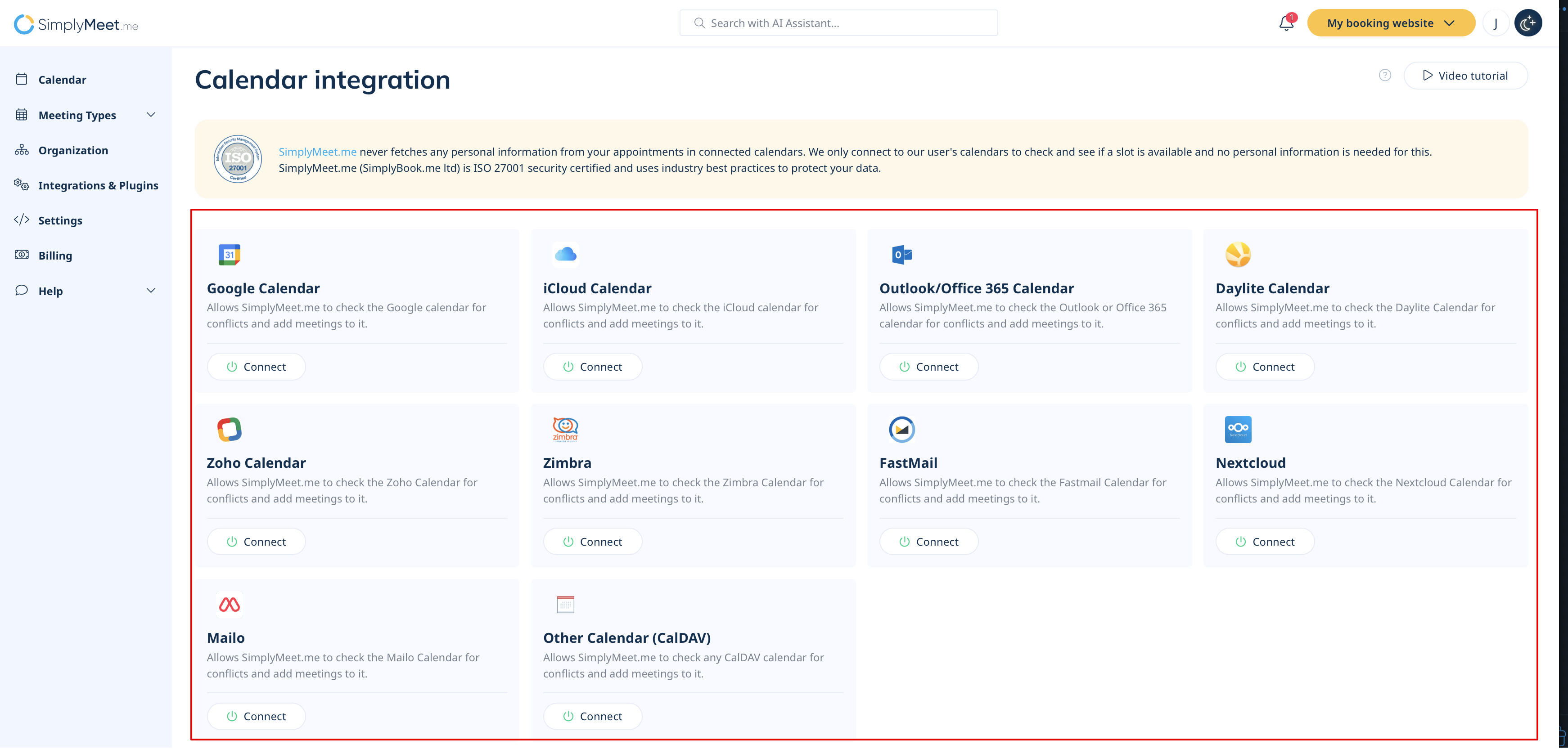
On the CalDAV integration page (Integrations & Plugins → Calendar Integrations), you’ll now see dedicated cards for the most common providers:
- Outlook / Office 365
- iCloud
- Daylite
- Zoho
- Zimbra
- Fastmail
- Nextcloud
- Mailo
- Other Calendar (CalDAV) – for any provider not listed above
How to Connect Your Calendar
1. Go to Integrations & Plugins -> Calendar Integrations in your SimplyMeet.me account.
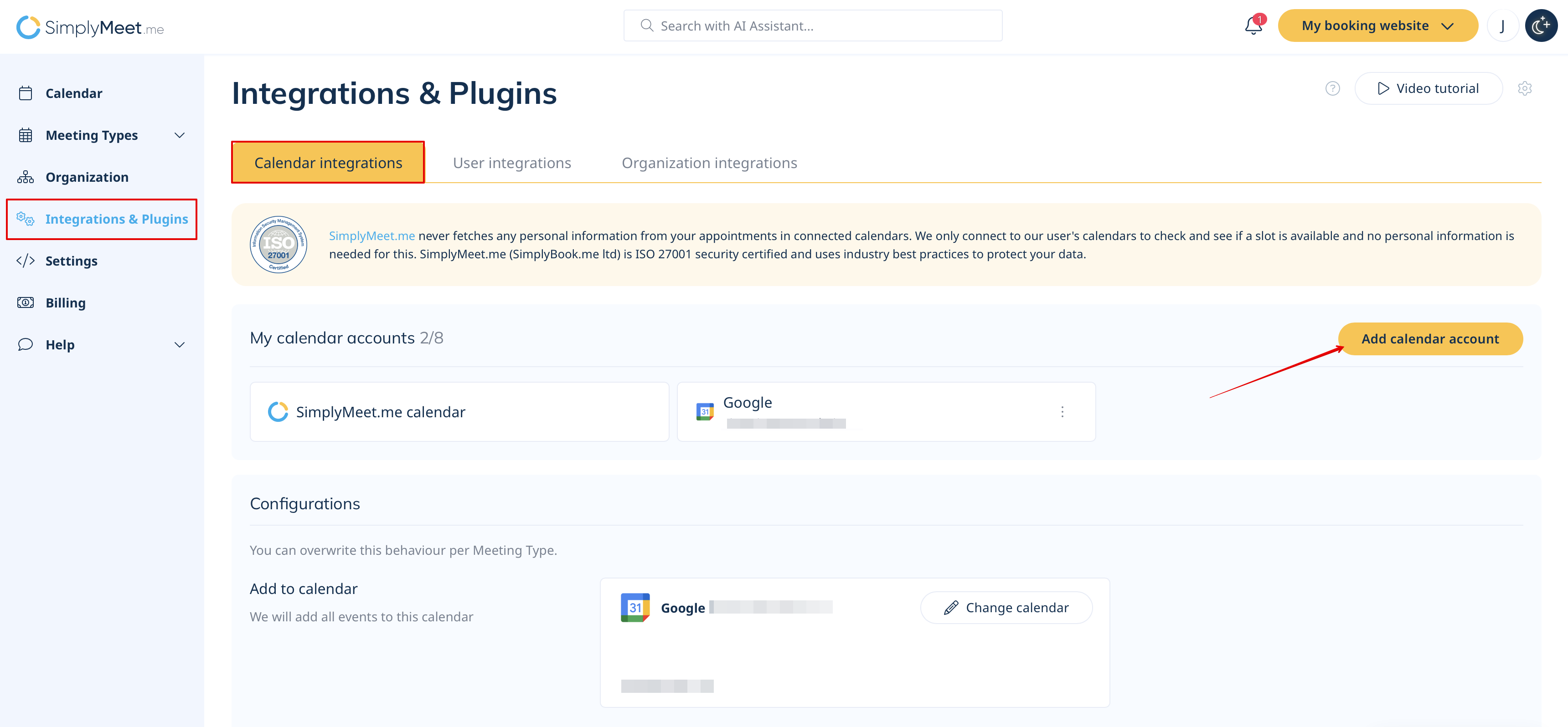
2. Find and select your calendar provider’s card.
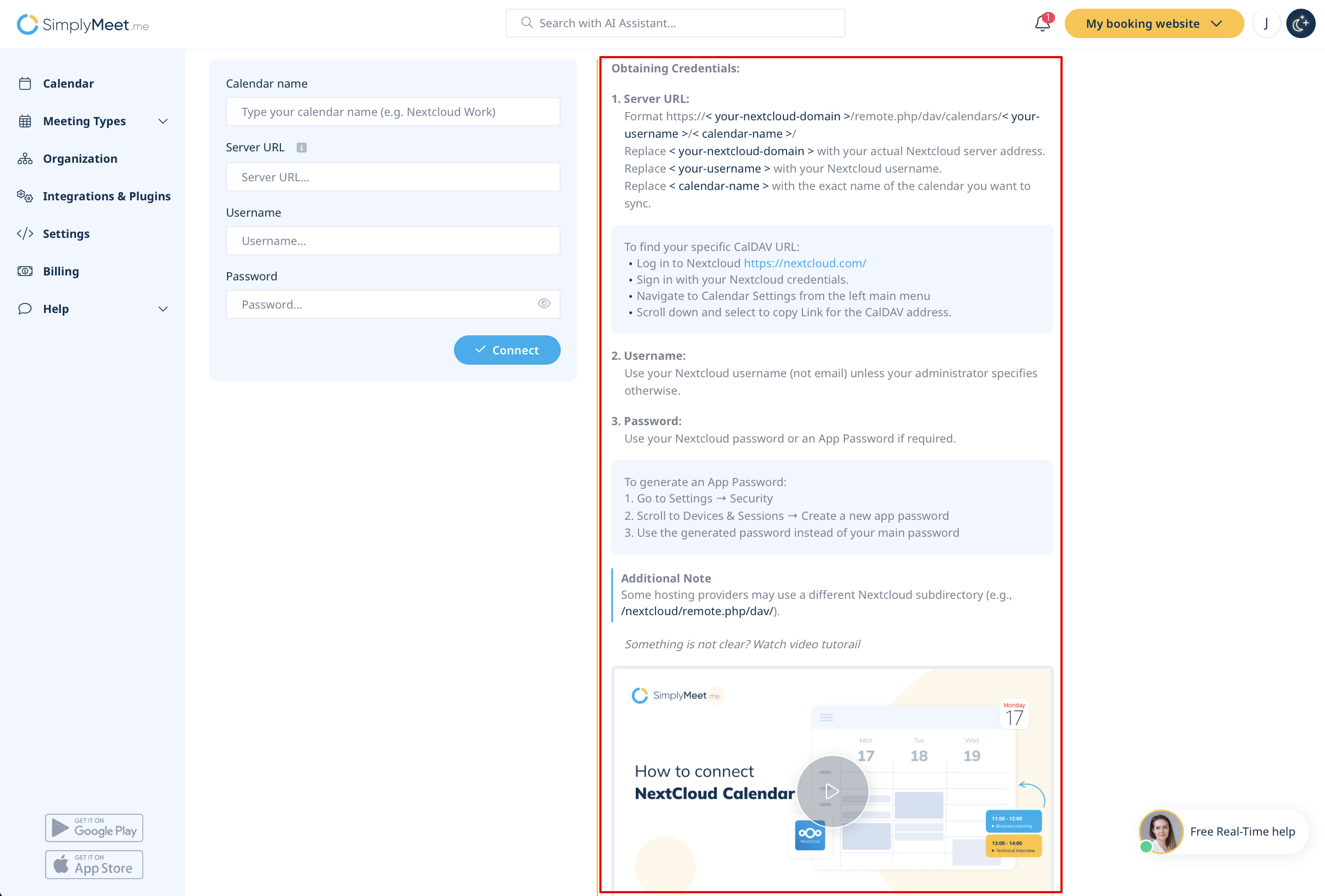
3. Follow the step-by-step instructions or watch the video tutorial provided for your calendar.
(These guides will help you locate the necessary credentials (username, password/app-specific password, and server URL) directly from your calendar provider).
4. Enter your Server URL and credentials when prompted.
Tip:
The Server URL is the address where your calendar data is stored and accessed. It directs SimplyMeet.me to the correct location for fetching and syncing events.