No edit summary |
No edit summary |
||
| (One intermediate revision by the same user not shown) | |||
| Line 14: | Line 14: | ||
4. Proceed to the "Proposed locations" form and select the tools that you would like to be available for selection.<br> | 4. Proceed to the "Proposed locations" form and select the tools that you would like to be available for selection.<br> | ||
You can choose one or several options, or simply set it to "Other" so that the clients will enter the location details as the plain text.<br> | You can choose one or several options, or simply set it to "Other" so that the clients will enter the location details as the plain text.<br> | ||
[[File:Let invitee decide settings.png|1200px|center|link | [[File:Let invitee decide settings.png|1200px|center|link=https://help.simplymeet.me/images/b/b4/Let_invitee_decide_settings.png]] | ||
<br><br> | <br><br> | ||
5. As the result these options will appear at the checkout for the clients to choose from.<br> | 5. As the result these options will appear at the checkout for the clients to choose from.<br> | ||
[[File:Let invitee decide client side sm.png|1200px|center|link=https://help.simplymeet.me/images/7/73/Let_invitee_decide_client_side_sm.png]] | [[File:Let invitee decide client side sm.png|1200px|center|link=https://help.simplymeet.me/images/7/73/Let_invitee_decide_client_side_sm.png]] | ||
<br><br> | <br><br> | ||
After the meeting is booked you will see what the specific client has selected in your Calendar when you open the meeting details. | After the meeting is booked you will see what the specific client has selected in your '''Calendar''' when you open the meeting details. | ||
[[File:Let invitee decide booking sm.png|1200px|center|link=https://help.simplymeet.me/images/a/a7/Let_invitee_decide_booking_sm.png]] | [[File:Let invitee decide booking sm.png|1200px|center|link=https://help.simplymeet.me/images/a/a7/Let_invitee_decide_booking_sm.png]] | ||
<br><br> | <br><br> | ||
Latest revision as of 08:31, 8 April 2025
For some meeting types you may need to allow the clients to choose the meeting tool that will be convenient for them.
Note!
Online Meetings with "Microsoft Teams" and "Google Meet" cannot be selected together within this option as they require conflicting notifications types.
To set it up please follow the next steps:
1. Make sure you have the necessary meeting options enabled either in Calendar Integrations(for Google Meet and MS Teams)
or in Integrations(for Zoom, Whereby, etc.)
2. Navigate to Meeting types page and select the desired meeting type to edit.
3. In the Location block add your location question to be shown to clients above the meeting option selection.
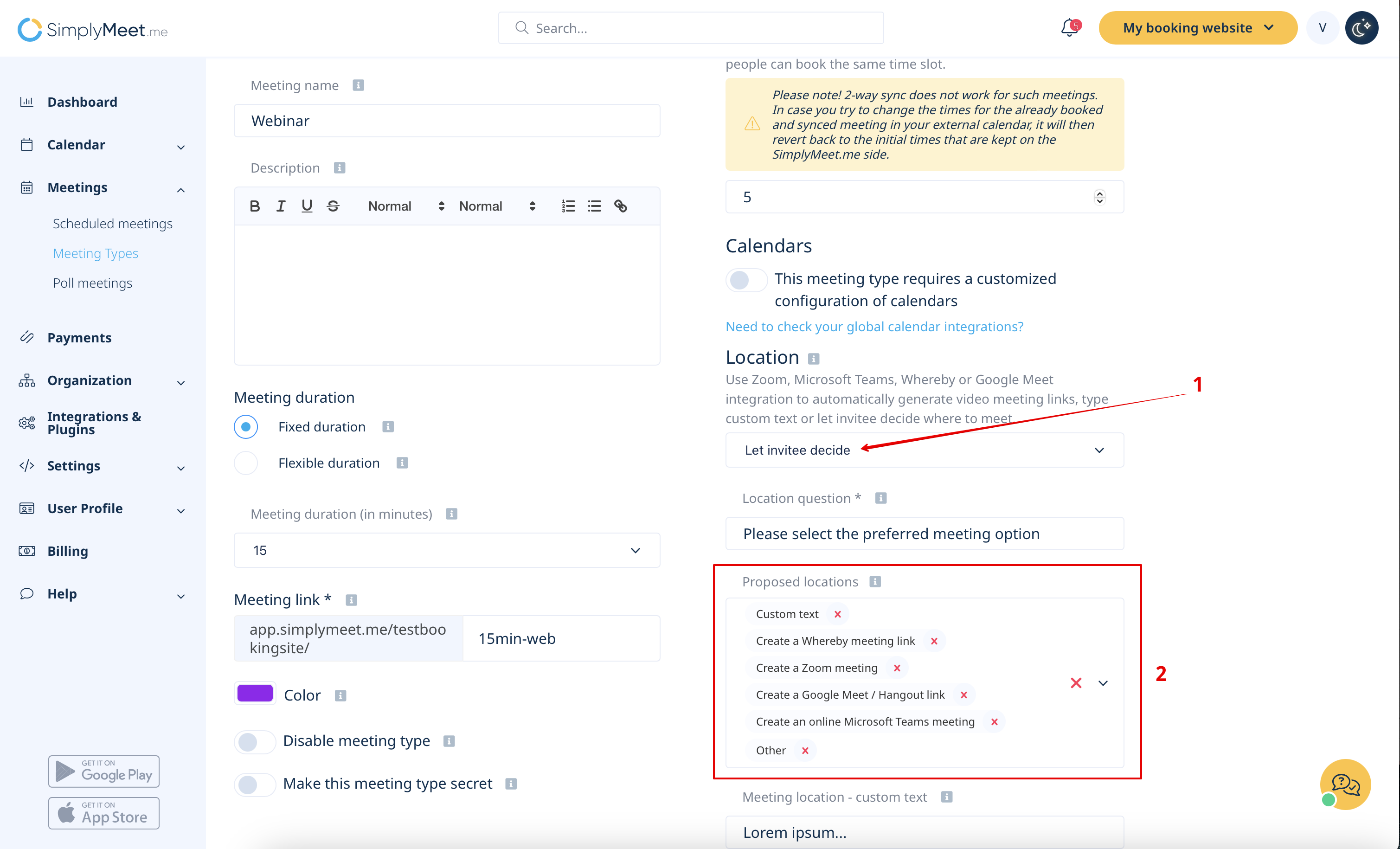
4. Proceed to the "Proposed locations" form and select the tools that you would like to be available for selection.
You can choose one or several options, or simply set it to "Other" so that the clients will enter the location details as the plain text.
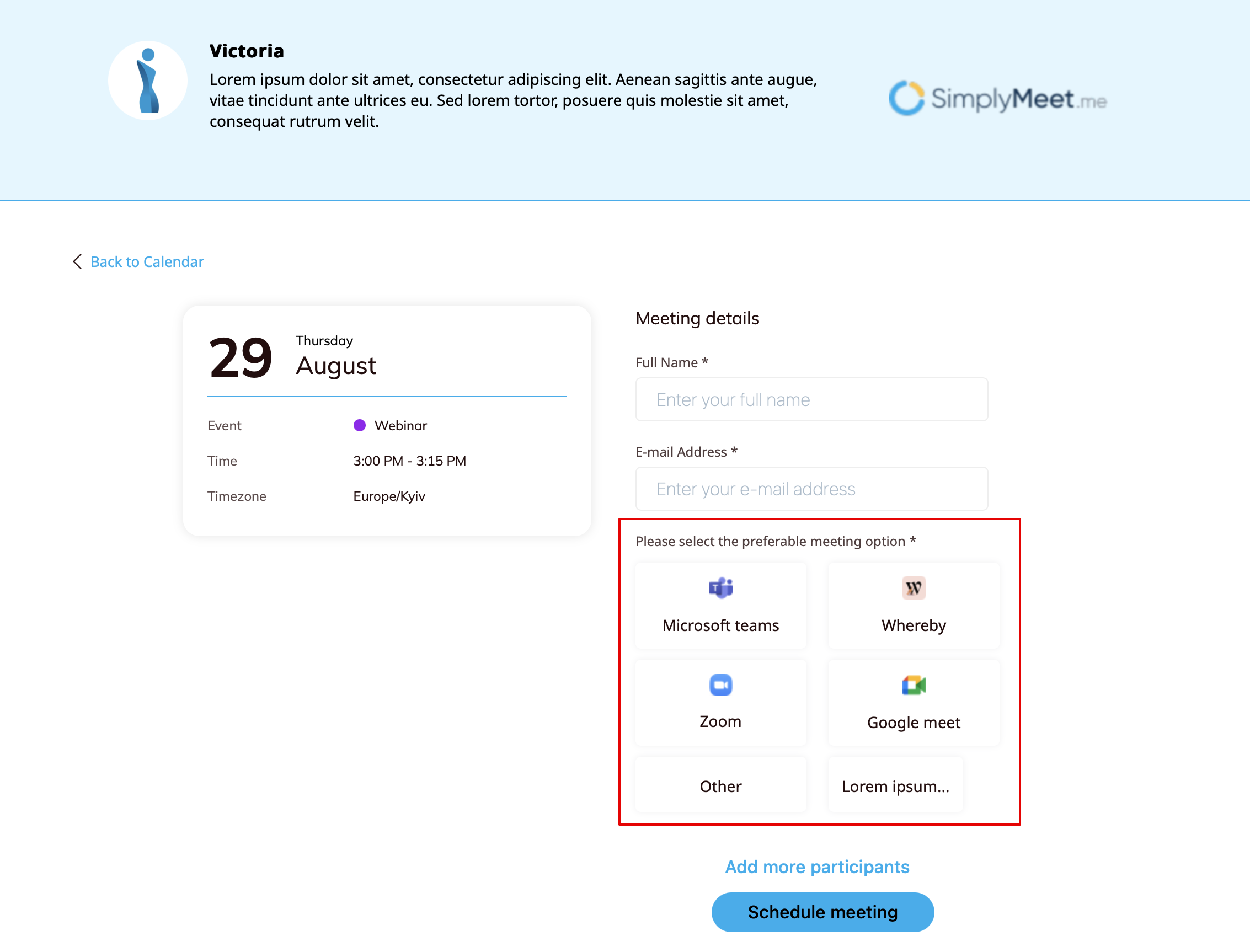
5. As the result these options will appear at the checkout for the clients to choose from.
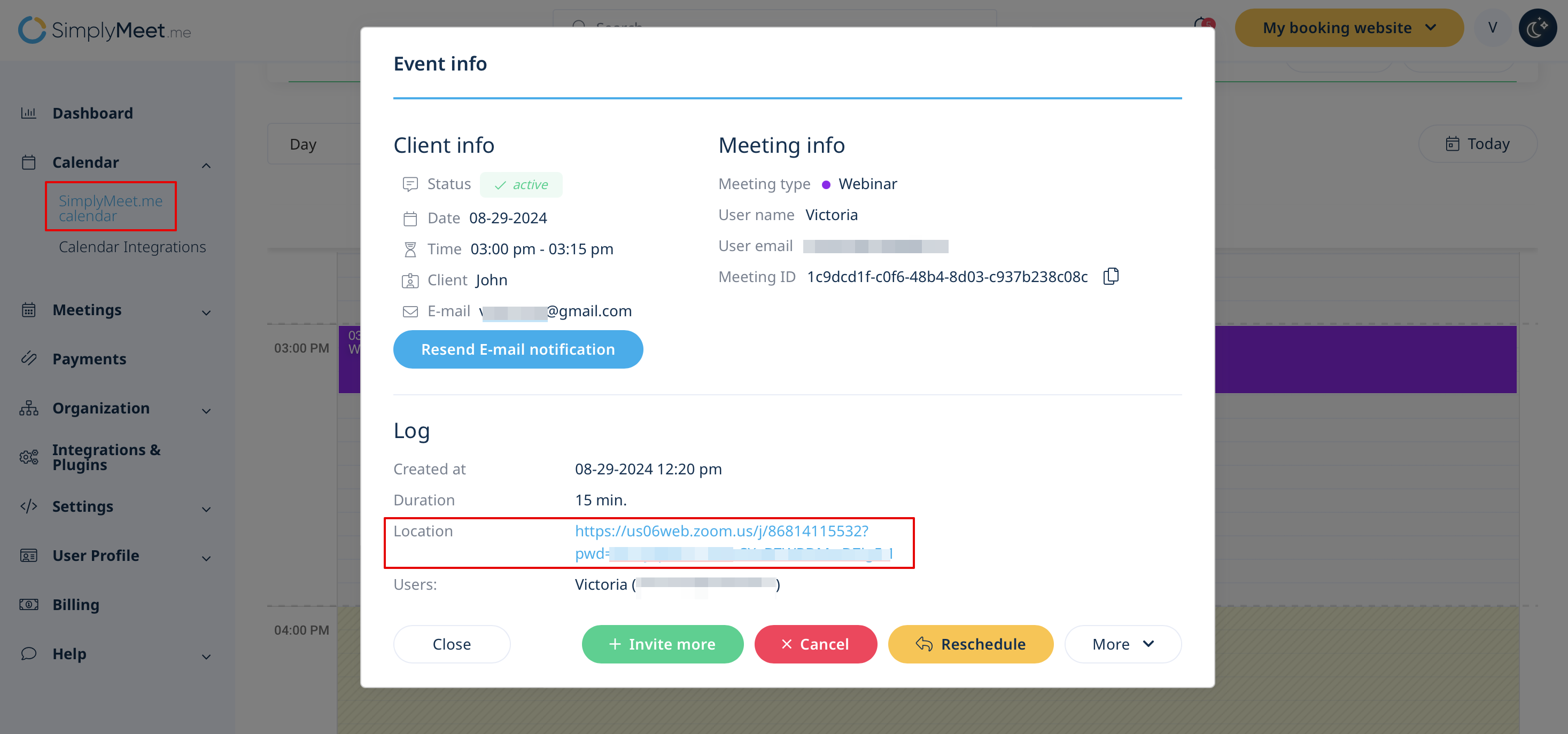
After the meeting is booked you will see what the specific client has selected in your Calendar when you open the meeting details.