From SimplyMeet.me
No edit summary |
No edit summary |
||
| (5 intermediate revisions by the same user not shown) | |||
| Line 1: | Line 1: | ||
<br><br> | |||
The Reverse calendar feature offered by SimplyMeet.me allows users to sync their external calendars to the service types that are set as reverse calendar. This means that when a user blocks time on their synced external calendar, it will appear as a bookable slot on their SimplyMeet.me calendar. | The Reverse calendar feature offered by SimplyMeet.me allows users to sync their external calendars to the service types that are set as reverse calendar. This means that when a user blocks time on their synced external calendar, it will appear as a bookable slot on their SimplyMeet.me calendar. | ||
<br><br> | |||
;How to use | |||
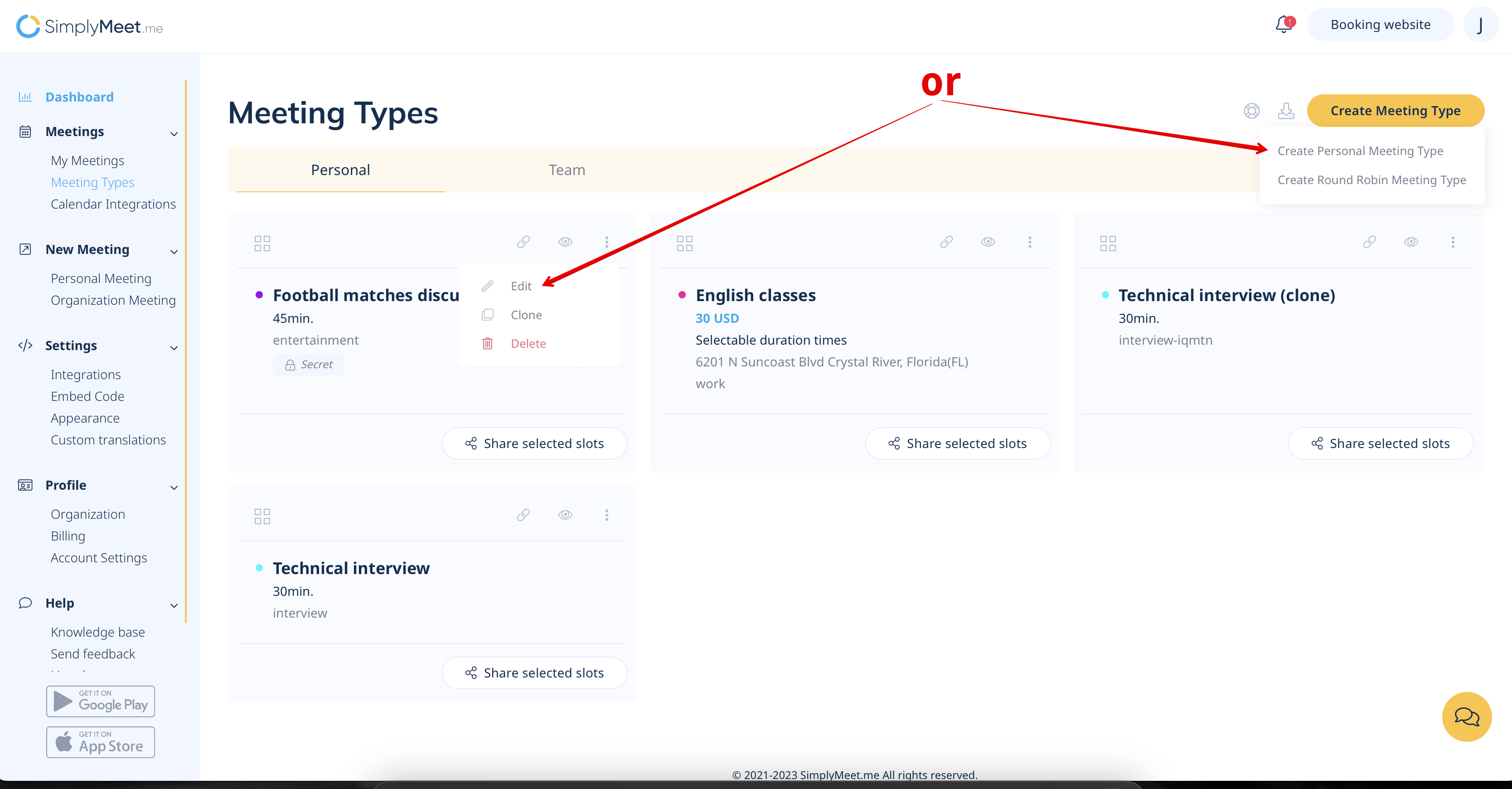
:1. Navigate to '''[https://secure.simplymeet.me/event_types/ Meeting types]''' -> '''Personal''' page and create a new meeting type or select to edit the existing one. | |||
[[File:Create or edit personal meeting type.png|1200px|center|link=https://help.simplymeet.me/images/0/09/Create_or_edit_personal_meeting_type.png]] | |||
<br><br> | |||
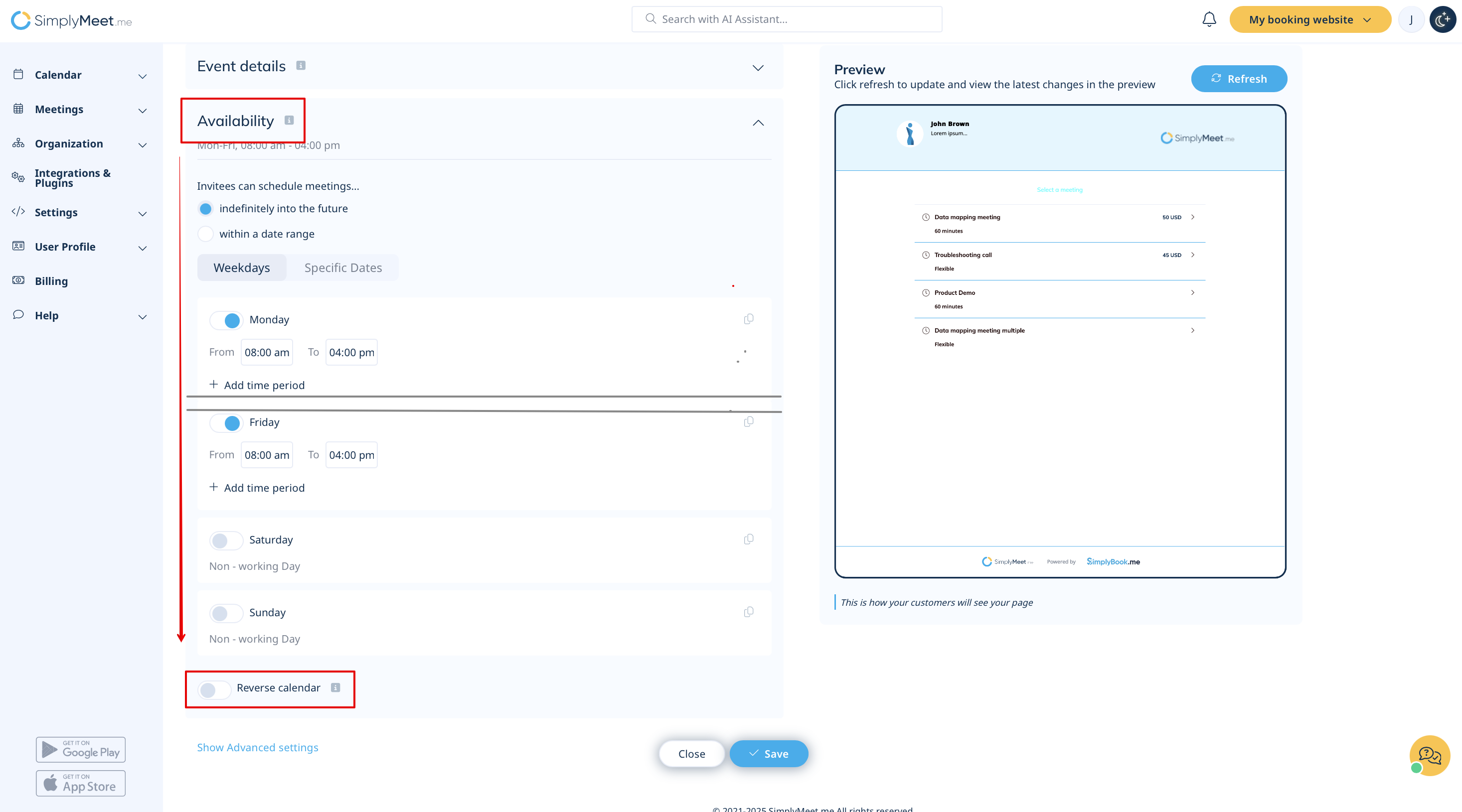
:2. Scroll to the '''Availability''' block and turn on "Reverse calendar" option. | |||
:Save settings. | |||
[[File:Sm reverse calendar path new.png|1200px|center|link=https://help.simplymeet.me/images/7/7d/Sm_reverse_calendar_path_new.png]] | |||
<br><br> | |||
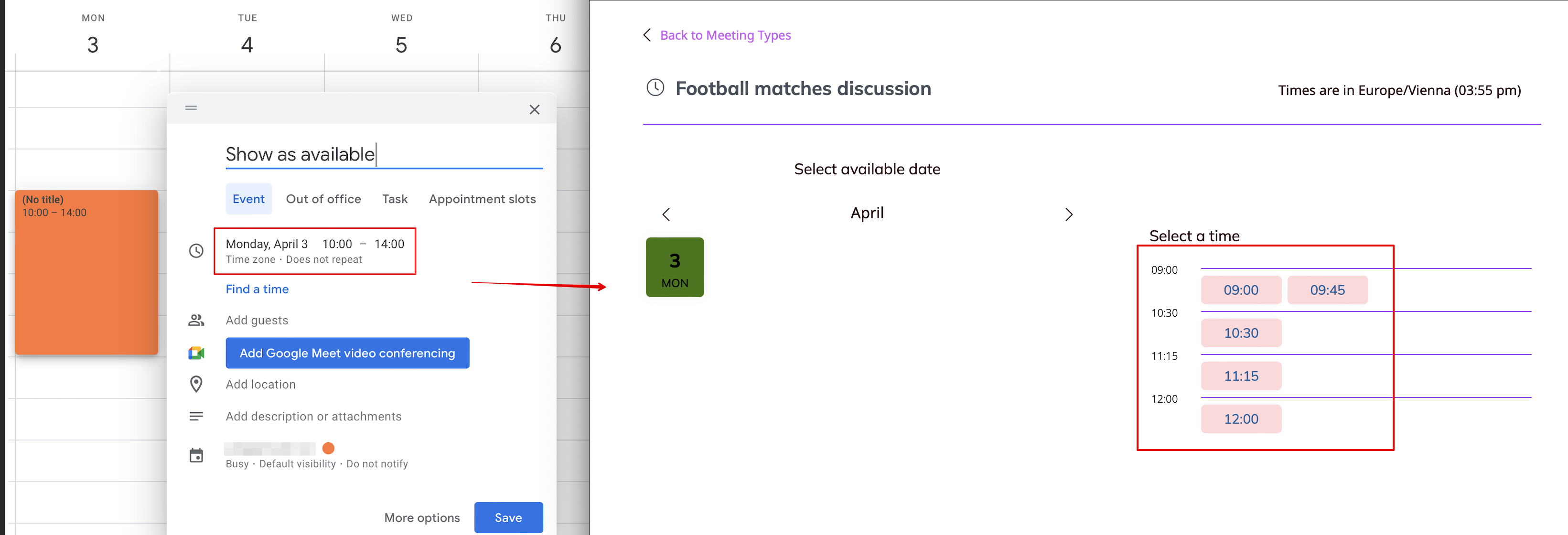
:3. Now any time you block off on your external calendar will automatically be synced to your SimplyMeet.me calendar as an available slot for others to book. | |||
[[File:Reverse calendar example.png|1200px|center|link=https://help.simplymeet.me/images/0/02/Reverse_calendar_example.png]] | |||
<br><br><br><br> | |||
Latest revision as of 12:24, 10 March 2025
The Reverse calendar feature offered by SimplyMeet.me allows users to sync their external calendars to the service types that are set as reverse calendar. This means that when a user blocks time on their synced external calendar, it will appear as a bookable slot on their SimplyMeet.me calendar.
- How to use
- 1. Navigate to Meeting types -> Personal page and create a new meeting type or select to edit the existing one.
- 2. Scroll to the Availability block and turn on "Reverse calendar" option.
- Save settings.
- 3. Now any time you block off on your external calendar will automatically be synced to your SimplyMeet.me calendar as an available slot for others to book.