No edit summary |
No edit summary |
||
| (3 intermediate revisions by the same user not shown) | |||
| Line 3: | Line 3: | ||
'''Please note!''' This integration is available on the organization level only. | '''Please note!''' This integration is available on the organization level only. | ||
</p> | </p> | ||
<h2>Supported features</h2> | |||
*IDP-initiated SSO. | |||
<h2>Getting started with Okta integration</h2> | <h2>Getting started with Okta integration</h2> | ||
| Line 10: | Line 12: | ||
2. Navigate to '''Applications''' > '''Browse App Catalog''' > Search '''SimplyMeet.me''' application > '''Add integration'''. | 2. Navigate to '''Applications''' > '''Browse App Catalog''' > Search '''SimplyMeet.me''' application > '''Add integration'''. | ||
[[File:Okta search for simplymeet app in catalogue.png|1200px|center|link=https://help.simplymeet.me/images/3/38/Okta_search_for_simplymeet_app_in_catalogue.png]] | [[File:Okta search for simplymeet app in catalogue.png|1200px|center|link=https://help.simplymeet.me/images/3/38/Okta_search_for_simplymeet_app_in_catalogue.png]] | ||
[[File:Simplymeet add app from | [[File:Simplymeet add app from okta catalogue .png|1200px|center|link=https://help.simplymeet.me/images/1/16/Simplymeet_add_app_from_okta_catalogue_.png]] | ||
Adjust General Settings if needed and click on "Done". | Adjust General Settings if needed and click on "Done". | ||
[[File:Okta simplymeet app general settings.png|1200px|center|link=https://help.simplymeet.me/images/5/5d/Okta_simplymeet_app_general_settings.png]] | [[File:Okta simplymeet app general settings.png|1200px|center|link=https://help.simplymeet.me/images/5/5d/Okta_simplymeet_app_general_settings.png]] | ||
3. Navigate to your '''SimplyMeet.me account''' and go to '''[https:// | 3. Navigate to your '''SimplyMeet.me account''' and go to '''[https://secure.simplymeet.me/integrations Integrations]''' page. | ||
4. Click on '''Connect''' button near '''Okta''' option. | 4. Click on '''Connect''' button near '''Okta''' option. | ||
| Line 21: | Line 23: | ||
[[File:Okta app credentials to copy.png|1200px|center|link=https://help.simplymeet.me/images/d/de/Okta_app_credentials_to_copy.png]] | [[File:Okta app credentials to copy.png|1200px|center|link=https://help.simplymeet.me/images/d/de/Okta_app_credentials_to_copy.png]] | ||
6. Get back to the '''Okta''' interface. In the top right corner find the Okta Domain, which is the URL at which you are accessing your Okta tenant ( | 6. Get back to the '''Okta''' interface. In the top right corner find the Okta Domain, which is the URL at which you are accessing your Okta tenant (example.okta.com). | ||
[[File:Simplymeet app okta domain.png|1200px|center|link=https://help.simplymeet.me/images/b/b6/Simplymeet_app_okta_domain.png]] | [[File:Simplymeet app okta domain.png|1200px|center|link=https://help.simplymeet.me/images/b/b6/Simplymeet_app_okta_domain.png]] | ||
7. Copy it and paste to the '''Okta application domain''' field in the SimplyMeet.me side. Click on Connect button there. | 7. Copy it and paste to the '''Okta application domain''' field in the SimplyMeet.me side. Click on Connect button there. | ||
8. Navigate to '''[https:// | 8. Navigate to '''[https://secure.simplymeet.me/profile/edit Account settings]''' page and turn on '''Enable login via SSO''' option for your own user if you would like to have the possibility to login via SSO. Save settings. | ||
9. In case you need more team members to be able to log in to the SimplyMeet.me system via SSO please add all necessary people in '''Okta interface''', '''Directory''' -> '''People'''.<br> | 9. In case you need more team members to be able to log in to the SimplyMeet.me system via SSO please add all necessary people in '''Okta interface''', '''Directory''' -> '''People'''.<br> | ||
Assign them to the application in '''Applications''' -> '''Applications''' -> '''Click on the SimplyMeet.me app''' -> '''Assignments''' -> '''Assign''' -> '''Assign to People''' and select the necessary users. | Assign them to the application in '''Applications''' -> '''Applications''' -> '''Click on the SimplyMeet.me app''' -> '''Assignments''' -> '''Assign''' -> '''Assign to People''' and select the necessary users. | ||
10. Go to SimplyMeet.me '''[https:// | 10. Go to SimplyMeet.me '''[https://secure.simplymeet.me/organization Organization]''' page, click on '''Add teammates''' button, enter the email addresses for the users you would like to invite to your organization (you need to use the same email addresses as in Okta) and check the box '''Login via SSO only''' if you would like them to be able to login using SSO authentication only.<br> | ||
Such users will get invitation emails with the SimplyMeet.me account data and will be able to log in from the Okta apps page using the corresponding application. | Such users will get invitation emails with the SimplyMeet.me account data and will be able to log in from the Okta apps page using the corresponding application. | ||
Latest revision as of 12:48, 11 August 2025
The SimplyMeet.me integration with the Okta system enables SSO authentication to your SimplyMeet.me account, allowing fast and simple login for your team members.
Please note! This integration is available on the organization level only.
Supported features
- IDP-initiated SSO.
Getting started with Okta integration
1. Login to your organization’s Okta tenant.
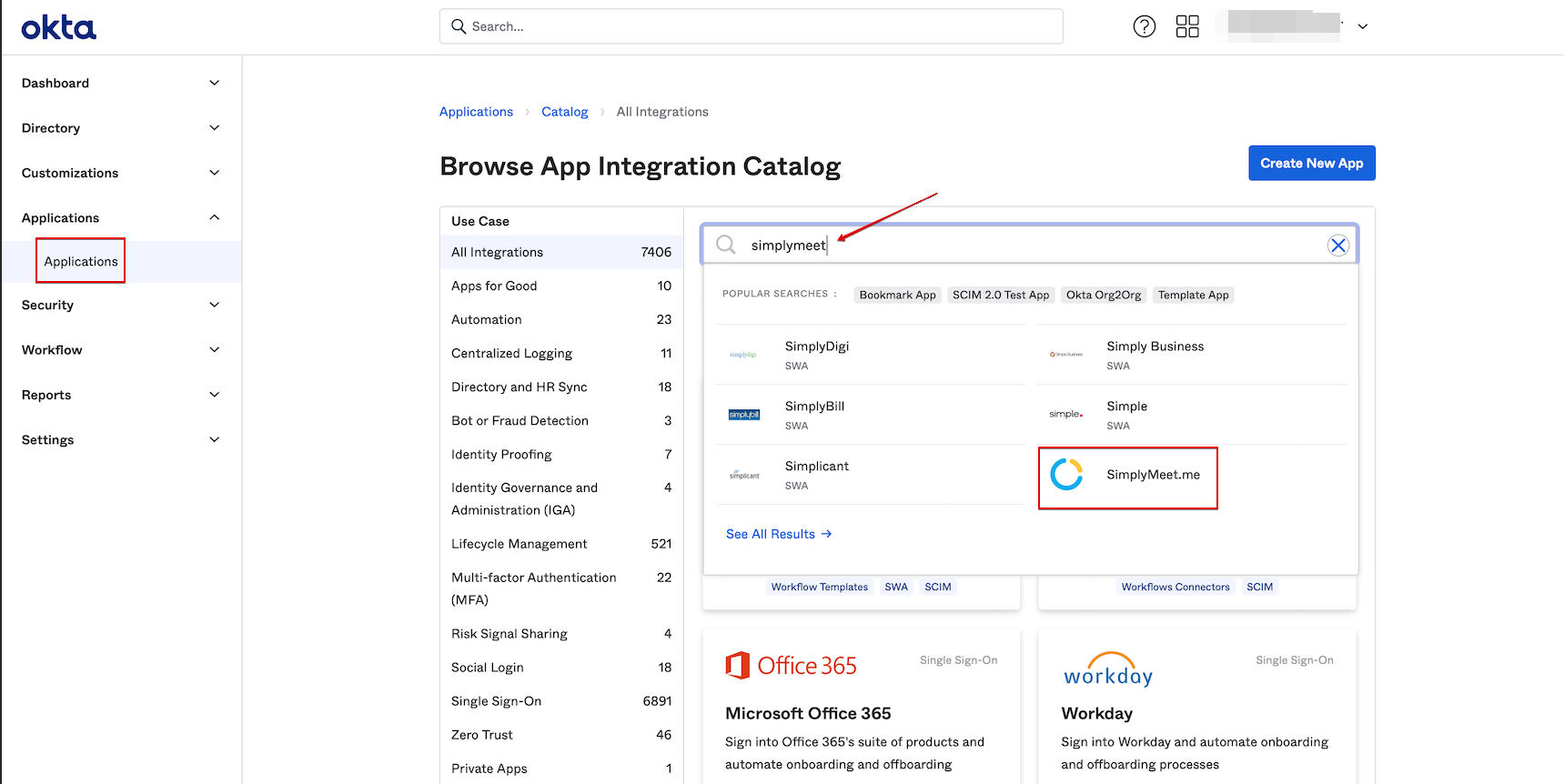
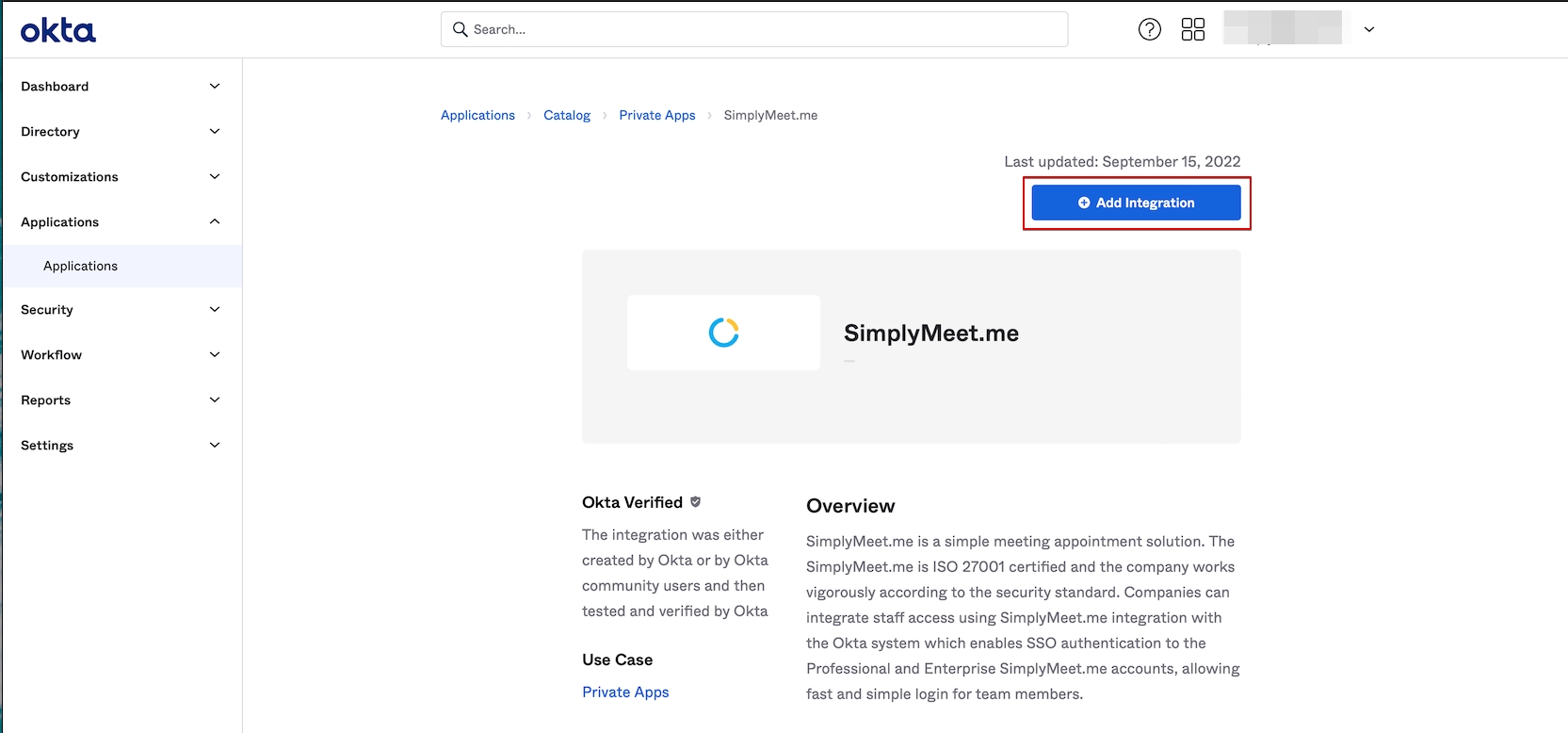
2. Navigate to Applications > Browse App Catalog > Search SimplyMeet.me application > Add integration.
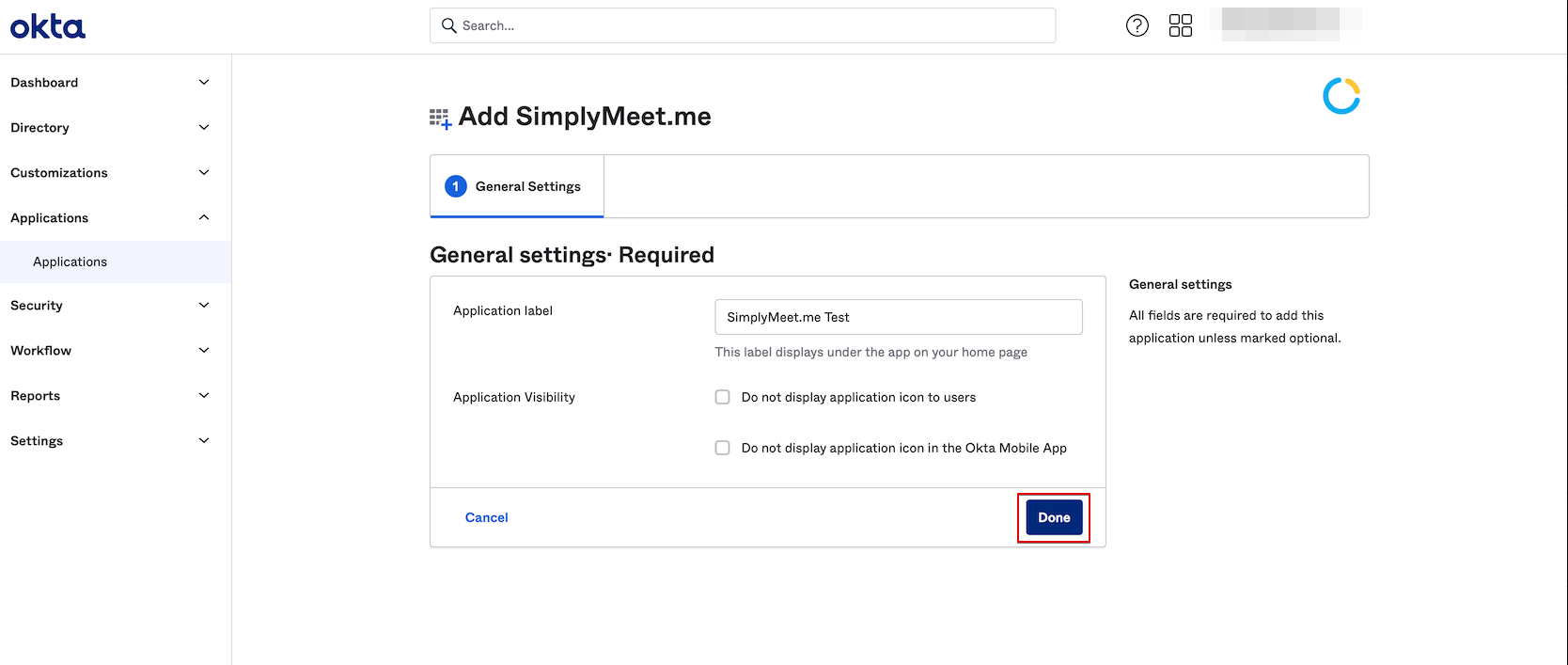
Adjust General Settings if needed and click on "Done".
3. Navigate to your SimplyMeet.me account and go to Integrations page.
4. Click on Connect button near Okta option.
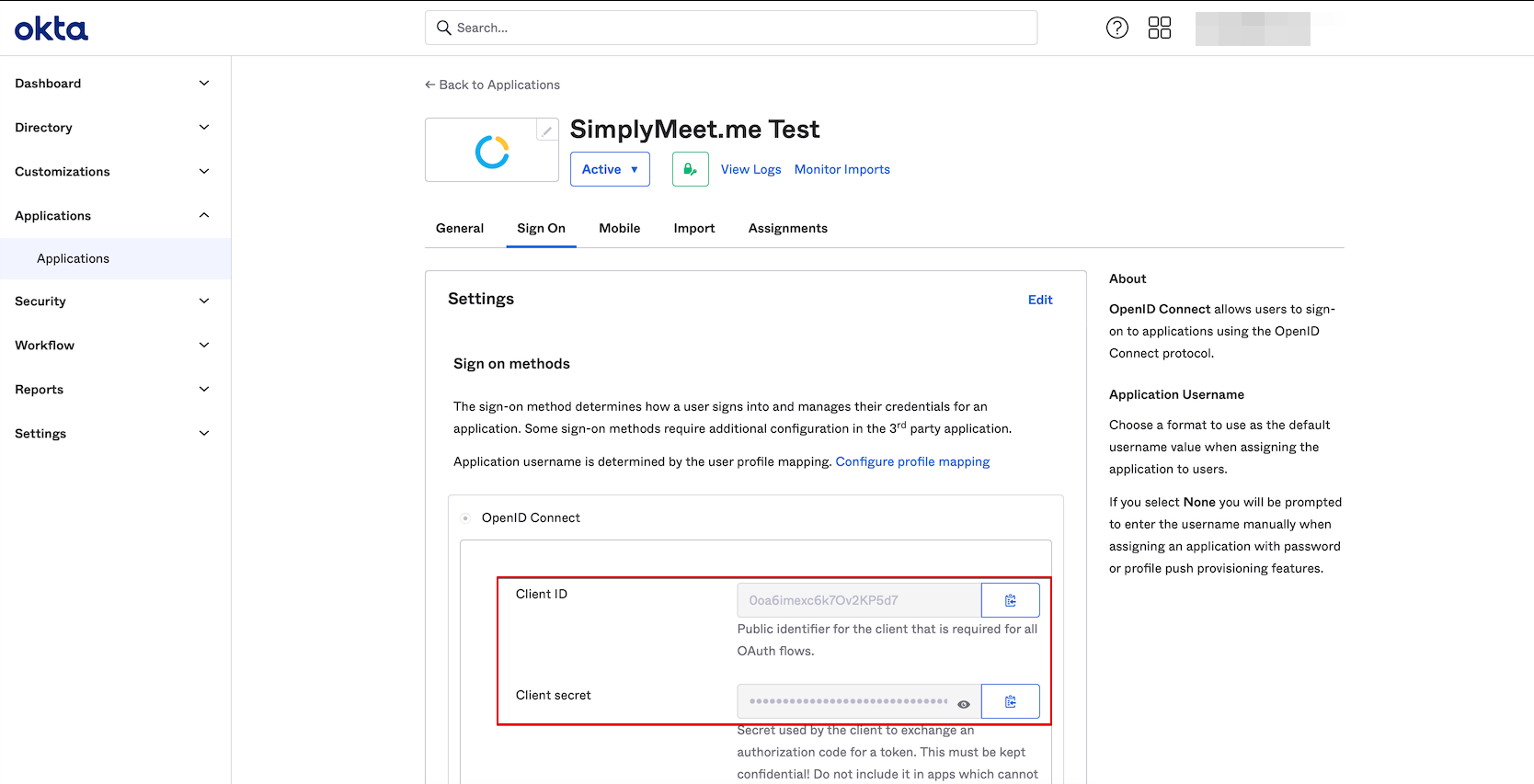
5. Copy the values of Client ID and Client secret fields in Okta application page and paste them to Okta application client id and Okta application client secret correspondingly in the SimplyMeet.me page.
6. Get back to the Okta interface. In the top right corner find the Okta Domain, which is the URL at which you are accessing your Okta tenant (example.okta.com).
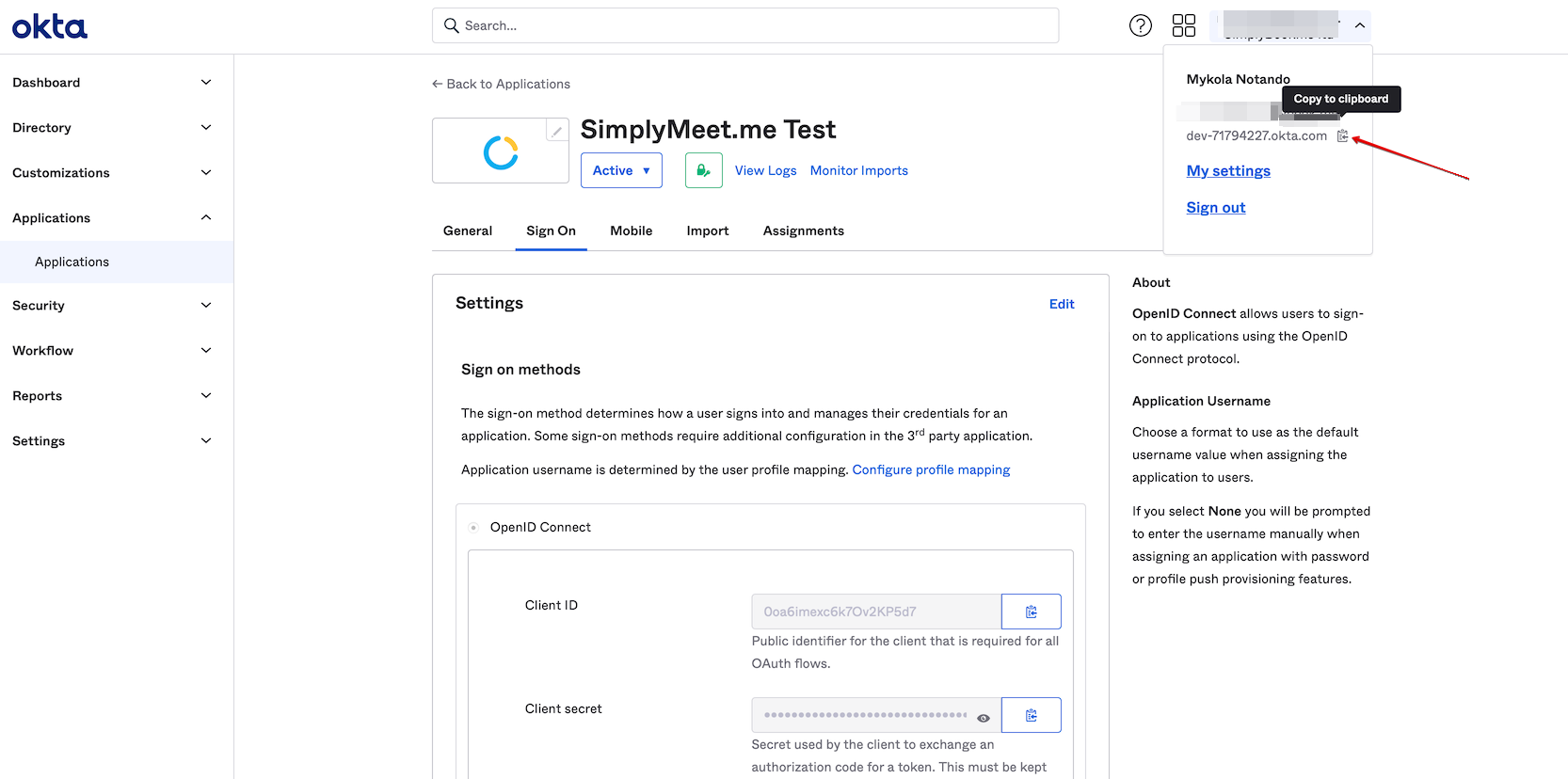
7. Copy it and paste to the Okta application domain field in the SimplyMeet.me side. Click on Connect button there.
8. Navigate to Account settings page and turn on Enable login via SSO option for your own user if you would like to have the possibility to login via SSO. Save settings.
9. In case you need more team members to be able to log in to the SimplyMeet.me system via SSO please add all necessary people in Okta interface, Directory -> People.
Assign them to the application in Applications -> Applications -> Click on the SimplyMeet.me app -> Assignments -> Assign -> Assign to People and select the necessary users.
10. Go to SimplyMeet.me Organization page, click on Add teammates button, enter the email addresses for the users you would like to invite to your organization (you need to use the same email addresses as in Okta) and check the box Login via SSO only if you would like them to be able to login using SSO authentication only.
Such users will get invitation emails with the SimplyMeet.me account data and will be able to log in from the Okta apps page using the corresponding application.
