From SimplyMeet.me
No edit summary |
No edit summary |
||
| (3 intermediate revisions by the same user not shown) | |||
| Line 1: | Line 1: | ||
<br><br><br><br> | <br><br><br><br> | ||
To increase your system security we have now added the option to set up 2 Factor Authentication for the admin side. | To increase your system security we have now added the option to set up 2 Factor Authentication for the admin side. | ||
__FORCETOC__ | |||
== | ==1. How to set it up if you are logged in== | ||
<p> | <p> | ||
1. Please navigate to '''[https://secure.simplymeet.me/profile/edit Account settings]''' page, find '''Security''' section.<br> | 1. Please navigate to '''[https://secure.simplymeet.me/profile/edit Account settings]''' page, find '''Security''' section.<br> | ||
| Line 28: | Line 10: | ||
<p> | <p> | ||
2. Scan the QR code there and connect 2 Factor Authentication. | 2. Scan the QR code there and connect 2 Factor Authentication. | ||
[[File: | [[File:Sm 2fa setup new.png|1200px|center|link=https://help.simplymeet.me/images/0/0b/Sm_2fa_setup_new.png]] | ||
</p> | </p> | ||
== | ==2. How to reset or disable 2FA== | ||
<p> | <p> | ||
1. Please go to '''[https://secure.simplymeet.me/profile/edit Account settings]''' page, '''Security''' section. | 1. Please go to '''[https://secure.simplymeet.me/profile/edit Account settings]''' page, '''Security''' section. | ||
[[File: | [[File:Sm delete 2fa path new.png|1200px|center|link=https://help.simplymeet.me/images/3/30/Sm_delete_2fa_path_new.png]]<br><br> | ||
</p> | </p> | ||
2. Click on '''Delete''' button there. | 2. Click on '''Delete''' button there. | ||
| Line 39: | Line 21: | ||
<p> | <p> | ||
3. Confirm the action with password and security code. | 3. Confirm the action with password and security code. | ||
[[File: | [[File:Sm confirm 2fa removal new.png|1200px|center|link=https://help.simplymeet.me/images/6/64/Sm_confirm_2fa_removal_new.png]] | ||
</p> | </p> | ||
<p> | <p> | ||
Latest revision as of 13:02, 5 March 2025
To increase your system security we have now added the option to set up 2 Factor Authentication for the admin side.
1. How to set it up if you are logged in
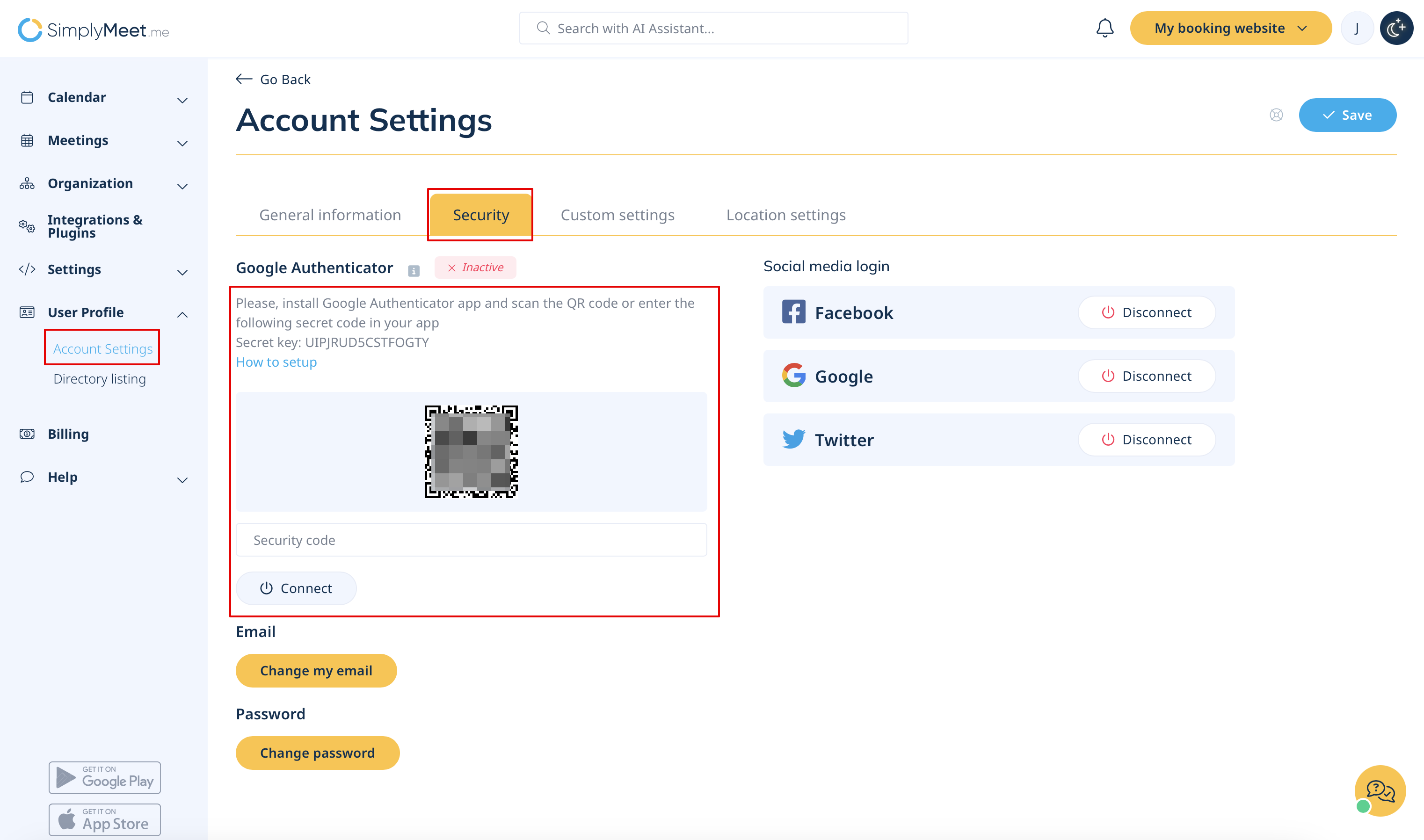
1. Please navigate to Account settings page, find Security section.
2. Scan the QR code there and connect 2 Factor Authentication.
2. How to reset or disable 2FA
1. Please go to Account settings page, Security section.
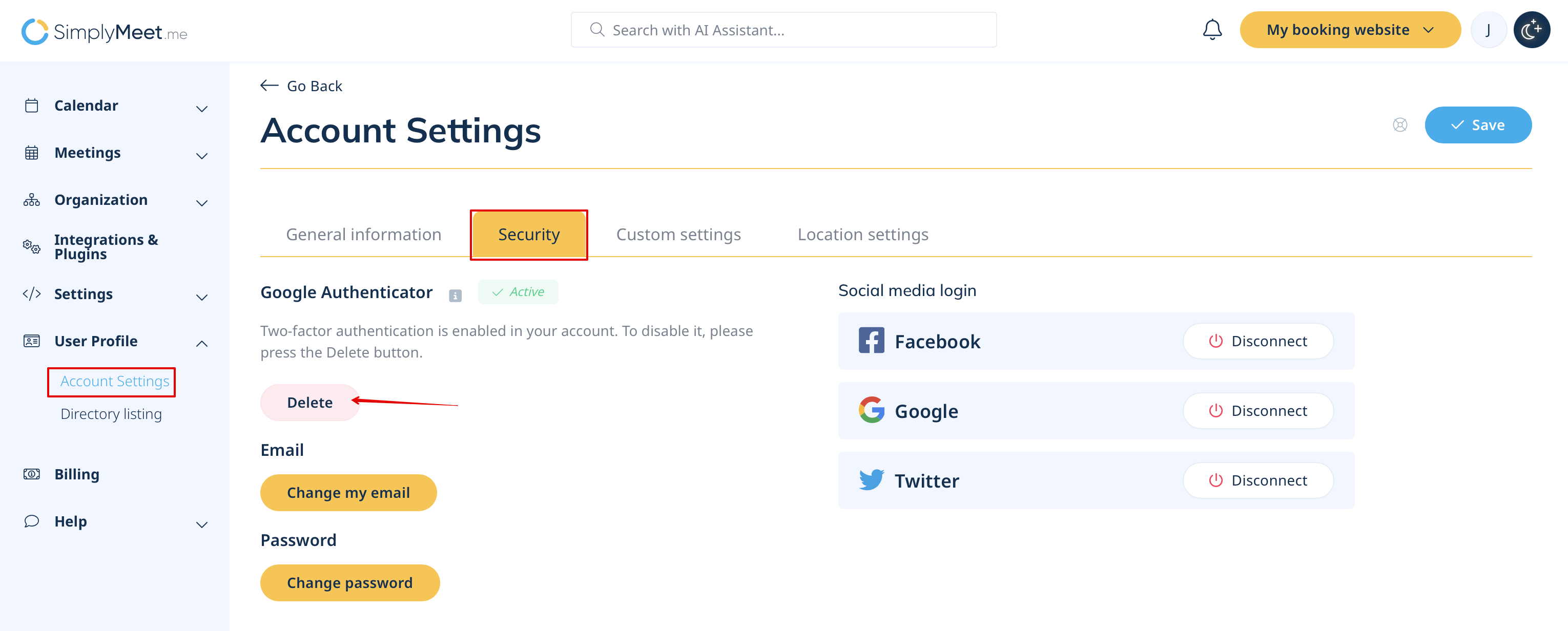
2. Click on Delete button there.
3. Confirm the action with password and security code.
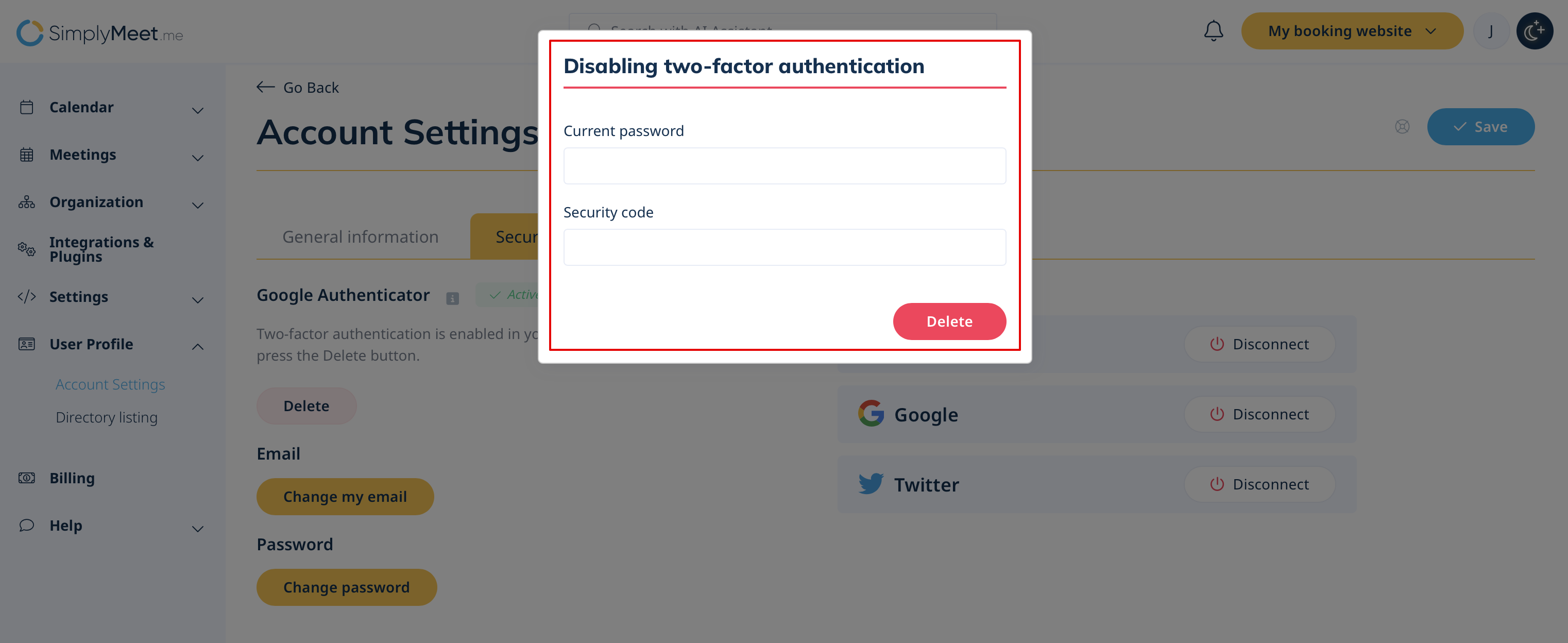
4. And press Delete.
5. Follow the steps from the section 2 of this article to set up the new connection.
