No edit summary |
No edit summary |
||
| (3 intermediate revisions by the same user not shown) | |||
| Line 6: | Line 6: | ||
</p> | </p> | ||
<p> | <p> | ||
Round-robin assigns teammate to the meeting in a | Round-robin assigns teammate to the meeting in a random manner. If two teammates are available at the same date & time, round-robin will try to distribute meetings equally between teammates attached to the respective round-robin meeting type. | ||
</p> | </p> | ||
<p class="no-margin"> | <p class="no-margin"> | ||
| Line 15: | Line 15: | ||
</p> | </p> | ||
<div class="intercom-container"> | <div class="intercom-container"> | ||
[[File: | [[File:Simplymeet team meeting client side.png|1200px|center]] | ||
</div> | </div> | ||
<h2 id="h_8570928c80">Schedule meetings by round robin </h2> | <h2 id="h_8570928c80">Schedule meetings by round robin </h2> | ||
<p class="no-margin"> | |||
'''Video tutorial''' [[File:Youtube-Logo.png|link=https://www.youtube.com/watch?v=j2ypqM84y2o]] | |||
</p> | |||
<p class="no-margin"> | <p class="no-margin"> | ||
1. Create an organization if you don't have one. | 1. Create an organization if you don't have one. | ||
| Line 25: | Line 28: | ||
</p> | </p> | ||
<div class="intercom-container"> | <div class="intercom-container"> | ||
[[File: | [[File:Sm create round robin meeting type new.png|1200px|center|link=https://help.simplymeet.me/images/5/5e/Sm_create_round_robin_meeting_type_new.png]] | ||
</div> | </div> | ||
<p class="no-margin"> | <p class="no-margin"> | ||
| Line 31: | Line 34: | ||
</p> | </p> | ||
<div class="intercom-container"> | <div class="intercom-container"> | ||
[[File: | [[File:Sm select teammates for round robin new.png|1200px|center|link=https://help.simplymeet.me/images/c/c9/Sm_select_teammates_for_round_robin_new.png]] | ||
</div> | </div> | ||
<p class="no-margin"> | <p class="no-margin"> | ||
4. Choose their calendars on which newly booked meeting will be added and the location (e.g. Zoom, Google Meet etc.) | 4. Choose their calendars on which newly booked meeting will be added and the location (e.g. Zoom, Google Meet etc.) | ||
</p> | </p> | ||
Latest revision as of 14:31, 10 March 2025
Your clients can schedule meetings with your team in "round-robin" style, so they’re assigned on a rotating basis to available teammates.
Note: To be able to create Round Robin Meeting Types and assign teammates you must be an owner of the organization. You must have at least two SimplyMeet.me paid licenses to be able to create an organization.
Round-robin assigns teammate to the meeting in a random manner. If two teammates are available at the same date & time, round-robin will try to distribute meetings equally between teammates attached to the respective round-robin meeting type.
As an owner of the organization, you can create a Round Robin Meeting Type which will appear on your company's booking page.
Your clients will see the availability of the teammates assigned to that meeting type and will be able to book the meeting that works best for them and for at least one of the team member.

Schedule meetings by round robin
Video tutorial 
1. Create an organization if you don't have one.
2. Create Round Robin Meeting Type in Meeting Types.

3. Assign teammates to the Round Robin Meeting Type
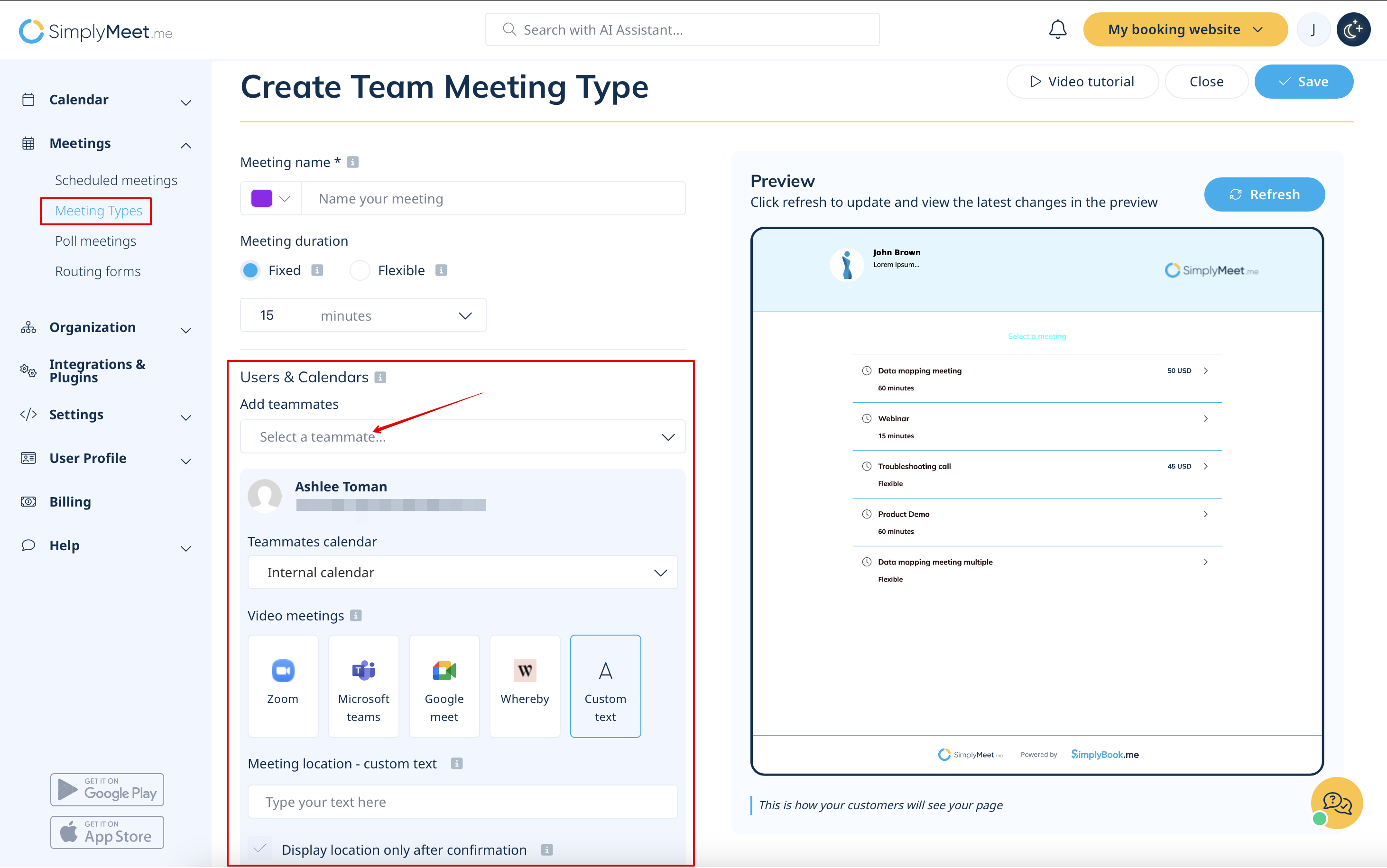
4. Choose their calendars on which newly booked meeting will be added and the location (e.g. Zoom, Google Meet etc.)
