No edit summary |
No edit summary |
||
| (2 intermediate revisions by the same user not shown) | |||
| Line 8: | Line 8: | ||
==How to set on user level== | ==How to set on user level== | ||
:1. Navigate to '''[https://secure.simplymeet.me/profile/edit Account settings]''' page and select '''Custom settings''' tab. | :1. Navigate to '''Settings''' -> '''[https://secure.simplymeet.me/profile/edit Account settings]''' page and select '''Custom settings''' tab. | ||
[[File: | [[File:Sm account settings path new.png|1200px|center|link=https://help.simplymeet.me/images/6/6c/Sm_account_settings_path_new.png]] | ||
[[File:Sm custom settings user level path.png|1200px|center|link=https://help.simplymeet.me/images/0/0a/Sm_custom_settings_user_level_path.png]] | |||
<br><br> | <br><br> | ||
:2. Enable '''Cancellation policy''' | :2. Enable '''Cancellation policy''' | ||
[[File: | [[File:Sm user cancellation policy enable new.png|1200px|center|link=https://help.simplymeet.me/images/3/3f/Sm_user_cancellation_policy_enable_new.png]] | ||
<br><br> | <br><br> | ||
:3. Insert the text for the label and the cancellation policy text to the corresponding fields | :3. Insert the text for the label and the cancellation policy text to the corresponding fields, set the timeframe for the meetings cancellations. | ||
[[File:Sm cancellation policy settings new.png|1200px|center|link=https://help.simplymeet.me/images/1/13/Sm_cancellation_policy_settings_new.png]] | |||
[[File: | |||
<br><br> | <br><br> | ||
:4. As the result the clients will need to check the corresponding box on the booking website when confirming the reservation.<br> | :4. As the result the clients will need to check the corresponding box on the booking website when confirming the reservation.<br> | ||
| Line 27: | Line 24: | ||
==How to set on the organization level== | ==How to set on the organization level== | ||
:1. Navigate to '''[https://secure.simplymeet.me/organization Organization]''' page, then | :1. Navigate to '''Settings''' -> '''[https://secure.simplymeet.me/organization/settings Organization settings]''' page, then select '''Custom settings''' tab. | ||
[[File: | [[File:Sm organization settings new.png|1200px|center|link=https://help.simplymeet.me/images/a/a3/Sm_organization_settings_new.png]] | ||
[[File:Sm organization settings path new.png|1200px|center|link=https://help.simplymeet.me/images/c/c3/Sm_organization_settings_path_new.png]] | |||
<br><br> | <br><br> | ||
:2. Enable '''Cancellation policy''' | :2. Enable '''Cancellation policy''' | ||
[[File: | [[File:Sm organization cancellation policy enable.png|1200px|center|link=https://help.simplymeet.me/images/9/99/Sm_organization_cancellation_policy_enable.png]] | ||
<br><br> | <br><br> | ||
:3. Insert the text for the label and the cancellation policy text to the corresponding fields. Set the time restrictions for meetings cancellations if necessary. | :3. Insert the text for the label and the cancellation policy text to the corresponding fields. Set the time restrictions for meetings cancellations if necessary. | ||
:Save settings. | :Save settings. | ||
[[File: | [[File:Sm organization cancellation policy add settings new.png|1200px|center|link=https://help.simplymeet.me/images/e/e6/Sm_organization_cancellation_policy_add_settings_new.png]] | ||
<br><br> | <br><br> | ||
:4. (optional) You can also enable the option '''Use organisation cancellation policy as priority''' to overwrite all your organization members' cancellation policies | :4. (optional) You can also enable the option '''Use organisation cancellation policy as priority''' to overwrite all your organization members' cancellation policies. | ||
<br><br> | <br><br> | ||
:5. As the result the clients will need to check the corresponding box on the booking website when confirming the reservation to agree to your policy.<br> | :5. As the result the clients will need to check the corresponding box on the booking website when confirming the reservation to agree to your policy.<br> | ||
Latest revision as of 12:20, 17 September 2025
The cancellation policy feature in SimplyMeet.me allows users to set their terms for meeting cancellations and inform their clients about them through the booking site.
This feature is especially useful for businesses or organisations that need to manage their schedule and avoid last-minute cancellations that can cause disruption or loss of revenue.
Users can enable the cancellation policy on a user or organisation level, with the option to prioritise the organisation policy over individual policies.
By setting clear and concise cancellation policies, businesses and organisations can help to ensure that their clients understand the terms of cancellation and avoid any misunderstandings or disputes.
The cancellation policy feature also helps to improve transparency and build trust between the business and their clients, as clients will feel more informed and empowered to make decisions that align with their needs.
How to set on user level
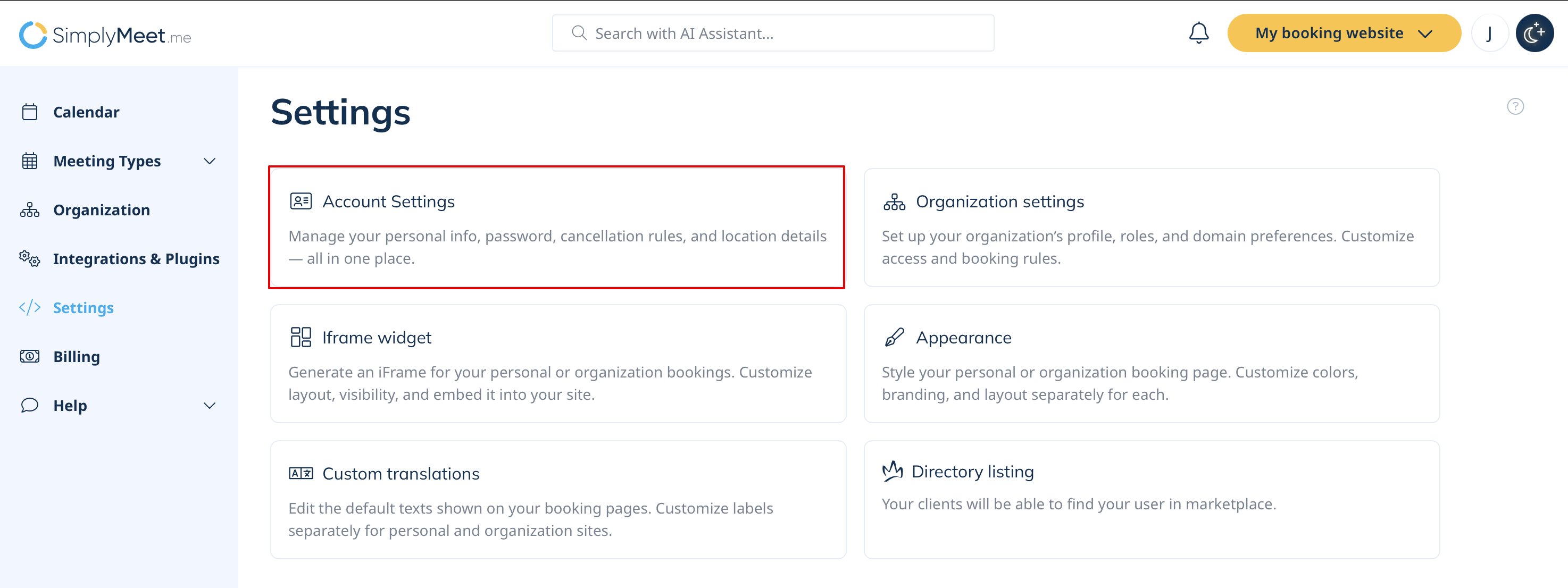
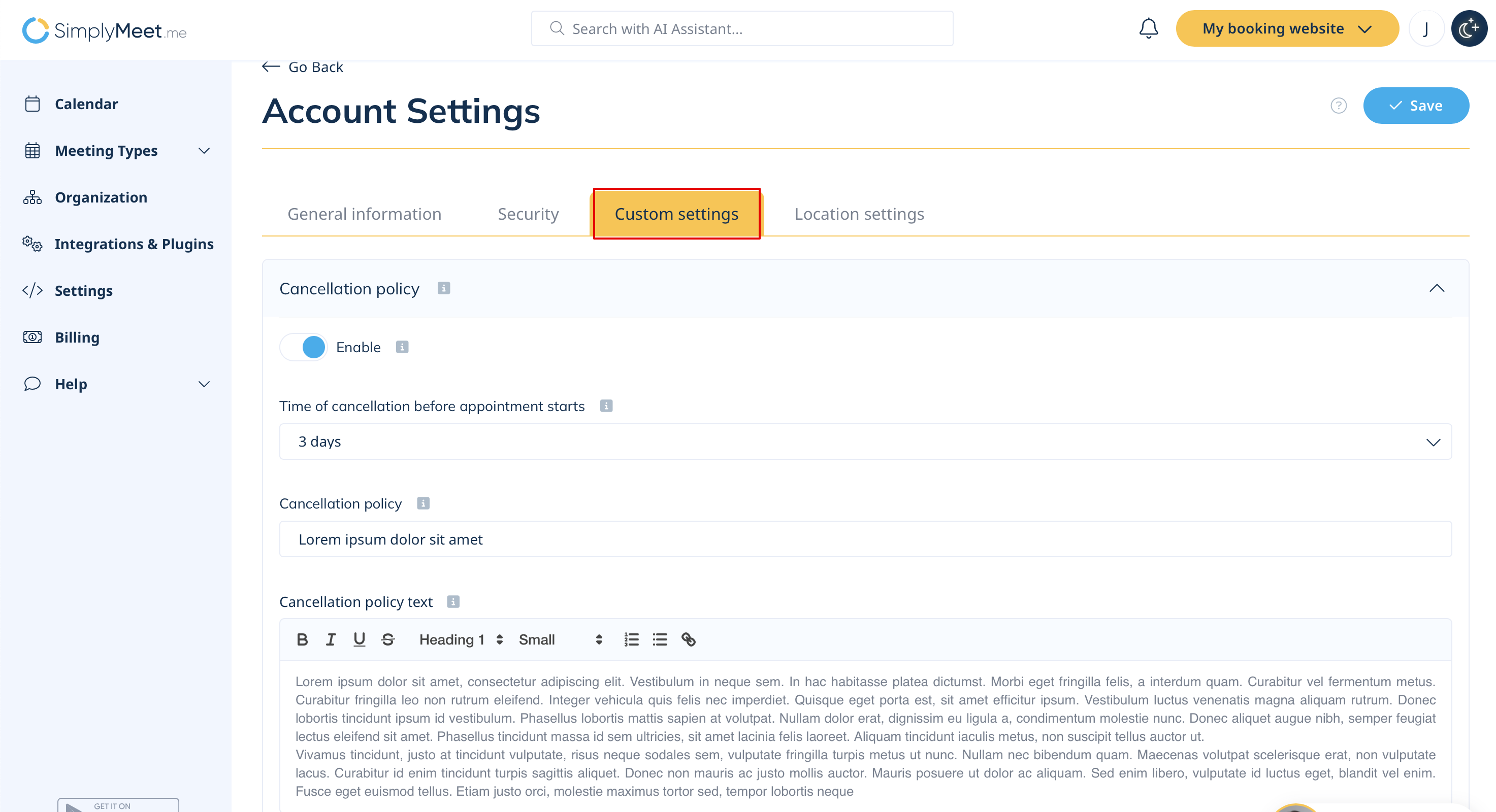
- 1. Navigate to Settings -> Account settings page and select Custom settings tab.
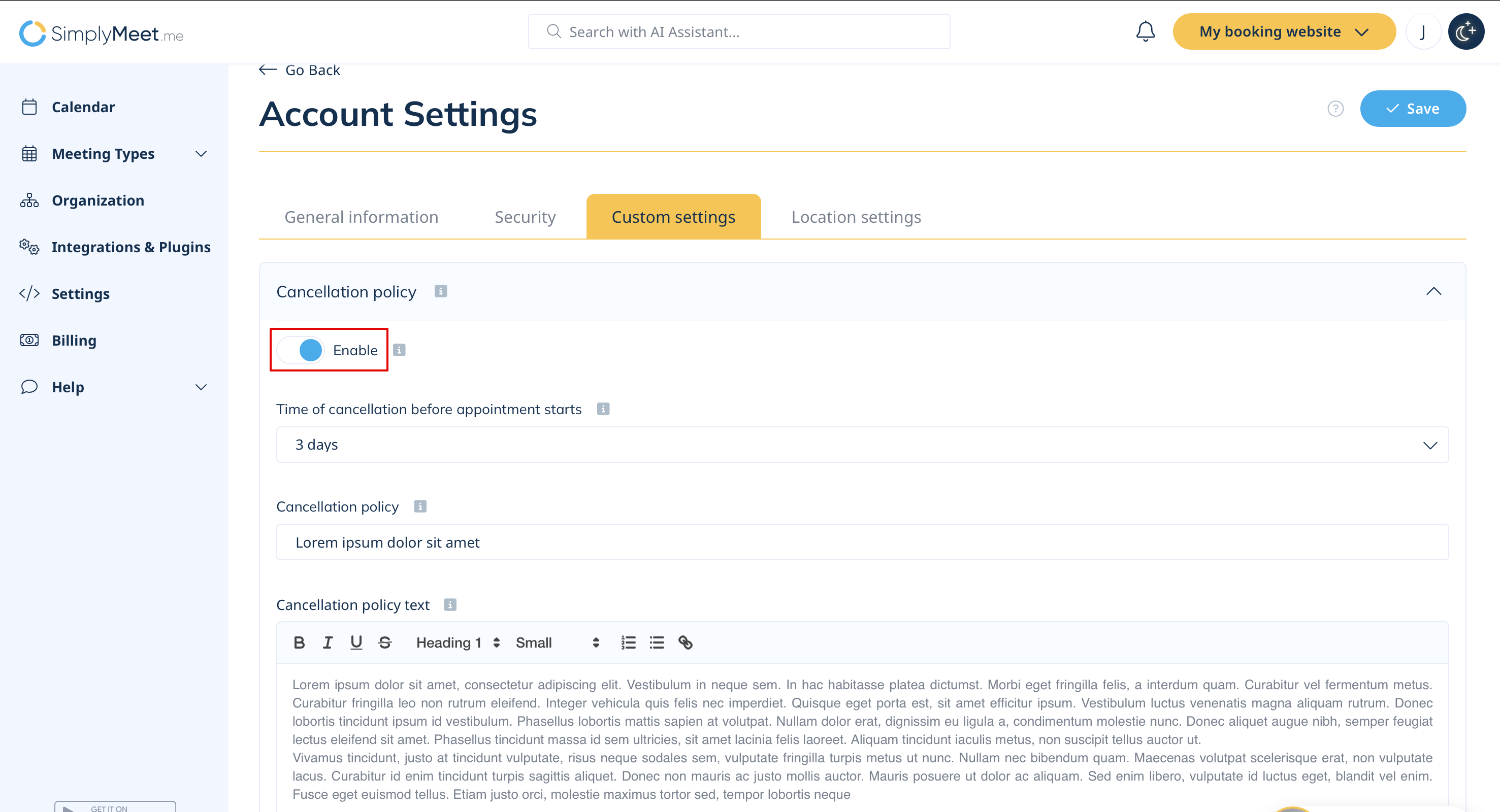
- 2. Enable Cancellation policy
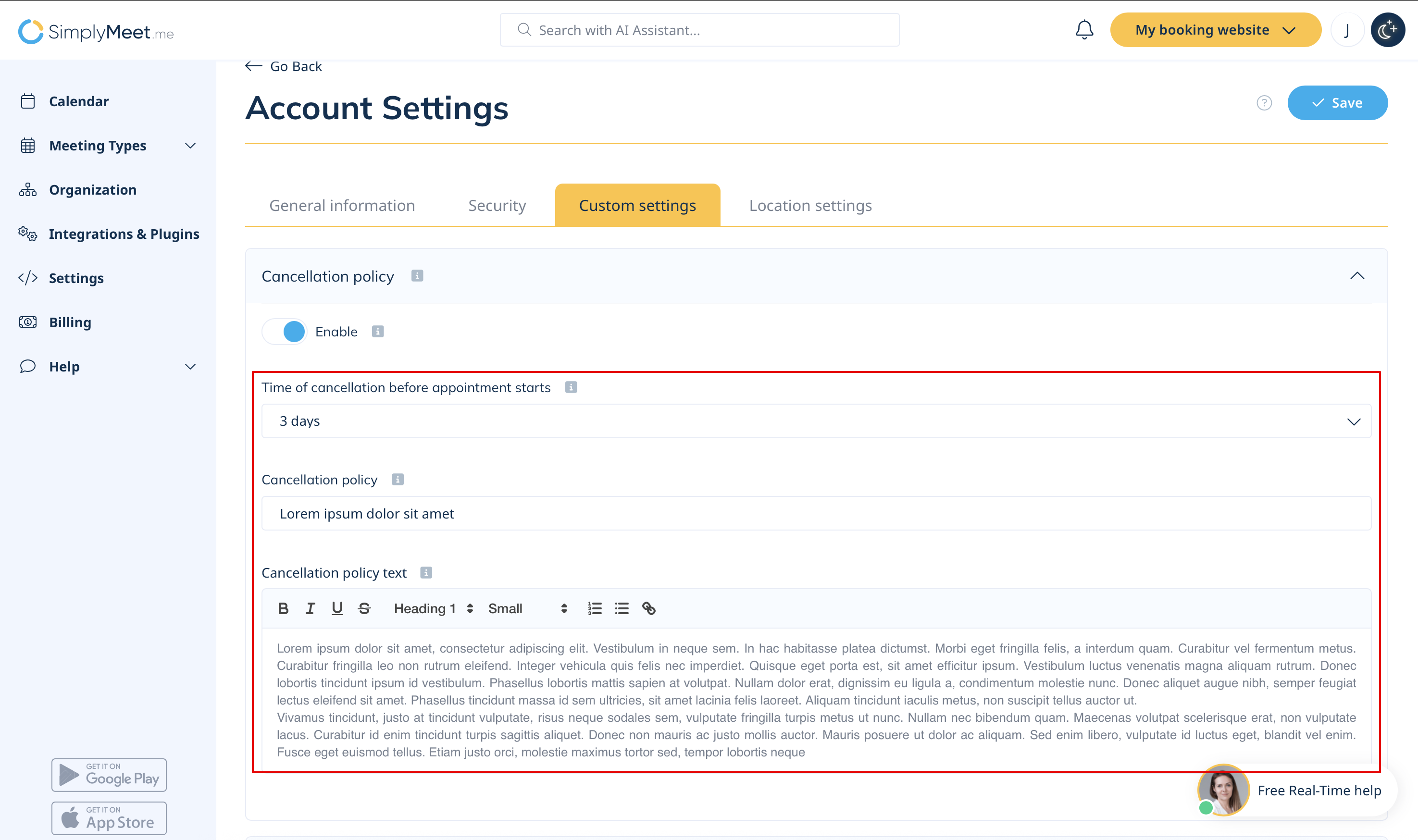
- 3. Insert the text for the label and the cancellation policy text to the corresponding fields, set the timeframe for the meetings cancellations.
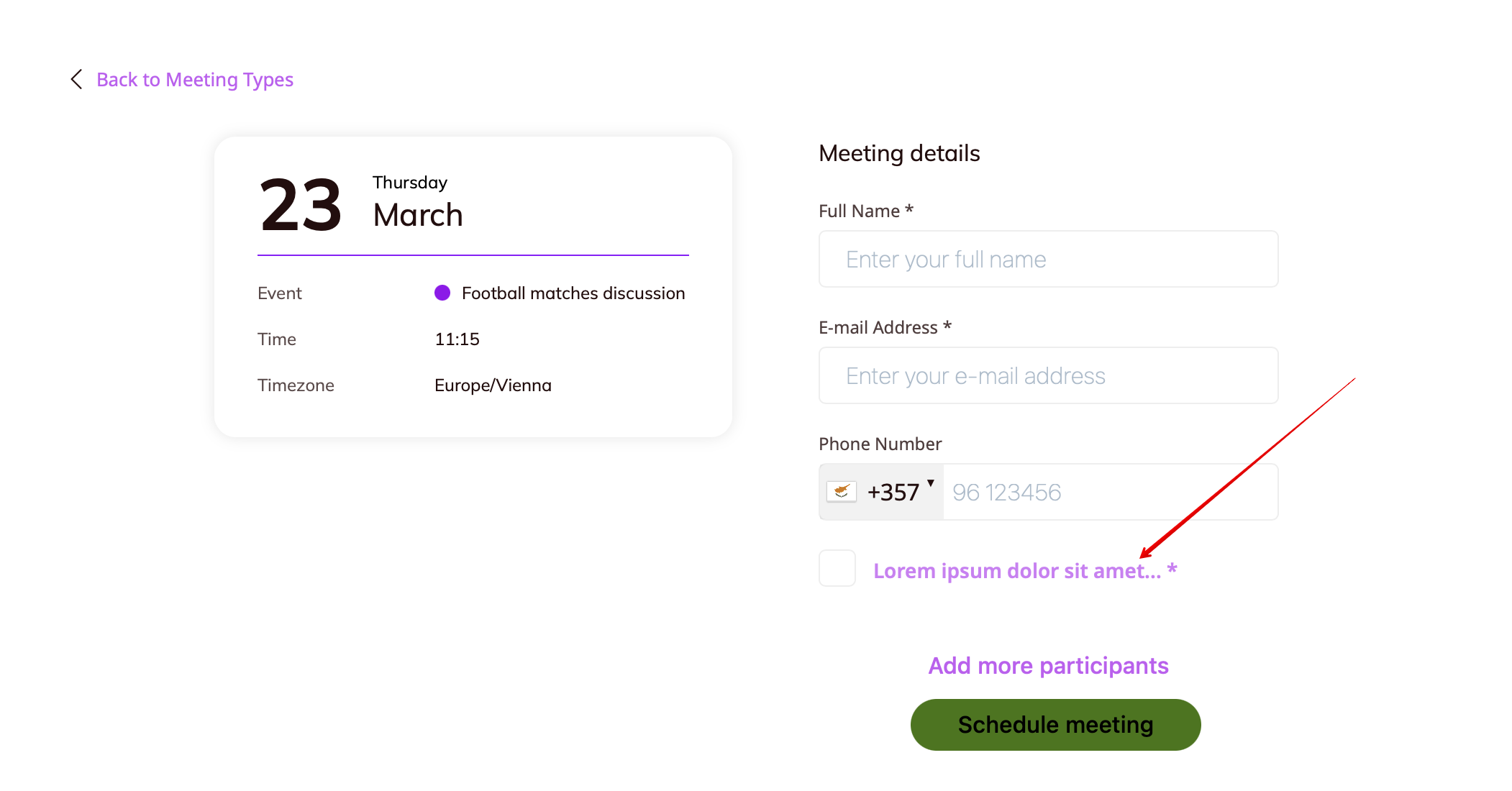
- 4. As the result the clients will need to check the corresponding box on the booking website when confirming the reservation.
- They can also click on the link to see full text of your cancellation policy in the popup.
How to set on the organization level
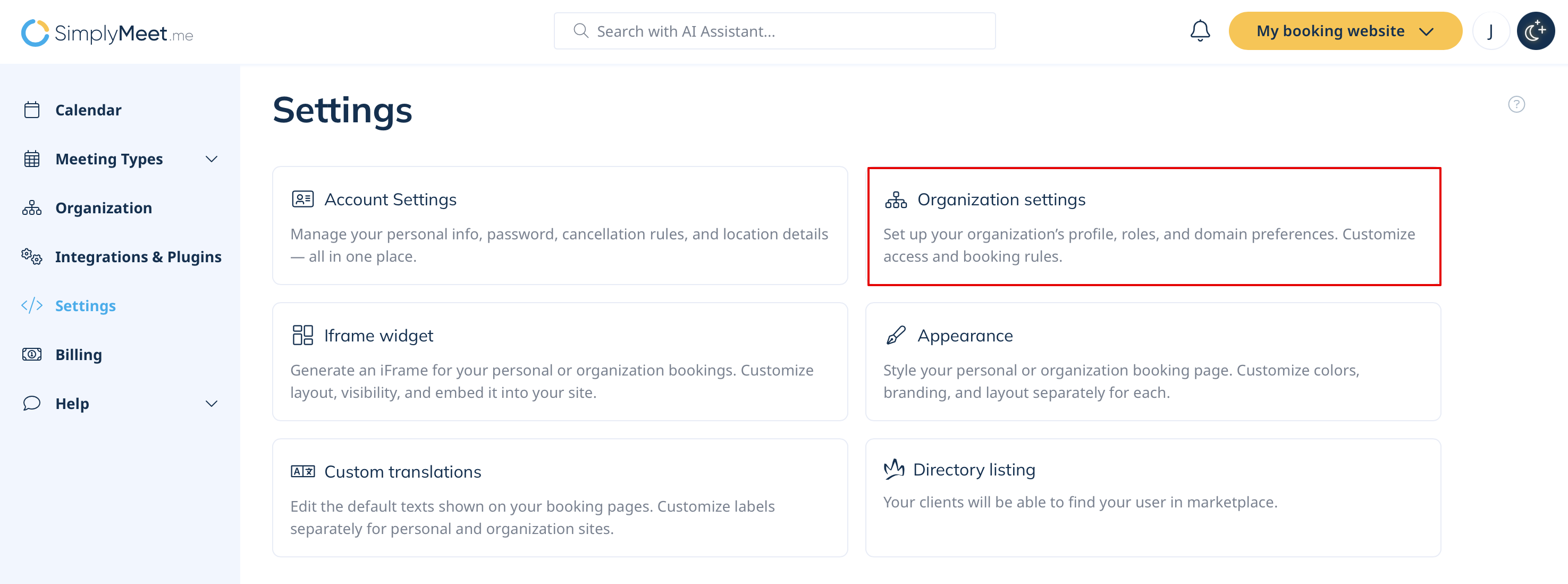
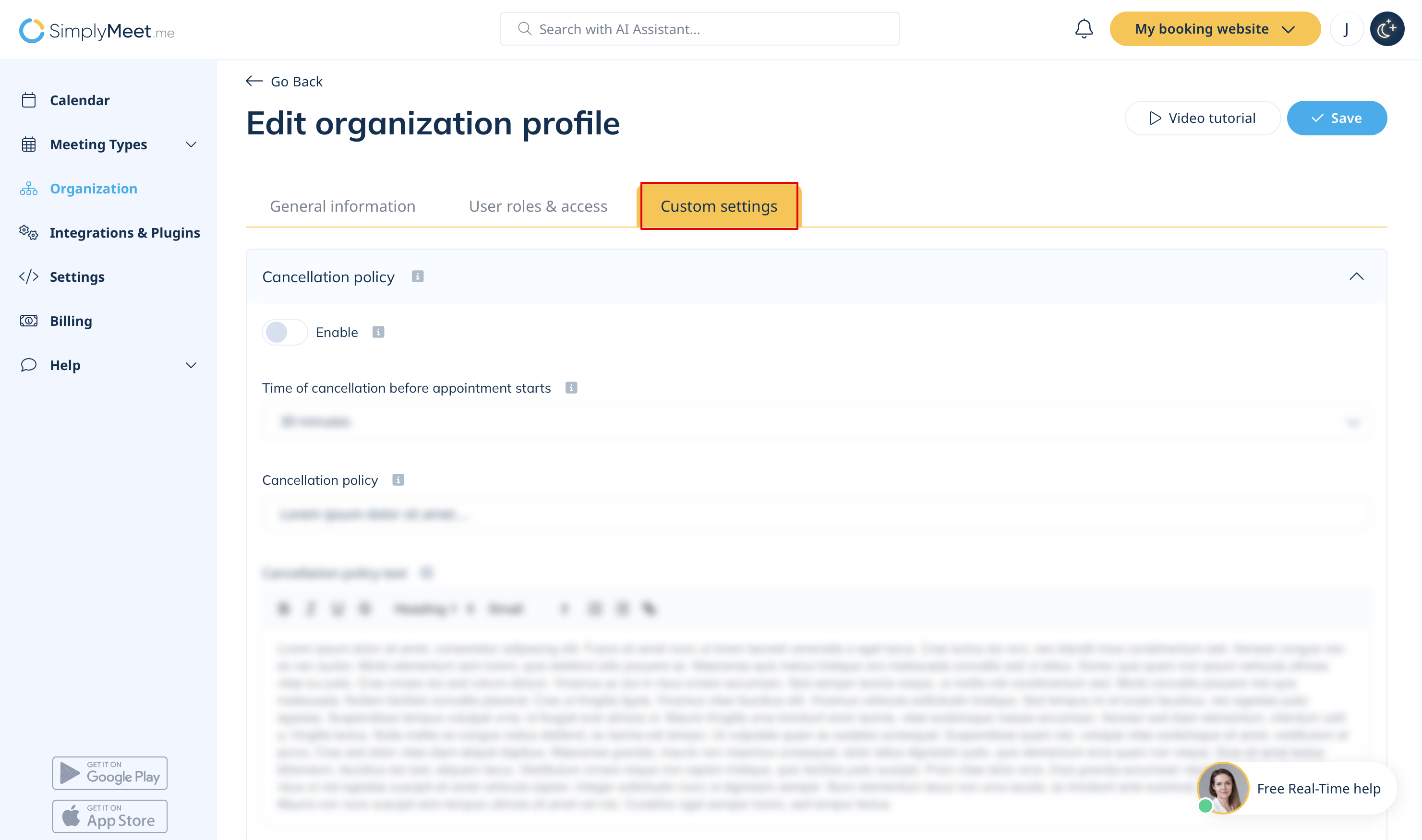
- 1. Navigate to Settings -> Organization settings page, then select Custom settings tab.
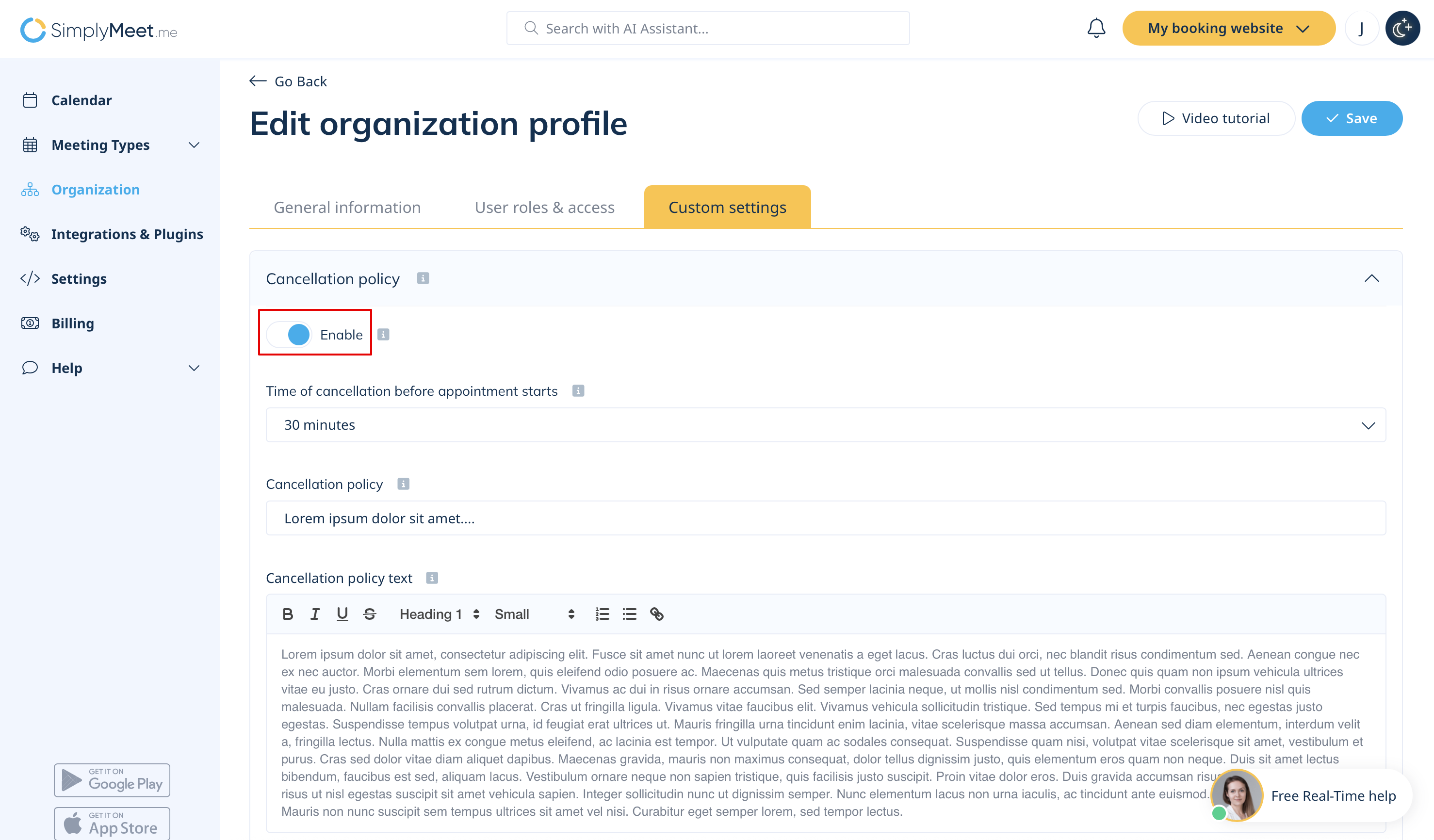
- 2. Enable Cancellation policy
- 3. Insert the text for the label and the cancellation policy text to the corresponding fields. Set the time restrictions for meetings cancellations if necessary.
- Save settings.
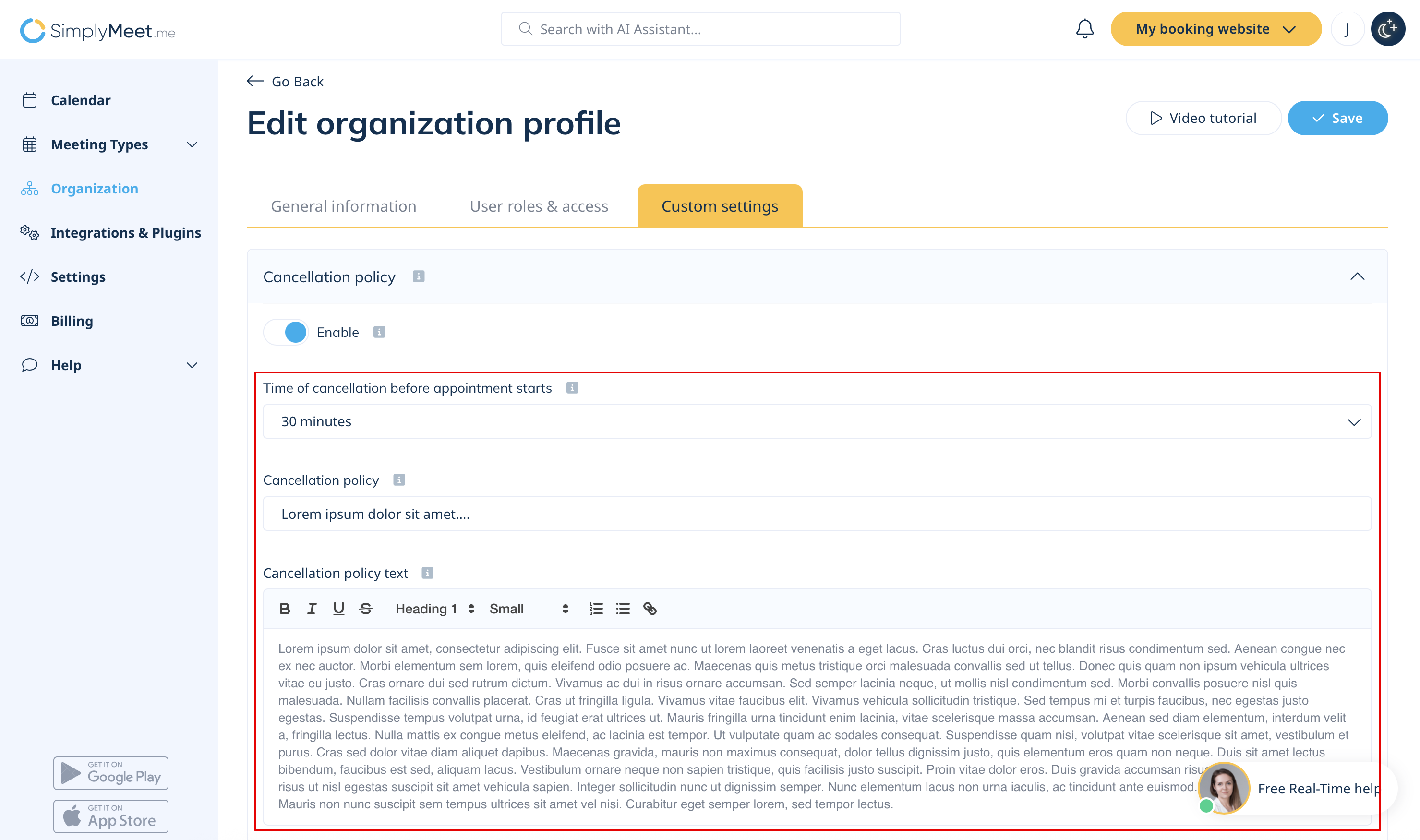
- 4. (optional) You can also enable the option Use organisation cancellation policy as priority to overwrite all your organization members' cancellation policies.
- 5. As the result the clients will need to check the corresponding box on the booking website when confirming the reservation to agree to your policy.
- They can also click on the link to see full text of your cancellation policy in the popup.
