No edit summary |
No edit summary |
||
| (2 intermediate revisions by the same user not shown) | |||
| Line 7: | Line 7: | ||
[[File:Sm group meetings new path.png|1200px|center|link=https://help.simplymeet.me/images/c/c9/Sm_group_meetings_new_path.png]] | [[File:Sm group meetings new path.png|1200px|center|link=https://help.simplymeet.me/images/c/c9/Sm_group_meetings_new_path.png]] | ||
<br><br> | <br><br> | ||
<p>2. | <p>2. Find a '''Group bookings''' section and in the corresponding field indicate the number of clients that you wish to accept per timeslot for this meeting type.</p> | ||
[[File:Sm group bookings number of participants path new.png|1200px|center|link=https://help.simplymeet.me/images/1/1d/Sm_group_bookings_number_of_participants_path_new.png]] | |||
<br><br> | |||
<p>3. You can enable '''Display Remaining Spaces''' option to show spaces left for time slots on your booking site.</p> | |||
<p>4. As the result the corresponding number of customers will be able to book one and the same timeslot one by one.</p> | <p>4. As the result the corresponding number of customers will be able to book one and the same timeslot one by one.</p> | ||
(Meetings booked as part of a group pack will show a corresponding visual badge in meeting details within the SimplyMeet.me Calendar tab) | |||
<br> | <br> | ||
Latest revision as of 13:01, 5 August 2025
You can now allow several clients to be booked in one and the same timeslot per the specific meeting type if it is needed.
Note! Two-way sync does not work for such meetings. In case you try to change the times for the already booked and synced meeting in your external calendar, it will then revert back to the initial times that are kept on the SimplyMeet.me side.
How to enable group bookings per meeting type
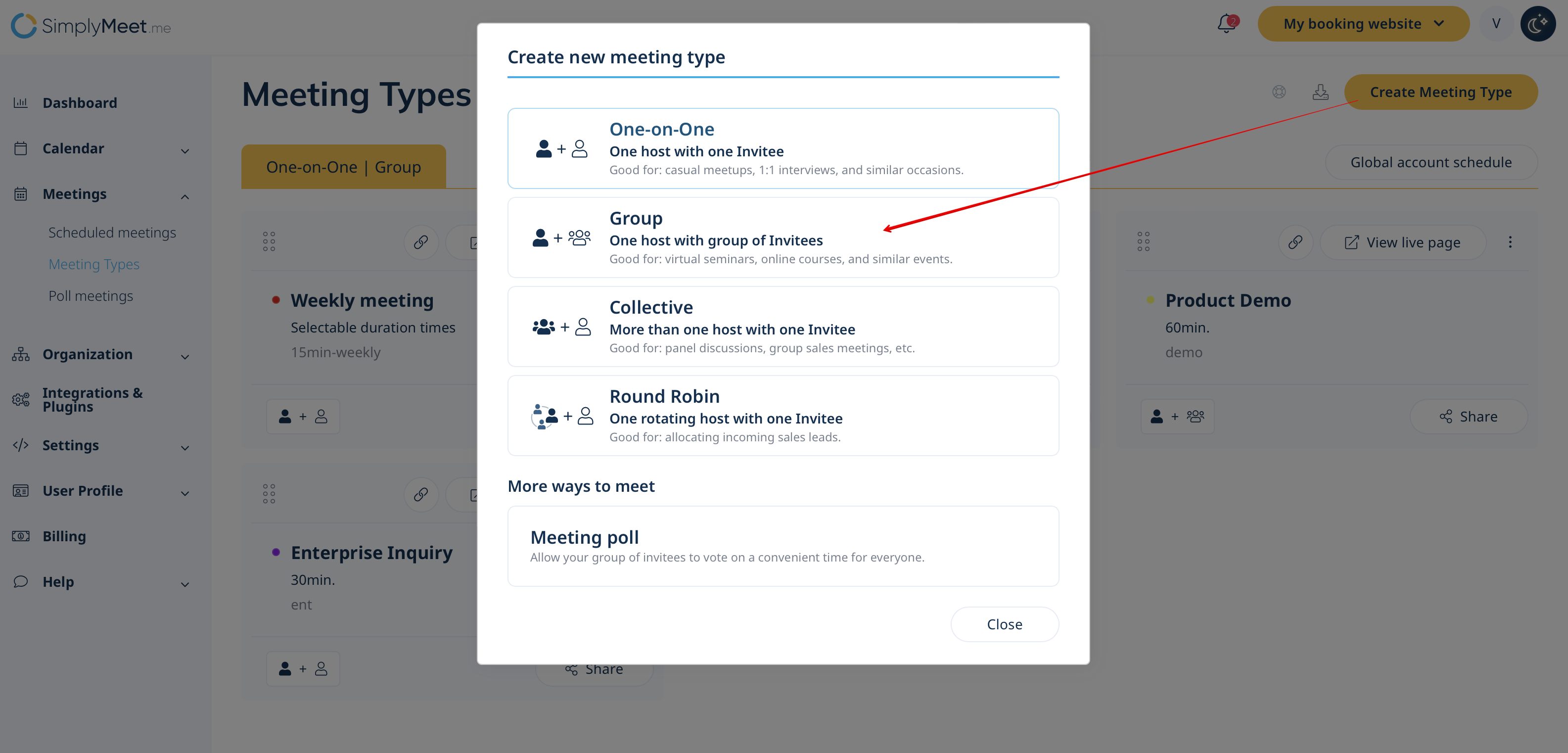
1. Navigate to your Meeting Types page and create a new meeting type by selecting "Group" type or click on the already existing one-to-one to edit it.
2. Find a Group bookings section and in the corresponding field indicate the number of clients that you wish to accept per timeslot for this meeting type.

3. You can enable Display Remaining Spaces option to show spaces left for time slots on your booking site.
4. As the result the corresponding number of customers will be able to book one and the same timeslot one by one.
(Meetings booked as part of a group pack will show a corresponding visual badge in meeting details within the SimplyMeet.me Calendar tab)
