No edit summary |
No edit summary |
||
| (7 intermediate revisions by the same user not shown) | |||
| Line 10: | Line 10: | ||
<p class="no-margin"> | <p class="no-margin"> | ||
<strong>Note</strong>: | <strong>Note</strong>: | ||
*It only works with professional Outlook accounts. Personal ones (like @outlook.com or @hotmail.com) are not supported for online meetings. | |||
*It only works with professional Outlook accounts. Personal ones are not supported for online meetings. | *It doesn't matter whether the user uses Calendar or Email notifications enabled for the meeting type — this does not affect how the integration functions. | ||
</p> | </p> | ||
<h2 id="getting-started-with-microsoft-teams-integration"><strong>Getting started with Microsoft Teams integration</strong></h2> | <h2 id="getting-started-with-microsoft-teams-integration"><strong>Getting started with Microsoft Teams integration</strong></h2> | ||
<p> | <p> | ||
1. In | 1. In Integrations & Plugins, choose to '''Enable a Microsoft Teams integration''' and follow the prompts to connect your professional Outlook account.</p> | ||
<p> | <p> | ||
2. In your [https://secure.simplymeet.me/event_types/#/ Meeting Type] settings | 2. In your [https://secure.simplymeet.me/event_types/#/ Meeting Type] settings choose the '''Microsoft Teams''' meeting option from the '''Video meetings''' section. | ||
</p> | |||
<div class="intercom-container"> | |||
[[File:Sm ms teams as meeting type new.png|1200px|center|link=https://help.simplymeet.me/images/c/c2/Sm_ms_teams_as_meeting_type_new.png]] | |||
</div> | </div> | ||
<p class="no-margin"> | <p class="no-margin"> | ||
3. | 3. Now, when someone schedules a new meeting with you, the Microsoft Teams video meeting link will be automatically generated and attached to the event's body in the calendar. | ||
</p> | </p> | ||
<p class="no-margin"> | <p class="no-margin"> | ||
When Microsoft Teams integration is enabled and | |||
<strong> | <strong>Create an online Microsoft Teams meeting </strong>option from the <strong>Location</strong> dropdown in the Meeting Type is selected, the <strong>Web conferencing details provided upon confirmation </strong>text will be visible in the Location details on the scheduling page. | ||
< | |||
< | |||
</p> | </p> | ||
<div class="intercom-container"> | |||
[[File:Simplymeet client side web location.png|1200px|center]] | |||
</div> | |||
<p class="no-margin"> | <p class="no-margin"> | ||
After the meeting is successfully booked and if you have added <nowiki>{{location}}</nowiki> tag to the "Meeting scheduled" notification the client will receive the link to join the meeting with this notification. | |||
</p> | </p> | ||
<p class="no-margin"> | <p class="no-margin"> | ||
</p> | </p> | ||
<div class="intercom-container"> | <div class="intercom-container"> | ||
[[File: | [[File:Teams link in client email sm.png|1200px|center|link=https://help.simplymeet.me/images/a/a6/Teams_link_in_client_email_sm.png]] | ||
</div> | </div> | ||
Latest revision as of 12:31, 19 June 2025
The Microsoft Teams integration automates your clients' booking by generating a unique video meeting link for every meeting.
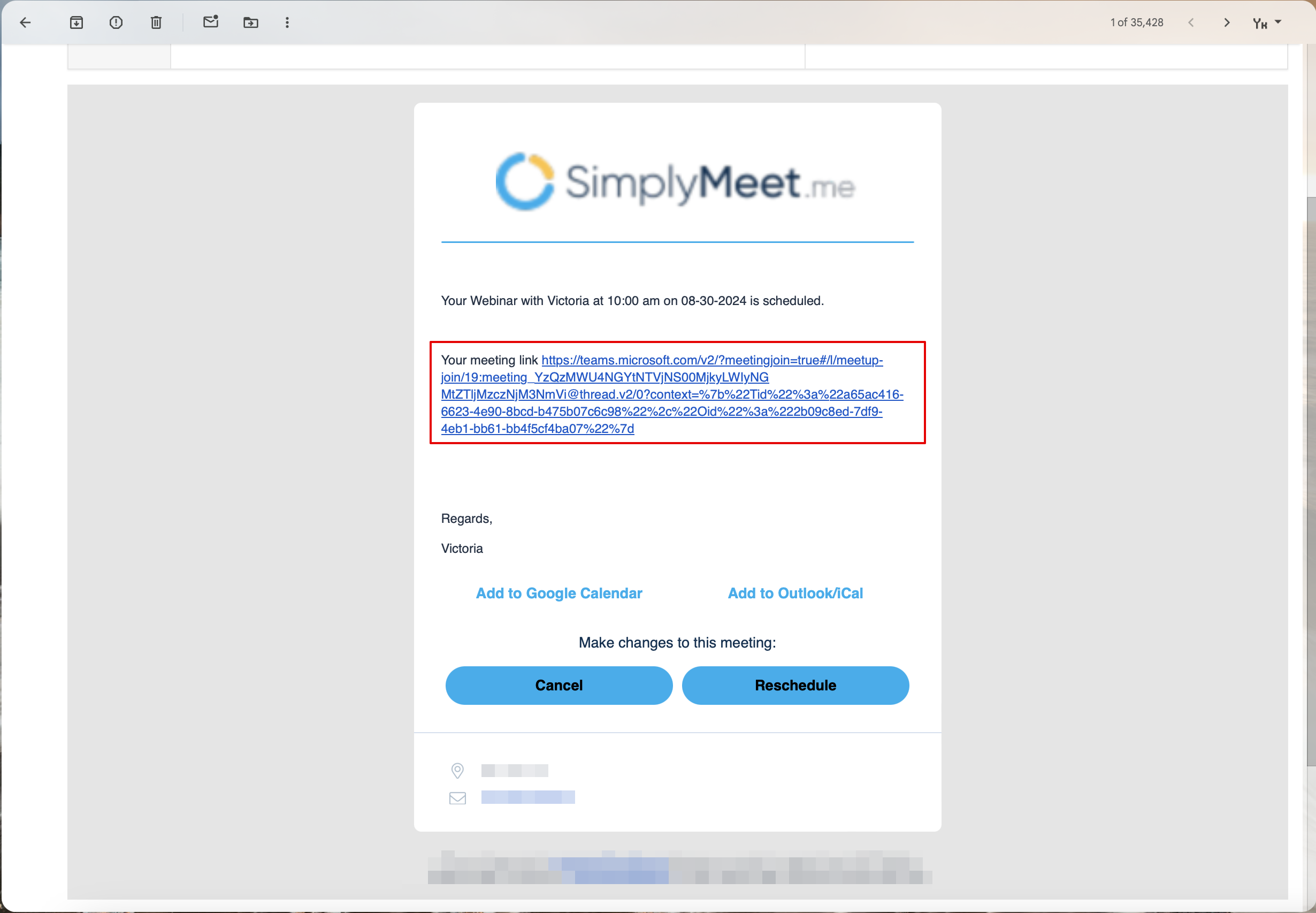
When a new meeting is scheduled with SimplyMeet.me, an online Microsoft Teams video meeting link is automatically created and added to the meeting details, calendar and email notifications.
Note:
- It only works with professional Outlook accounts. Personal ones (like @outlook.com or @hotmail.com) are not supported for online meetings.
- It doesn't matter whether the user uses Calendar or Email notifications enabled for the meeting type — this does not affect how the integration functions.
Getting started with Microsoft Teams integration
1. In Integrations & Plugins, choose to Enable a Microsoft Teams integration and follow the prompts to connect your professional Outlook account.
2. In your Meeting Type settings choose the Microsoft Teams meeting option from the Video meetings section.

3. Now, when someone schedules a new meeting with you, the Microsoft Teams video meeting link will be automatically generated and attached to the event's body in the calendar.
When Microsoft Teams integration is enabled and Create an online Microsoft Teams meeting option from the Location dropdown in the Meeting Type is selected, the Web conferencing details provided upon confirmation text will be visible in the Location details on the scheduling page.

After the meeting is successfully booked and if you have added {{location}} tag to the "Meeting scheduled" notification the client will receive the link to join the meeting with this notification.