Created page with "<p class="no-margin"> The Google Meet/Hangouts integration automates your clients' booking by generating a unique video meeting link for every meeting. </p> <p class="no-marg..." |
No edit summary |
||
| (10 intermediate revisions by the same user not shown) | |||
| Line 5: | Line 5: | ||
</p> | </p> | ||
<p class="no-margin"> | <p class="no-margin"> | ||
When a new meeting is scheduled via | When a new meeting is scheduled via SimplyMeet.me, a Google Meet/Hangouts video meeting link is automatically created and added to the meeting details, calendar and email notifications. | ||
</p> | </p> | ||
<p class="no-margin"> | <p class="no-margin"> | ||
</p> | </p> | ||
<h2 id="getting-started-with-google-meethangouts-integration">Getting started with Google Meet/Hangouts integration</h2> | |||
<p class="no-margin"> | <p class="no-margin"> | ||
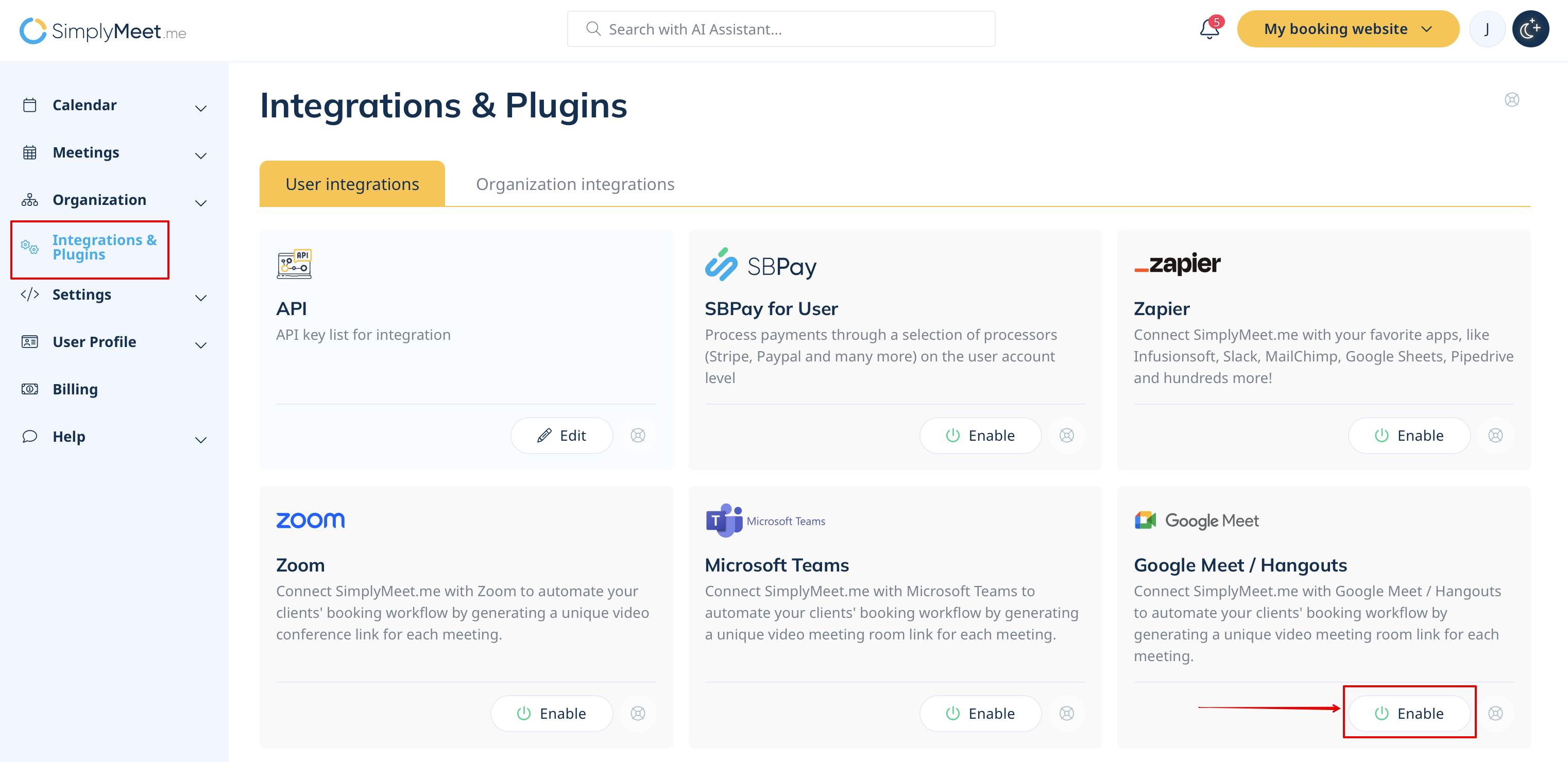
1. In Integrations & Plugins, choose to '''Enable a Google Meet''' integration and follow the prompts to connect your Google account. | |||
[[File:Sm enable google meet integration.png|1200px|center|link=https://help.simplymeet.me/images/9/9b/Sm_enable_google_meet_integration.png]] | |||
</p> | </p> | ||
<p class="no-margin"> | <p class="no-margin"> | ||
2. In your [https://secure.simplymeet.me/event_types/#/ Meeting Types] choose the '''Google Meet/Hangouts''' meeting link option from the '''Video meetings''' section. | |||
<div class="intercom-container"> | <div class="intercom-container"> | ||
[[File:Google meet as | [[File:Sm Google meet as meeting type location new.png|1200px|center|link=https://help.simplymeet.me/images/b/bb/Sm_Google_meet_as_meeting_type_location_new.png]] | ||
</div> | </div> | ||
<p class="no-margin"> | <p class="no-margin"> | ||
3. Now, when someone schedules a new meeting with you, the Google Meet/Hangouts video meeting link will be automatically generated. | |||
</p> | </p> | ||
<p class="no-margin"> | <p class="no-margin"> | ||
'''Note''' It doesn't matter whether the user uses Calendar or Email notifications enabled for the meeting type — this does not affect how the integration functions. | |||
</p> | </p> | ||
Latest revision as of 12:25, 19 June 2025
The Google Meet/Hangouts integration automates your clients' booking by generating a unique video meeting link for every meeting.
When a new meeting is scheduled via SimplyMeet.me, a Google Meet/Hangouts video meeting link is automatically created and added to the meeting details, calendar and email notifications.
Getting started with Google Meet/Hangouts integration
1. In Integrations & Plugins, choose to Enable a Google Meet integration and follow the prompts to connect your Google account.
2. In your Meeting Types choose the Google Meet/Hangouts meeting link option from the Video meetings section.

3. Now, when someone schedules a new meeting with you, the Google Meet/Hangouts video meeting link will be automatically generated.
Note It doesn't matter whether the user uses Calendar or Email notifications enabled for the meeting type — this does not affect how the integration functions.
