From SimplyMeet.me
Created page with "<p class="no-margin"> The Whereby integration automates your clients' booking by generating a unique video meeting link for every meeting. </p> <p class="no-margin"> </p> <p..." |
No edit summary |
||
| (5 intermediate revisions by the same user not shown) | |||
| Line 3: | Line 3: | ||
</p> | </p> | ||
<p class="no-margin"> | <p class="no-margin"> | ||
When a new meeting is scheduled with SimplyMeet.me, a | |||
When a new meeting is scheduled with | |||
[https://whereby.com Whereby] video meeting link is automatically created and added to the meeting details, calendar and email notifications. | [https://whereby.com Whereby] video meeting link is automatically created and added to the meeting details, calendar and email notifications. | ||
</p> | </p> | ||
<h2 id="getting-started-with-whereby-integration">Getting started with Whereby integration</h2> | <h2 id="getting-started-with-whereby-integration">Getting started with Whereby integration</h2> | ||
<ol> | <ol> | ||
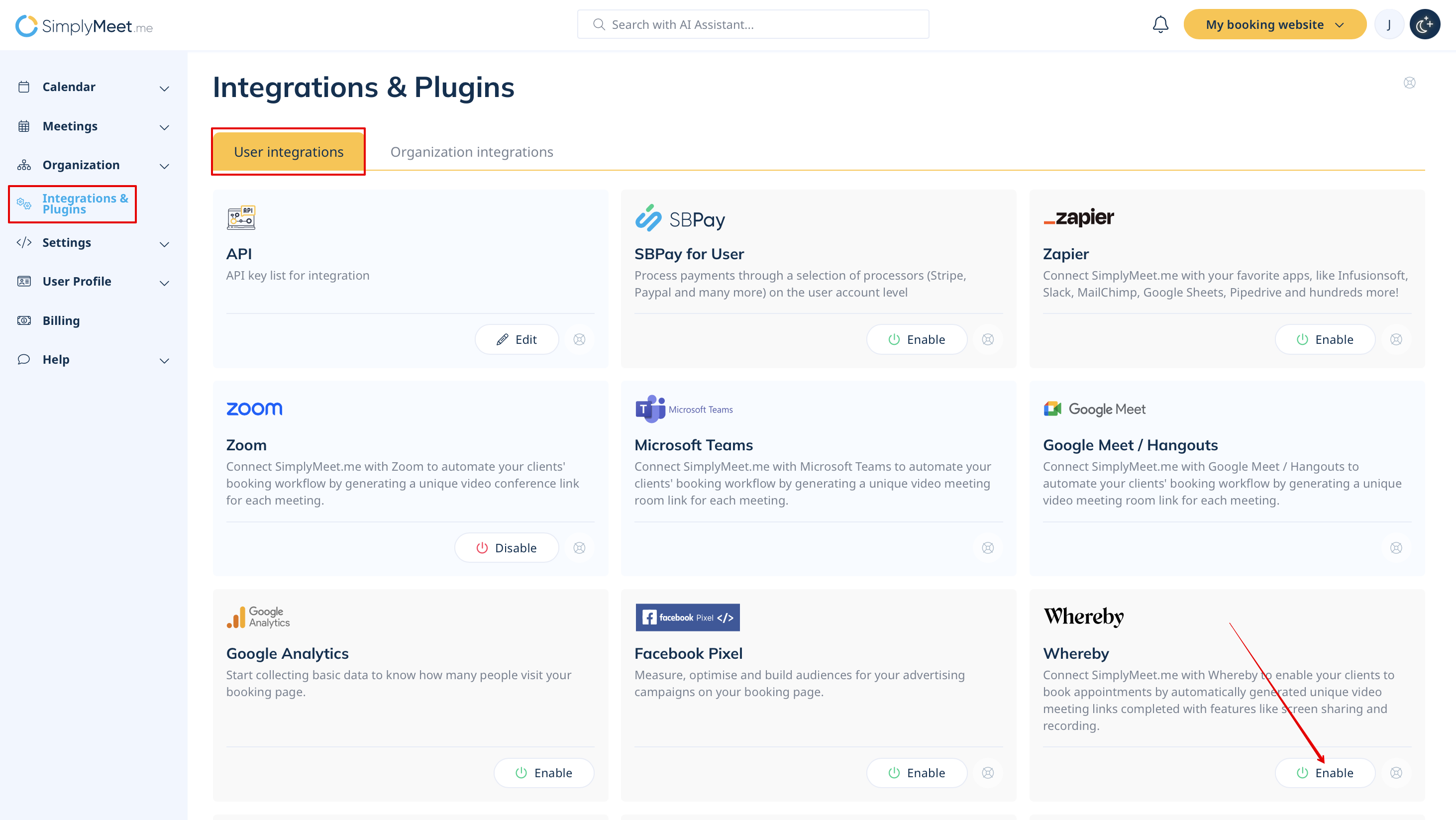
<li>Go to [https://whereby.com Whereby] website and reach out to the sales team. This is only available to <strong>Whereby Embedded customers</strong>.</li> | <li>Go to [https://whereby.com Whereby] website and reach out to the sales team. This is only available to <strong>Whereby Embedded customers</strong>.</li> | ||
<li>Go to <strong>[https:// | <li>Go to <strong>[https://secure.simplymeet.me/integrations Integrations]</strong> in SimplyMeet.me.</li> | ||
<li>Click the <strong>Connect </strong>button in the Whereby integration section.</li> | <li>Click the <strong>Connect </strong>button in the Whereby integration section.</li> | ||
<div class="intercom-container"> | <div class="intercom-container"> | ||
[[File: | [[File:Sm whereby enable path new.png|1200px|center|link=https://help.simplymeet.me/images/8/80/Sm_whereby_enable_path_new.png]] | ||
</div> | </div> | ||
<p class="no-margin"> | <p class="no-margin"> | ||
<li>Enter Whereby's API Key in the API key field.</li> | |||
</ | |||
</p> | </p> | ||
<div class="intercom-container"> | <div class="intercom-container"> | ||
[[File: | [[File:Simplymeet whereby api key.png|1200px|center]] | ||
</div> | </div> | ||
<p class="no-margin"> | <p class="no-margin"> | ||
<li>Click <strong>Connect</strong> button.</li><br> | |||
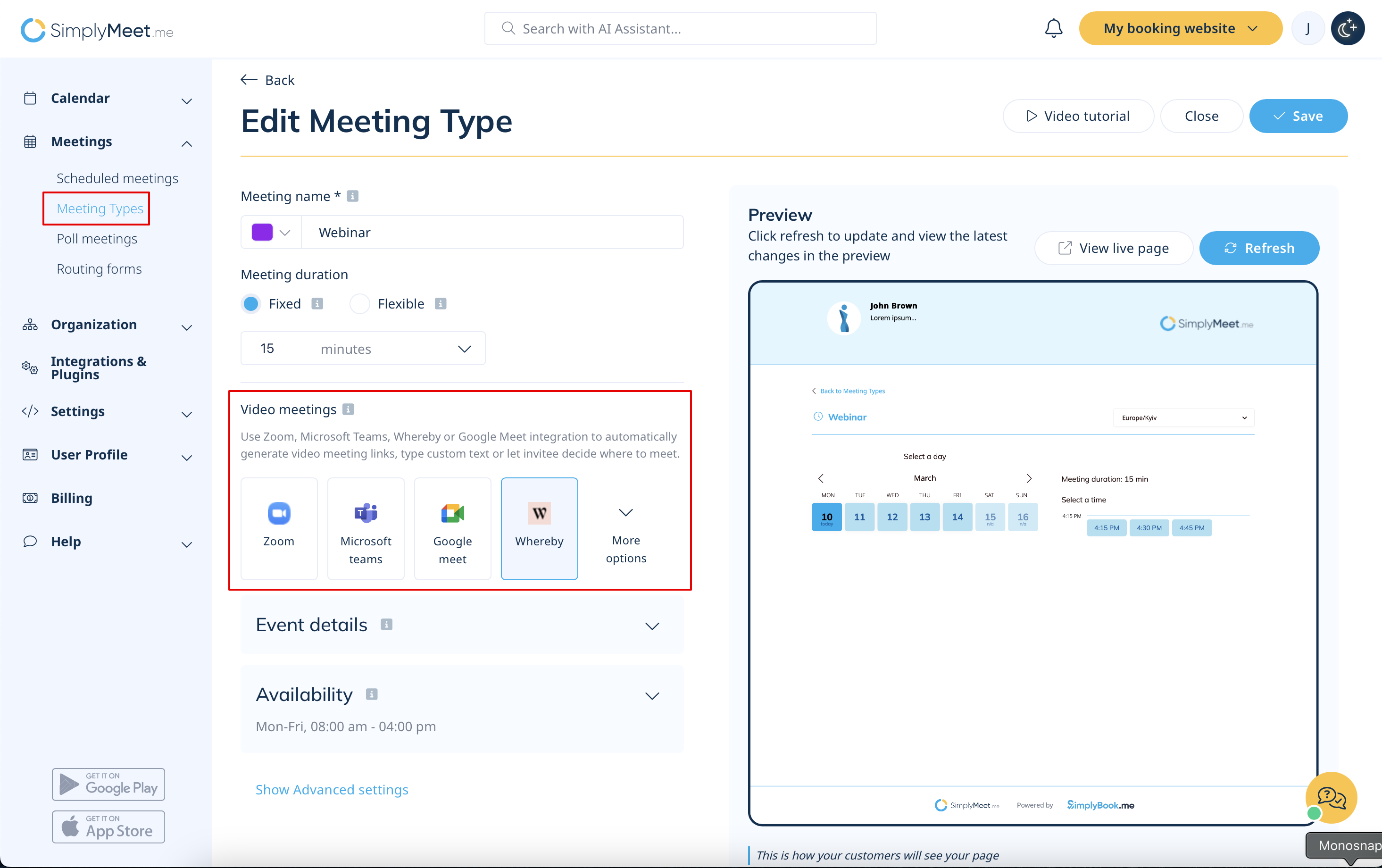
<li>In your [https://secure.simplymeet.me/event_types/#/ Meeting Types], choose the <strong>Whereby </strong>meeting link option from the <strong>Video meetings </strong>section.</li> | |||
</ | |||
</p> | </p> | ||
<div class="intercom-container"> | <div class="intercom-container"> | ||
[[File: | [[File:Sm whereby as meeting location new.png|1200px|center|link=https://help.simplymeet.me/images/f/f8/Sm_whereby_as_meeting_location_new.png]] | ||
</div> | </div> | ||
<p class="no-margin"> | <p class="no-margin"> | ||
<li>Click <strong>Save</strong> button.</li><br> | |||
<li>Now, when someone schedules a new meeting with you, the Whereby video meeting link will be automatically generated.</li></ol> | |||
</ | |||
< | |||
</p> | </p> | ||
<p class="no-margin"> | <p class="no-margin"> | ||
When Whereby integration is enabled and <strong>Whereby</strong> meeting link option from the <strong>Video meetings</strong> section in the Meeting Type is selected the <strong>Web conferencing details provided upon confirmation </strong>text will be visible in the Location details on the scheduling page. | |||
</p> | </p> | ||
Latest revision as of 14:19, 10 March 2025
The Whereby integration automates your clients' booking by generating a unique video meeting link for every meeting.
When a new meeting is scheduled with SimplyMeet.me, a Whereby video meeting link is automatically created and added to the meeting details, calendar and email notifications.
Getting started with Whereby integration
- Go to Whereby website and reach out to the sales team. This is only available to Whereby Embedded customers.
- Go to Integrations in SimplyMeet.me.
- Click the Connect button in the Whereby integration section.
- Enter Whereby's API Key in the API key field.
- Click Connect button.
- In your Meeting Types, choose the Whereby meeting link option from the Video meetings section.
- Click Save button.
- Now, when someone schedules a new meeting with you, the Whereby video meeting link will be automatically generated.

When Whereby integration is enabled and Whereby meeting link option from the Video meetings section in the Meeting Type is selected the Web conferencing details provided upon confirmation text will be visible in the Location details on the scheduling page.
