No edit summary |
No edit summary |
||
| (11 intermediate revisions by the same user not shown) | |||
| Line 4: | Line 4: | ||
<p class="no-margin"> | <p class="no-margin"> | ||
When a new meeting is scheduled with SimplyMeet.me, a Zoom video conference link is automatically created and added to the meeting details, calendar and email notifications. | When a new meeting is scheduled with SimplyMeet.me, a Zoom video conference link is automatically created and added to the meeting details, calendar and email notifications. | ||
</p> | </p> | ||
<h2 id="getting-started-with-zoom-integration">Getting started with Zoom integration</h2> | <h2 id="getting-started-with-zoom-integration">Getting started with Zoom integration</h2> | ||
| Line 26: | Line 23: | ||
</p> | </p> | ||
<div class="intercom-container"> | <div class="intercom-container"> | ||
[[File: | [[File:Sm zoom connect path new.png|1200px|center|link=https://help.simplymeet.me/images/7/74/Sm_zoom_connect_path_new.png]] | ||
</div> | </div> | ||
<p class="no-margin"> | <p class="no-margin"> | ||
5. In your Meeting Types, choose the | 5. In your Meeting Types, choose the | ||
<strong> | <strong> Zoom </strong>meeting option from the <strong>Video meetings </strong>section. | ||
</p> | </p> | ||
<div class="intercom-container"> | <div class="intercom-container"> | ||
[[File: | [[File:Sm zoom as video meetings tool new.png|1200px|center|link=https://help.simplymeet.me/images/b/b3/Sm_zoom_as_video_meetings_tool_new.png]] | ||
</div> | </div> | ||
<p class="no-margin"> | <p class="no-margin"> | ||
| Line 43: | Line 40: | ||
</p> | </p> | ||
<div class="intercom-container"> | <div class="intercom-container"> | ||
[[File: | [[File:Zoom locaton client side booking confirmation.png|1200px|center]] | ||
</div> | </div> | ||
<p class="no-margin"> | <p class="no-margin"> | ||
| Line 49: | Line 46: | ||
</p> | </p> | ||
<div class="intercom-container"> | <div class="intercom-container"> | ||
[[File:Zoom link in | [[File:Zoom link in email.png|1200px|center]] | ||
</div> | </div> | ||
<h2 id="removal">Removing Zoom integration</h2> | |||
<p class="no-margin"> | |||
1. Navigate to <strong>Integrations</strong> tab in your account and click on <strong>Disconnect</strong> button.<br> | |||
2. As well to completely remove the connection please go to <strong>[https://marketplace.zoom.us/user/installed Zoom marketplace]</strong> -> <strong>Manage</strong> -> <strong>Installed apps</strong> and click on <strong>Uninstall</strong> near the SimplyMeet application. | |||
</p> | |||
<h2 id="troubleshooting">Troubleshooting</h2> | <h2 id="troubleshooting">Troubleshooting</h2> | ||
<p class="no-margin"> | <p class="no-margin"> | ||
Note that if your Zoom links are not generated it | Note that if your Zoom links are not generated it might happen due to the following reasons: | ||
*Zoom API has a daily rate limit of 100 requests per day. Therefore, only 100 meetings can be created within a 24-hour window for a user. | |||
*Password or Credential Changes: If the password or credentials for the connected Zoom account are updated, the connection breaks. Reconnect Zoom using the updated credentials by following the tutorial above. | |||
*Zoom Account Linked to Another SimplyMeet.me Account: Each Zoom account can only be connected to one SimplyMeet.me account. If it's linked elsewhere, reconnect Zoom as per the tutorial above | |||
</p> | </p> | ||
Latest revision as of 14:12, 10 March 2025
The SimplyMeet.me Zoom integration automates your clients' booking by generating a unique video conference link for every meeting.
When a new meeting is scheduled with SimplyMeet.me, a Zoom video conference link is automatically created and added to the meeting details, calendar and email notifications.
Getting started with Zoom integration
1. Go to Zoom App Marketplace and search for SimplyMeet.me app.
2. Locate the Pre-approve toggle and enable it (you must be signed in as admin).
3. Click Visit Site to Install button to return to SimplyMeet.me Zoom Integration page.
4. Click the Connect button in Zoom integration pane.
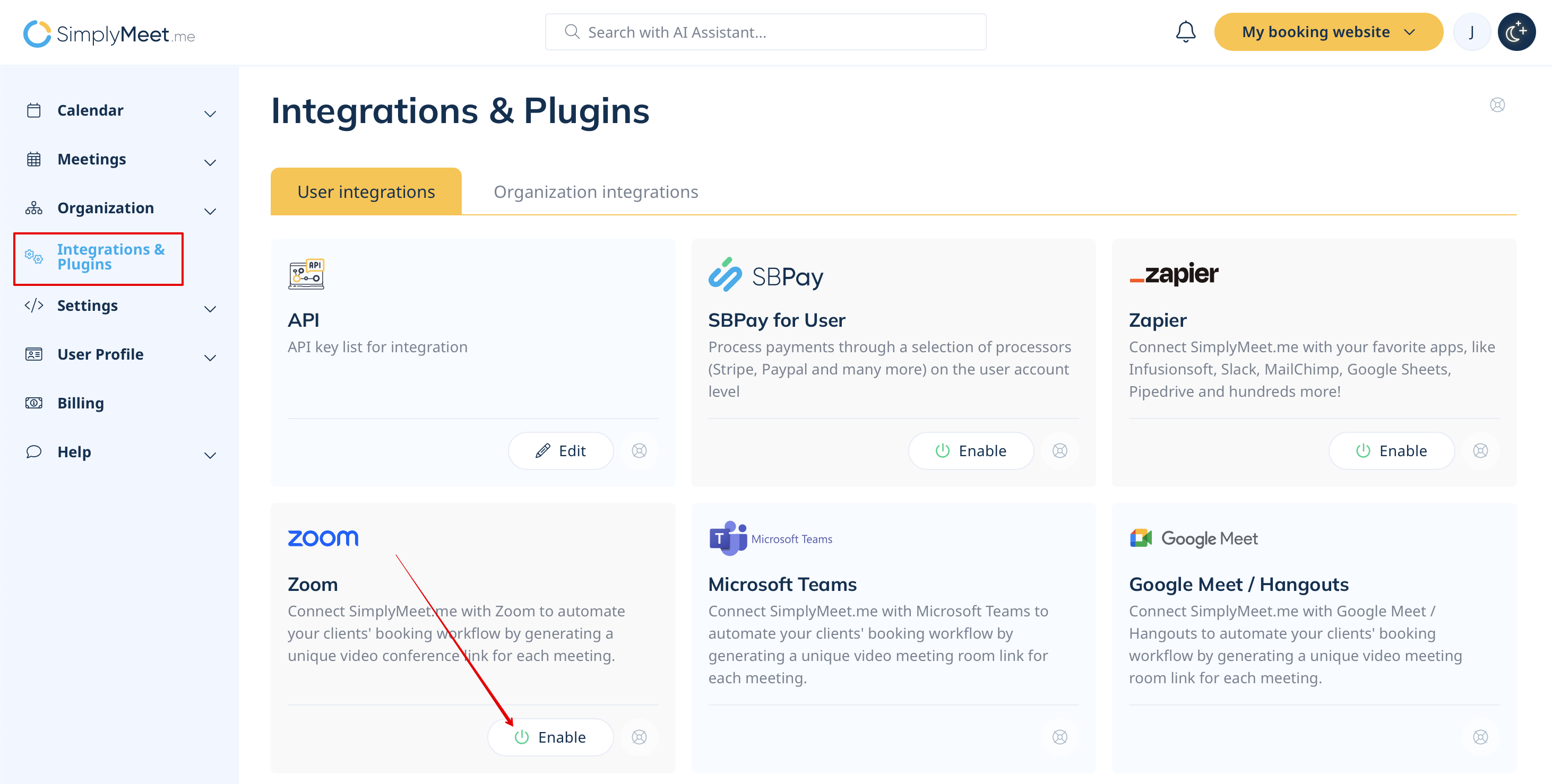
5. In your Meeting Types, choose the Zoom meeting option from the Video meetings section.
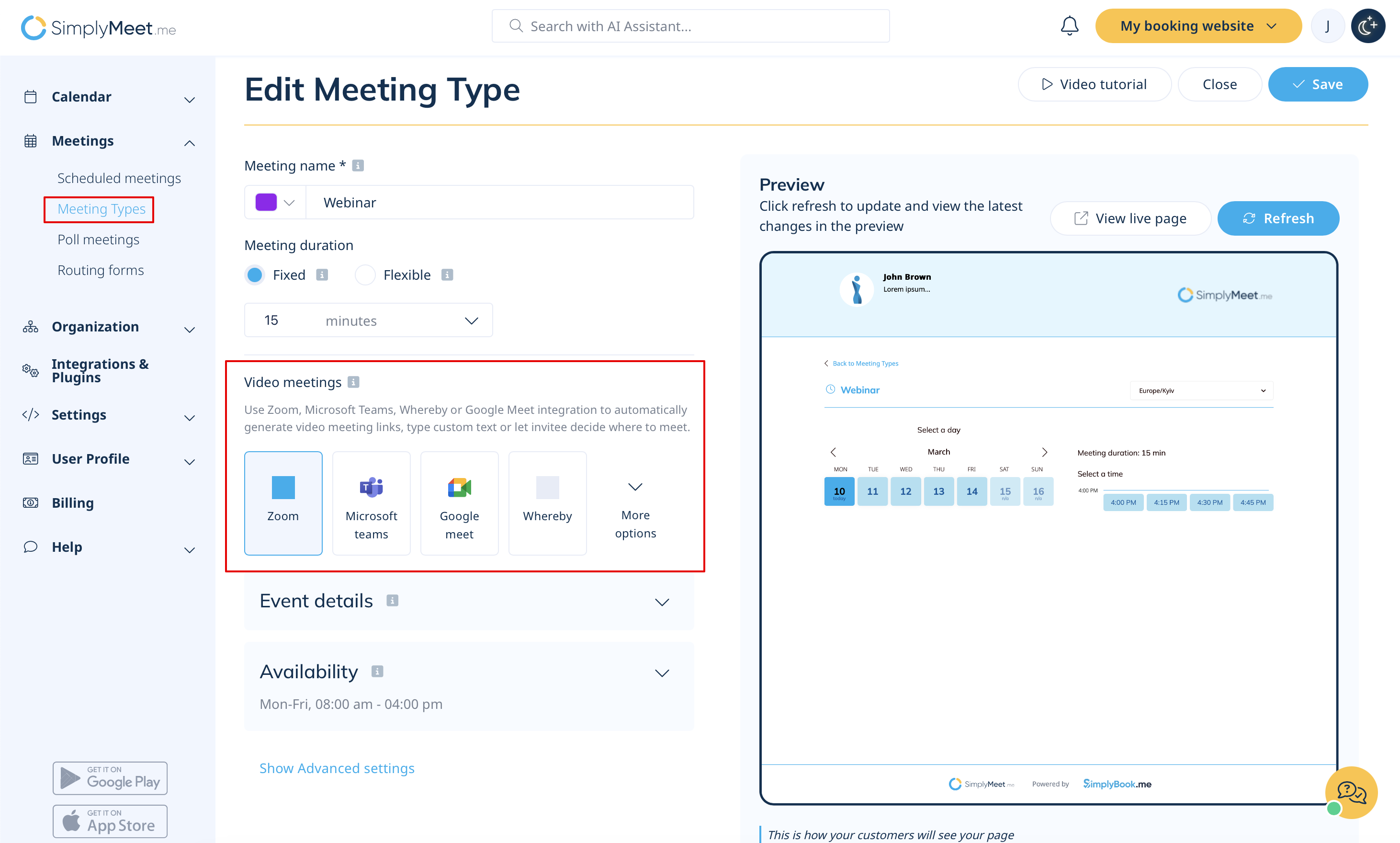
6. Now, when someone schedules a new meeting with you, the Zoom web conference link will be automatically generated.
When Zoom integration is enabled and Create a Zoom meeting option from the Location dropdown is selected the Web conferencing details provided upon confirmation text will be visible in the Location details.

In the email notifications, the Zoom conference link will be attached to the message.

Removing Zoom integration
1. Navigate to Integrations tab in your account and click on Disconnect button.
2. As well to completely remove the connection please go to Zoom marketplace -> Manage -> Installed apps and click on Uninstall near the SimplyMeet application.
Troubleshooting
Note that if your Zoom links are not generated it might happen due to the following reasons:
- Zoom API has a daily rate limit of 100 requests per day. Therefore, only 100 meetings can be created within a 24-hour window for a user.
- Password or Credential Changes: If the password or credentials for the connected Zoom account are updated, the connection breaks. Reconnect Zoom using the updated credentials by following the tutorial above.
- Zoom Account Linked to Another SimplyMeet.me Account: Each Zoom account can only be connected to one SimplyMeet.me account. If it's linked elsewhere, reconnect Zoom as per the tutorial above
