From SimplyMeet.me
Created page with "<p> 1. Sign in to your '''[https://appleid.apple.com/ AppleID/iCloud account]''' </p> <p> 2. Click '''App-Specific Passwords'''. </p> <p> 3. Confirm your iCloud password if re..." |
No edit summary |
||
| Line 4: | Line 4: | ||
<p> | <p> | ||
2. Click '''App-Specific Passwords'''. | 2. Click '''App-Specific Passwords'''. | ||
[[File:App specific passowrd path.png|center|link=https://help.simplymeet.me/images/8/82/App_specific_passowrd_path.png]] | |||
</p> | </p> | ||
<p> | <p> | ||
| Line 11: | Line 12: | ||
4. Click on '''+''' to generate an app-specific password if you have some previously generated passwords,<br> | 4. Click on '''+''' to generate an app-specific password if you have some previously generated passwords,<br> | ||
or, if it is the first one please hit '''Generate an app-specific password''' button. | or, if it is the first one please hit '''Generate an app-specific password''' button. | ||
[[File:Generate password.png|center|link=https://help.simplymeet.me/images/5/58/Generate_password.png]] | |||
</p> | </p> | ||
<p> | <p> | ||
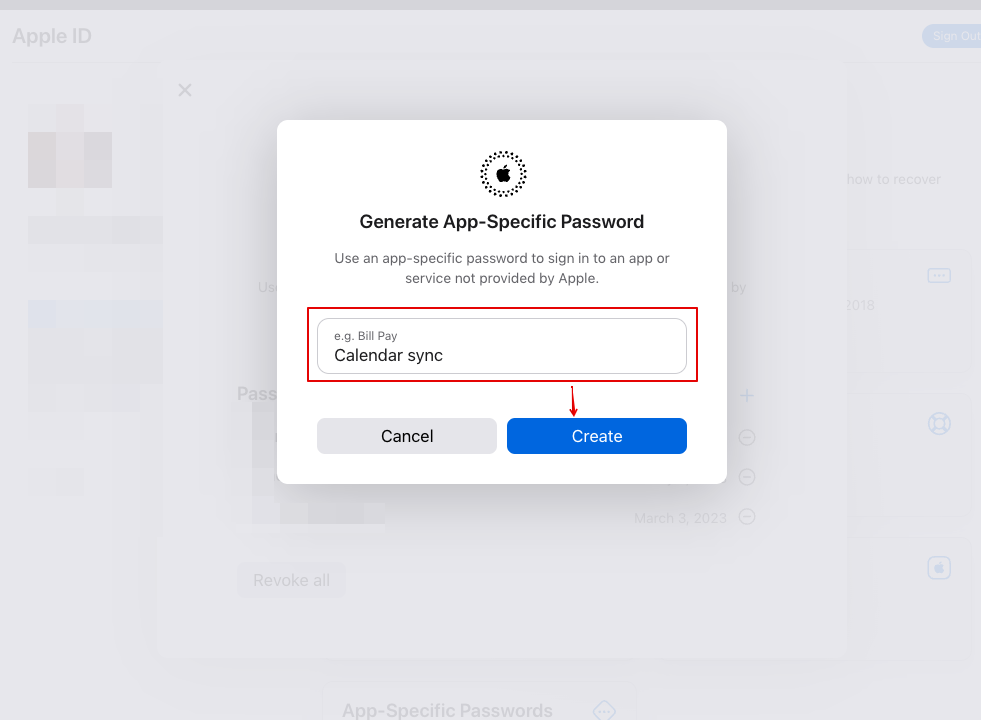
5. In the next field "e.g. Bill Pay" type your password label/name and confirm. | 5. In the next field "e.g. Bill Pay" type your password label/name and confirm. | ||
[[File:Generate password confirm.png|center|link=https://help.simplymeet.me/images/f/f7/Generate_password_confirm.png]] | |||
</p> | </p> | ||
<p> | <p> | ||
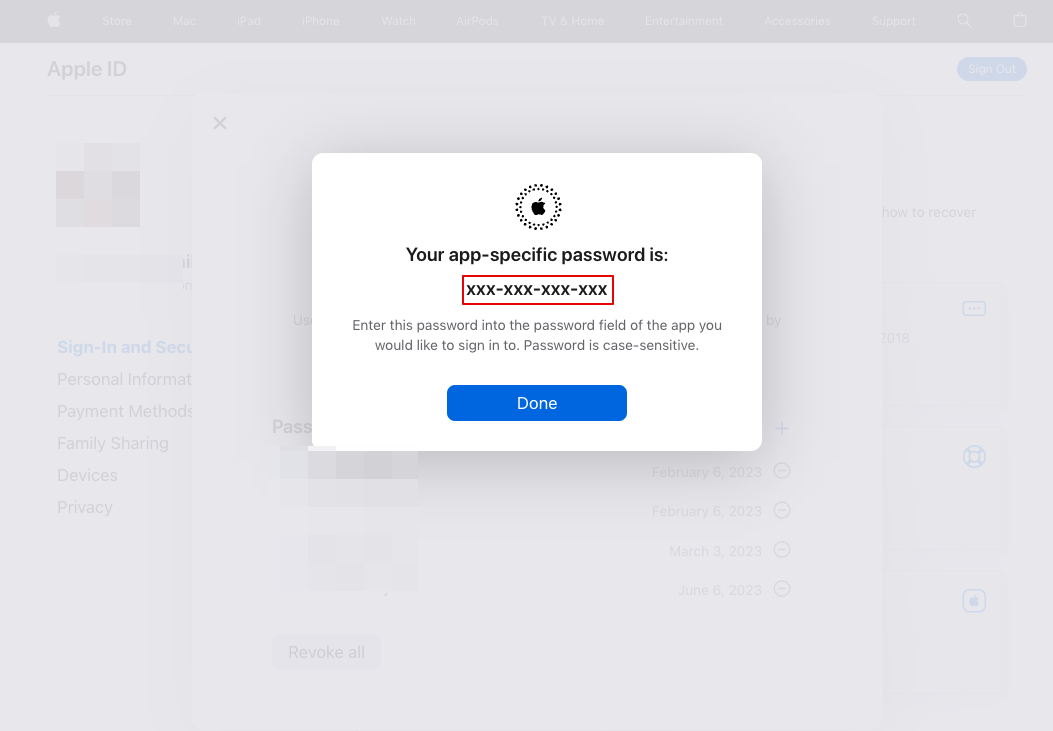
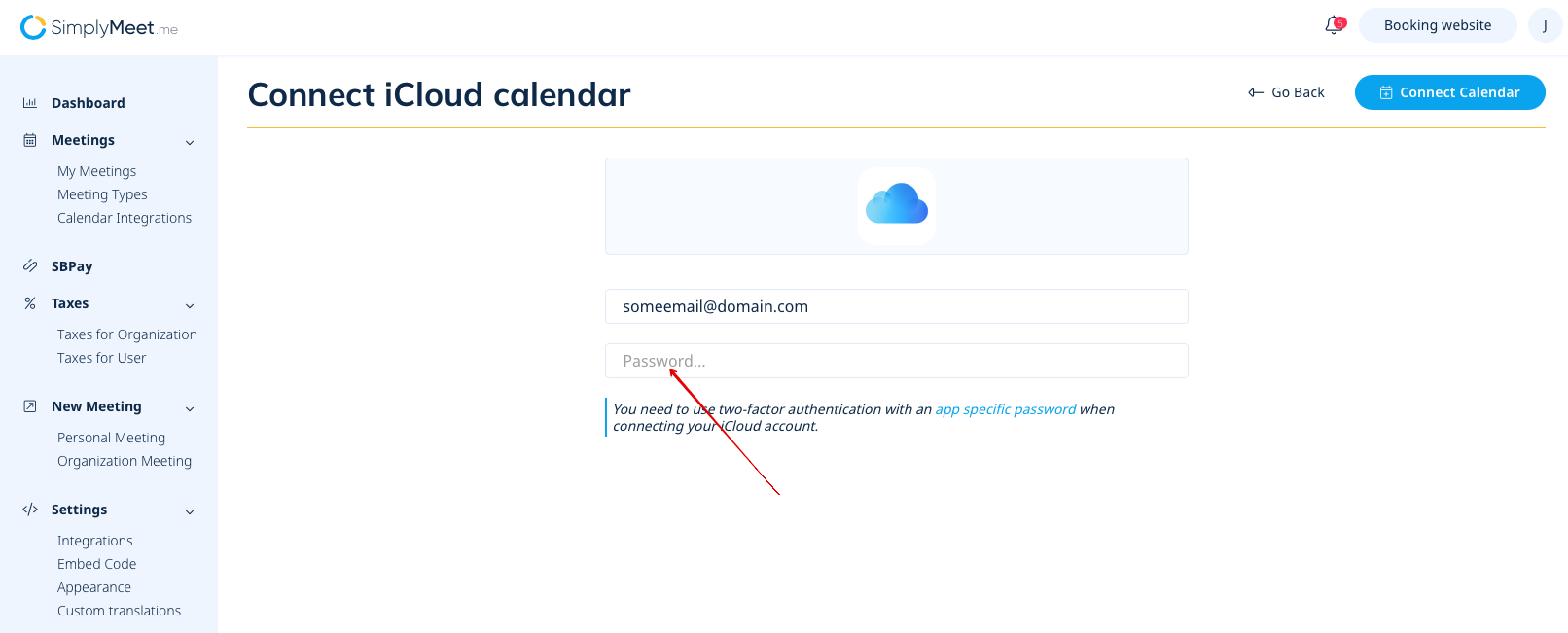
6. Then simply copy the app-specific password, for example: yjht-dbnv-lhrb-eiru and paste it to the Calendar Integrations password field on SimplyMeet.me side. | 6. Then simply copy the app-specific password, for example: yjht-dbnv-lhrb-eiru and paste it to the Calendar Integrations password field on SimplyMeet.me side. | ||
[[File:Password generated.png|center|link=https://help.simplymeet.me/images/a/ab/Password_generated.png]] | |||
[[File:Paste password to simplymeet account.png|1200px|center|link=https://help.simplymeet.me/images/8/85/Paste_password_to_simplymeet_account.png]] | |||
</p> | </p> | ||
Latest revision as of 14:50, 6 June 2023
1. Sign in to your AppleID/iCloud account
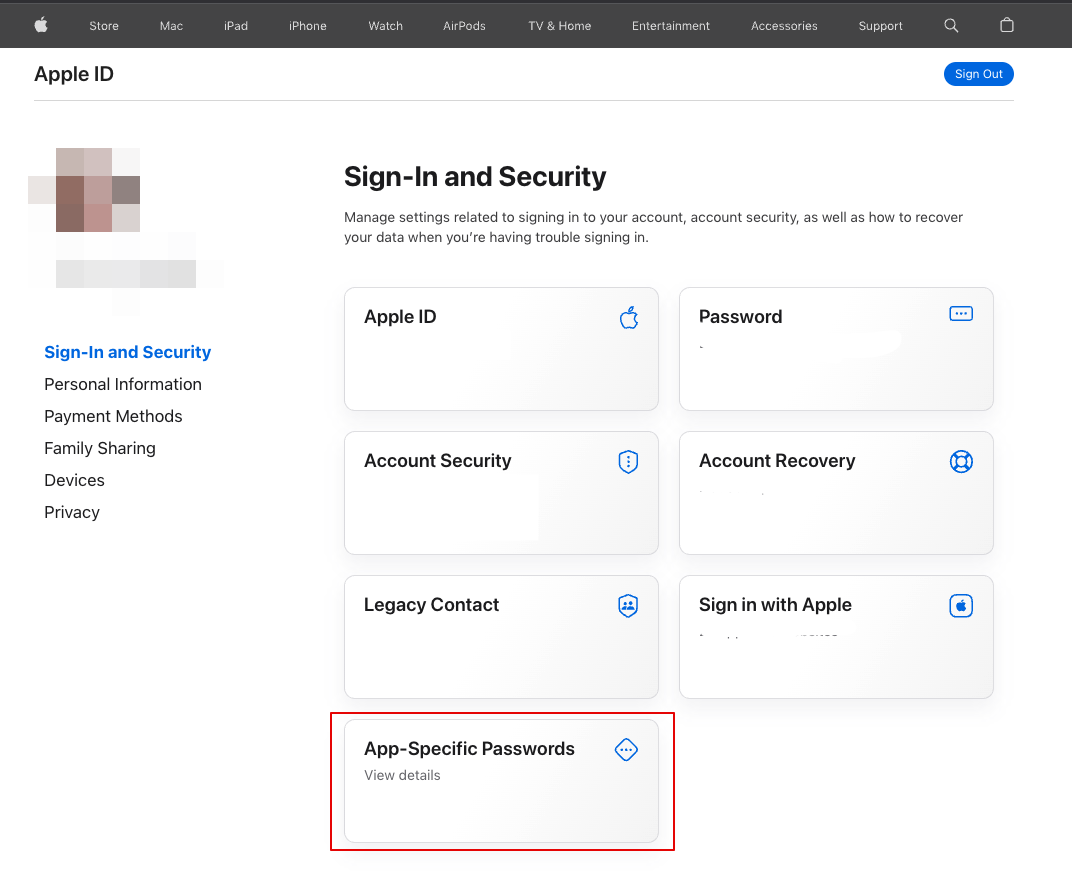
2. Click App-Specific Passwords.
3. Confirm your iCloud password if requested.
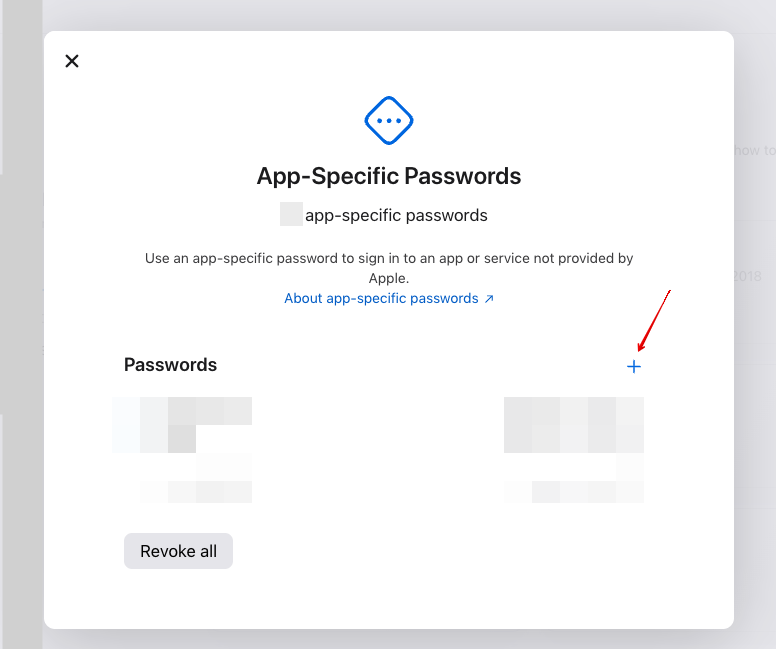
4. Click on + to generate an app-specific password if you have some previously generated passwords,
or, if it is the first one please hit Generate an app-specific password button.
5. In the next field "e.g. Bill Pay" type your password label/name and confirm.
6. Then simply copy the app-specific password, for example: yjht-dbnv-lhrb-eiru and paste it to the Calendar Integrations password field on SimplyMeet.me side.