How to manage meetings from Internal calendar
How to create a new meeting
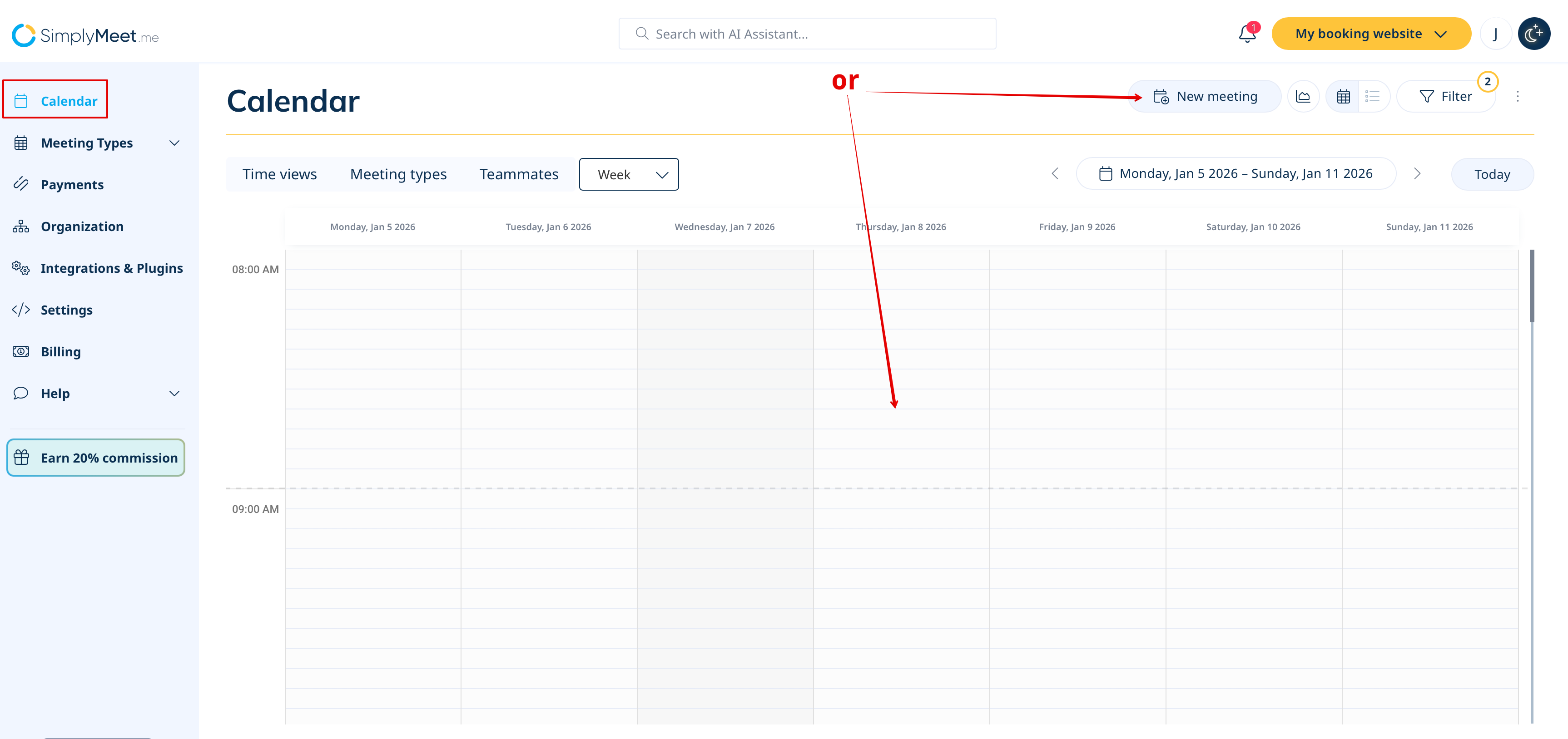
In the Calendar tab (left-side menu), select your preferred view and the date you want to add a booking to. You can also use the filters at the top for easier navigation.
There are three ways to create a new booking:
- Click on any free time slot, or
- Click and drag over the desired time range to select it.
- Alternatively, you can use the New Meeting button
[File:Sm create meeting from calendar new.png|1200px|center|link=https://help.simplymeet.me/images/5/5e/Sm_create_meeting_from_calendar_new.png]]
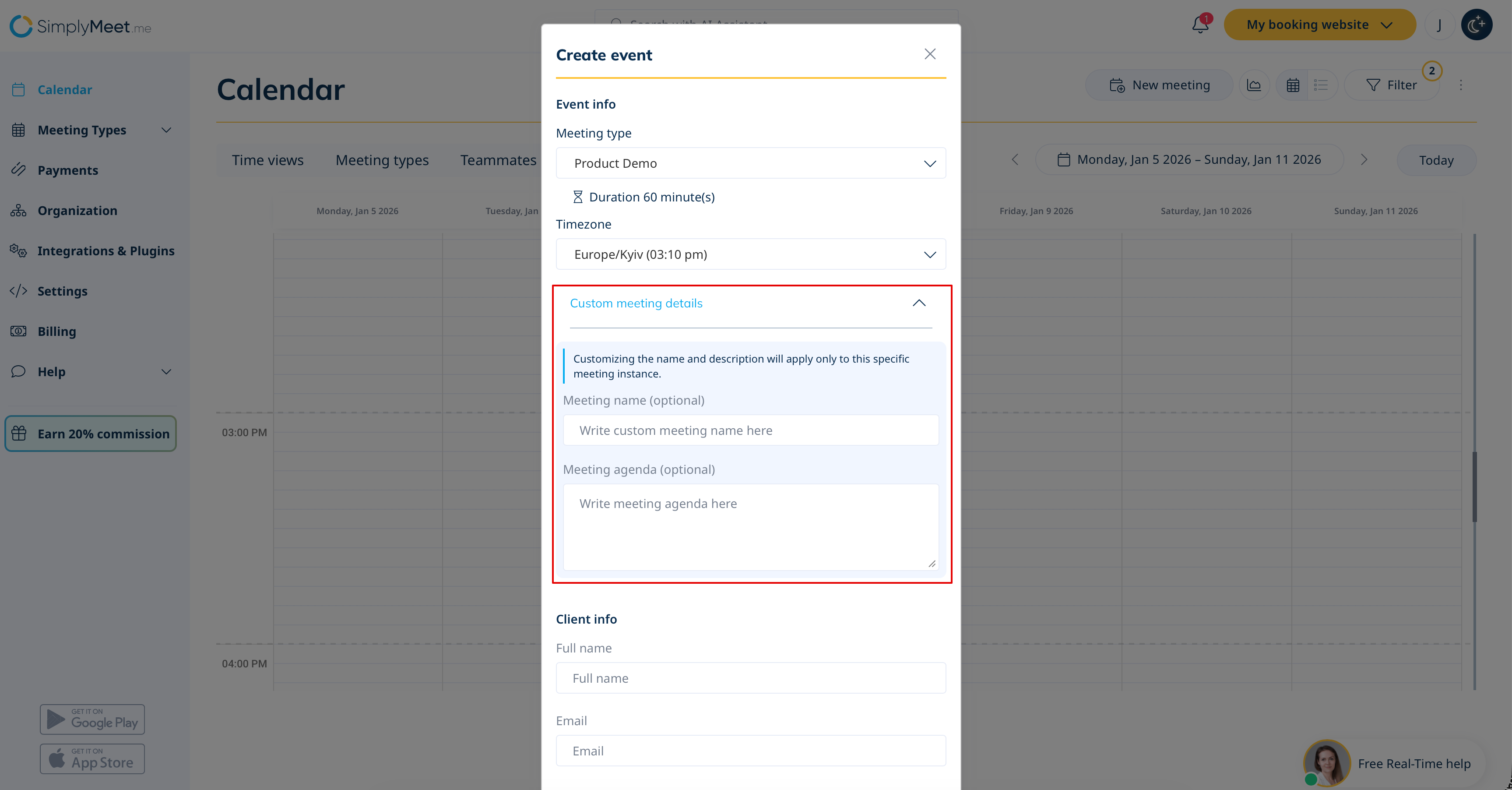
Fill in the pop-up form: Event info (Meeting type; Timezone), add Client info (Full name; Email; Phone), set the date and start time before saving the meeting. Please note: it may be required to fill in Question(s) fields in the pop-up form in case you use Custom Questions.
Additional Meeting Options
Optionally, you can add Custom Meeting Details (name and description) that apply only to this specific meeting.
If you want to make the meeting recurring, use the Repeat dropdown menu.
For more details, see our guide on recurring meetings.
If the meeting should be one-time, set the Repeat dropdown to Does not repeat.
For Organization Owners:
You can schedule a meeting on behalf of a teammate from the Teammates Calendar View.
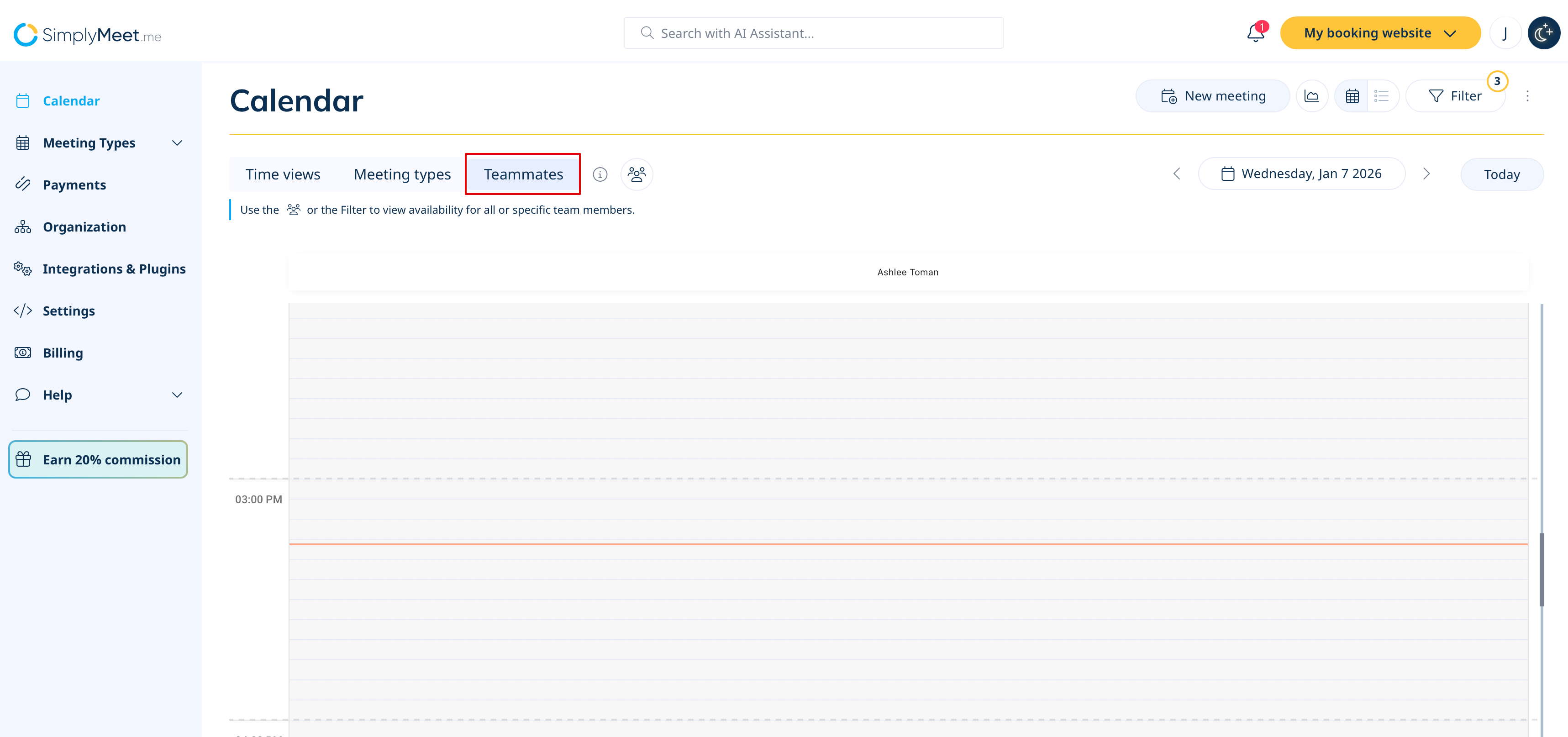
For a complete tutorial, click here.
How to change meetings
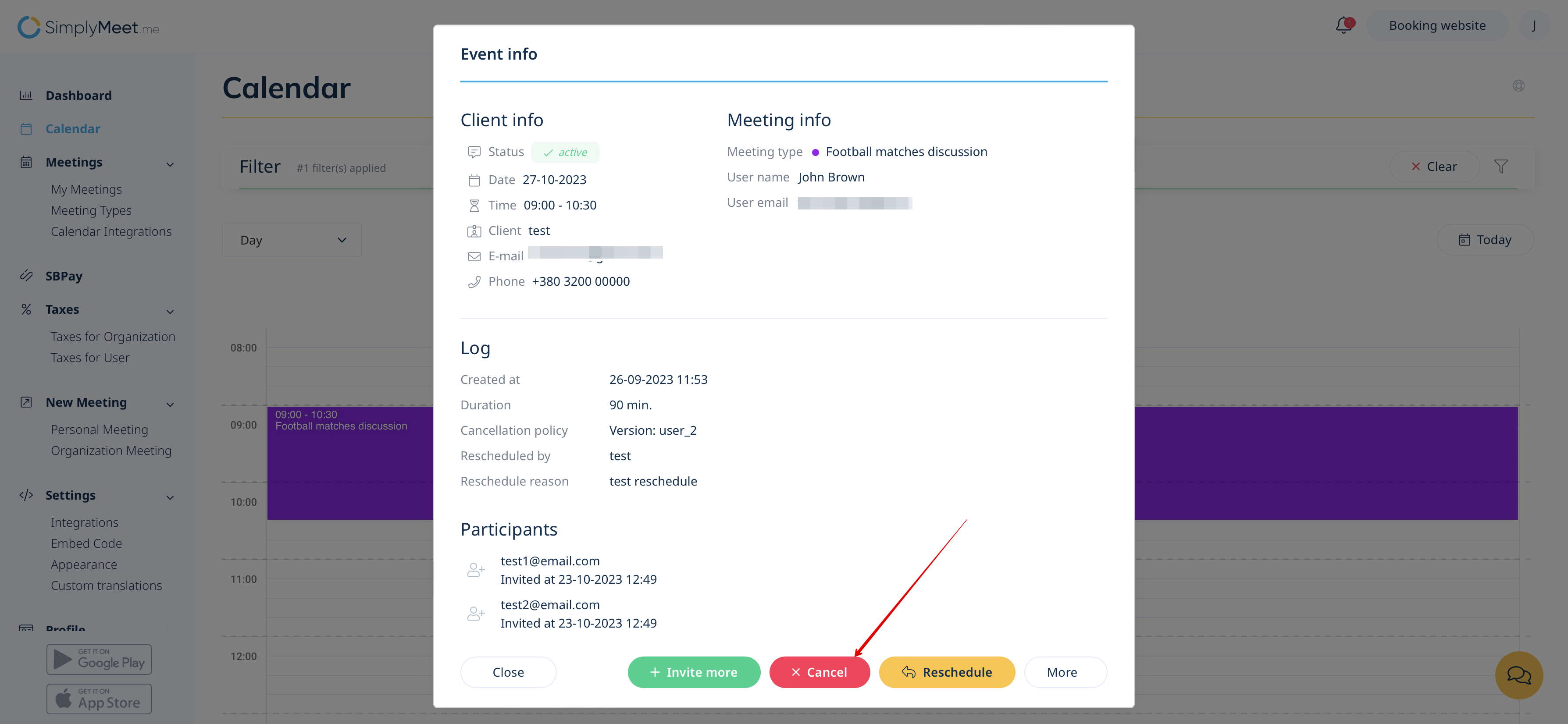
To change a meeting in Calendar (tab in the left-side menu) click on the meeting to open a form and then press Reschedule to change a meeting date and a start time.
You may also change the time of the meeting by simply drag and drop an event to the available time you need.
Please note! It is not possible to reschedule passed or canceled events.
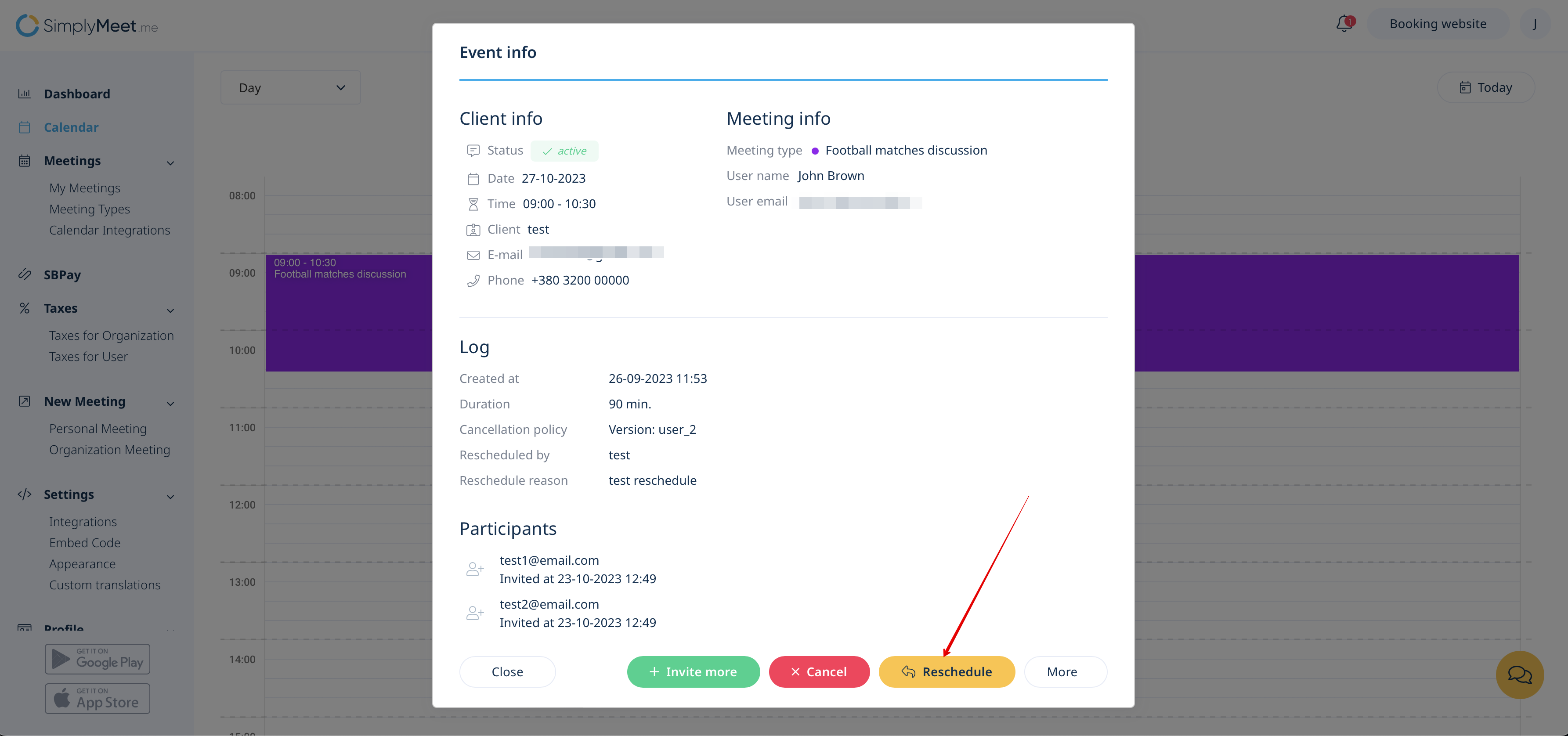
You can also easily Invite more participants and Add private notes to the upcoming meetings.
How to apply a No Show status
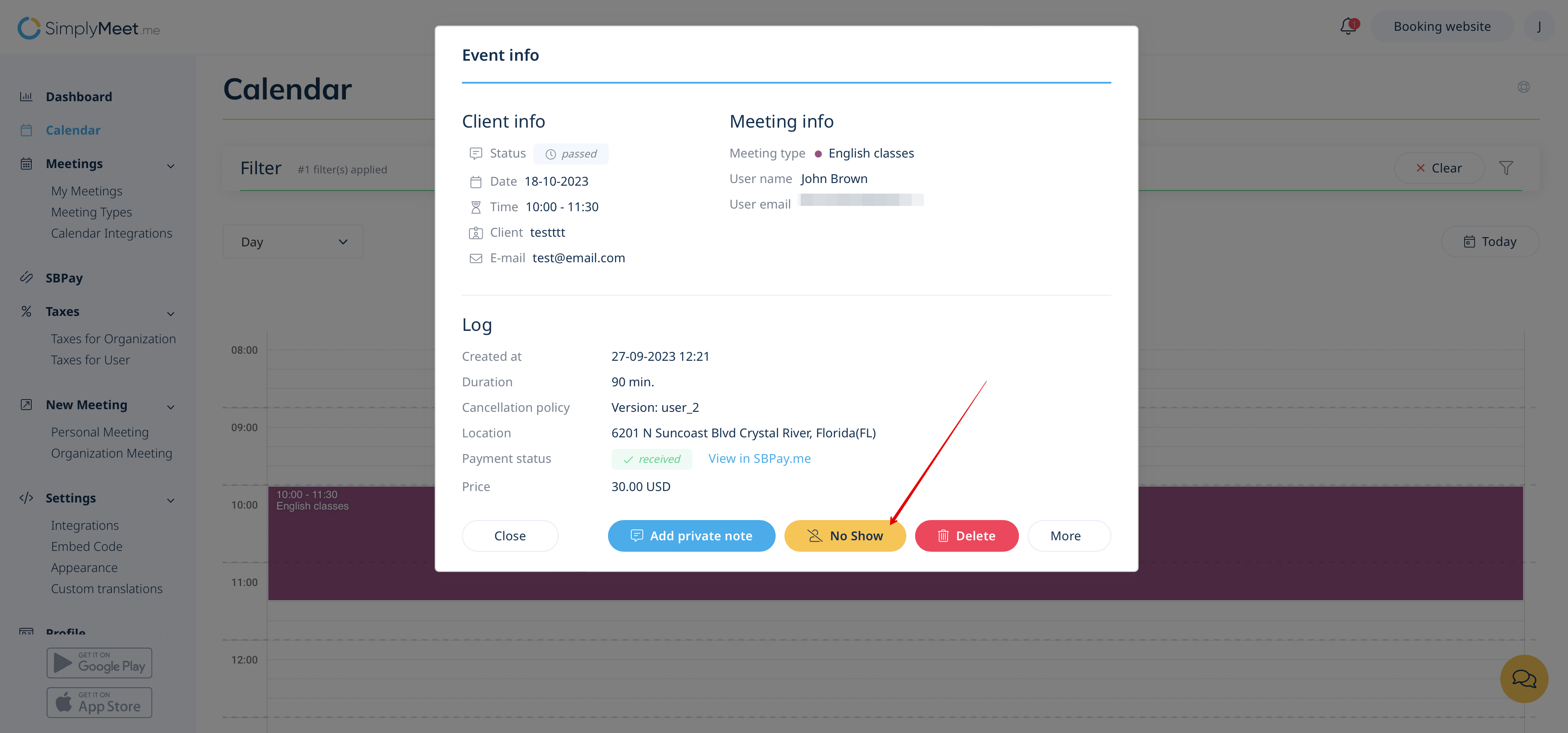
To apply a No Show status to a passed meeting in Calendar (tab in the left-side menu) click on the meeting to open a form and then press No Show to change its status.
How to cancel meetings
To cancel a meeting in Calendar (tab in the left-side menu) click on the meeting to open a form and then press on the Cancel button.
Canceled and passed meetings can be fully deleted from the internal calendar by pressing the Delete button.